| Parameter | Description |
|---|---|
| Version | Select 2013 or 2016 depending on the ESAM version supported. Auto allows Prisma to automatically detect the version from the request sent by the packager. Note: For sake of consistency, we recommend setting either 2013 or 2016. |
| Plugin | Select the manifest conditioning plugin to use. - The Plugin section is only displayed if several plugins have been loaded, else default MediaKind plugin is used. - Plugins are available from the Settings menu (see Manage Manifest Conditioning plugins). |
| Streaming protocol | Configure the way manifest will be conditioned on a per streaming formats basis. Possible values: HLS (HTTP Live Streaming), DASH (MPEG-DASH), HSS (Smooth streaming). See HLS/DASH/HSS conditioning for more details. |
NoteOnce the events are configured, conditioning on a per streaming formats basis must be configured. ## Manage variables Prisma comes with a pre-configured set of variables that you can use to manage event filtering, as well as conditioning for HLS, DASH and HSS. ### Display variables To see the list of variables, follow these steps: 1. Select the **Variables** tab. Predefined variables are displayed:If the filtering rules are related to segmentation descriptors, it returns one response per descriptor. Otherwise, there will be one response only, even if several descriptors are present.
Note2. [You can create a custom variable](/traditional-products-and-appliances/components/manifest-conditioning/configure#create-a-variable). ### Create a variable To extract a well-defined value (such as the segmentation duration of the segmentation descriptor which type ID = program start), you need to create a variable. To create a variable, proceed as follows: 1. Select **Add** located at the bottom left of the variables table. 2. Enter and/or select the appropriate value for each parameter. 3. Configure a **Name** for your newly created variable. 4. Enter a **Description** providing information about the variable. 5. Configure the **Path**: select `Edit` icon to select the variable you want to extract: 1. Under **XPath**, navigate in the SCTE-35 as follows: **AcquiredSignal** > **SCTE35PointDescriptor** > **SegmentationDescriptor**, and select the **\[i]** located at the same level as **segmentationDescriptor** 2. Select **segmentationTypeId** and associate the value **16** (decimal, which equals 0x10 for program start per SCTE-35 standard). 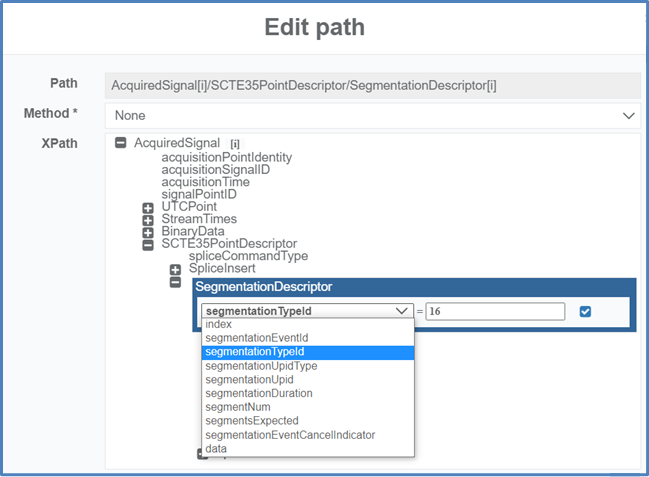 3. Select `Edit` icon. 4. Select **segmentationDuration**. 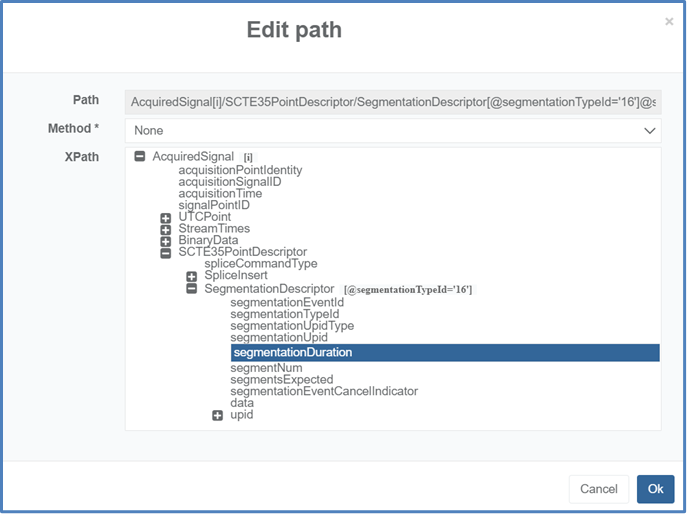 5. Leave **Method** set to **None**. 6. Select **Ok**. The path to retrieve the desired value is now configured. You need to finalize the configuration. 6. Configure the following settings.It is not possible to list all the possible variables. It is especially true when extracting a given value from an SCTE-35 segmentation descriptors: assuming that an SCTE-35 submitted by a packager contains multiple segmentation descriptors, you may want to use in your HLS or DASH conditioning the segmentation duration corresponding to the segmentation descriptor which type ID equals 0x10 (program start), and not the one corresponding to type ID = 0x01 (content identification).
| Parameter | Description |
|---|---|
| Type | Associate the most appropriate type for this value, here Number. |
| Group | SCTE-35 variables are grouped following a certain order. Here, SegmentationDescriptor is appropriate so we can quickly locate our new variable when using it by looking at the SegmentationDescriptor section in the drop-down list |
| Event filter | Shall be enabled in case the variable must be used for event identification. |
| Response | Shall be enabled in case the variable must be used for conditioning. |
| Parameter | Description |
|---|---|
| HLS | Configurable tags identifying the first, intermediate and last chunk of the event. Those are usually tags such as. Default tags used as part of Prisma are: #EXT-X-CUE-OUT; #EXT-X-CUE-IN and #EXT-X-CUE-SPAN.However, those tags are fully configurable when using the “expert” mode, enabling any type of tags like: #EXT-X-SCTE35-OUT, or Apple defined tags such as EXT-X-DATERANGE to give an example.For each of those tags, the user will be able to attach a list of attribute and value to enrich the placement opportunity signaling like the ID of the splice, the duration, elapsed time since the break started etc. |
| DASH | The conditioning information sent by Prisma is conveyed within an <EventStream> element. The value is configurable (plain text, SCTE-35 XML encoded in base64 URL etc.) |
| HSS | Conditioning information sent by Prisma is embedded within a sparse track, as plain text, XML SCTE-35 in base64 URL, binary etc.) |
Note4. Select the **Splice Insert Out with segmentation descriptor** template. 5. Select **Ok**. The HLS manifest conditioning configuration comes with a pre-defined set of tags in this case. 6. To modify the attribute and value of any tag, select the attribute, **ID** for instance: you can modify the attribute name or modify the associated value from a drop-down list. you can select a value from a list of predefined values, which meaning is described in the **Variables** tab.An Enable expert mode check box is available if you are comfortable enough with ESAM standard and conditioning process (XML-based configuration).
Note7. Validate the changes or add new conditions. A preview of the ESAM response from Prisma back to the packager is given underneath the manifest conditioning configuration:Most of these field are derived from the SCTE-35 received as binary from the packager ESAM request. Additional fields such as acquisitionPointIdentify are ESAM defined attribute from the request.
Note8. For a full control over the ESAM preview, you need to select the **Enable expert mode** when adding conditioning for HLS. In this case, pre-defined tags are not defined, instead, you can modify everything within the ESAM preview window. 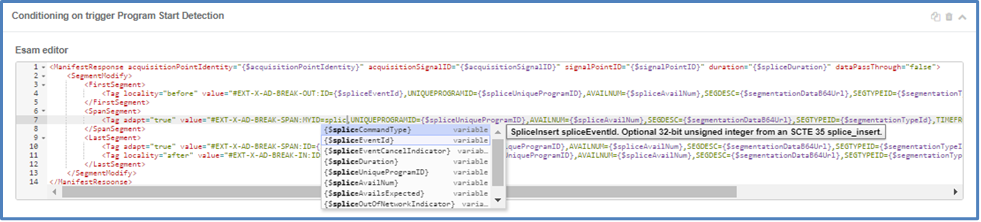 **Change the tag naming**: In our example, we replaced `#EXT-X-CUE-OUT` with `#EXT-X-AD-BREAK-OUT`. You can also modify corresponding attribute and erase the value.This ESAM preview cannot be modified, in particular the tags used which in this case are hardcoded with the following values:
#EXT-X-CUE-OUT,#EXT-X-CUE-IN,#EXT-X-CUE-SPAN.
Note### DASH Manifest Conditioning The same principles apply for DASH conditioning configuration. 1. Go to the **Dash Conditioning** tab. 2. Select **Add conditioning**. 3. Configure the conditioning (use of **Ad Break Start Detection** event configured previously, with **Splice Insert Out with segmentation descriptor** template). 4. Select **Ok**. The following conditioning information is given for configuration: - **Splice insert attributes**: similar to HLS, user can define the attribute and the value from a drop-down list and see the result within the ESAM preview. - **Segmentation descriptor attributes**: segmentation descriptors from the SCTE-35 can be added in this section, and the result reflected within the ESAM preview.When erasing the value, if you start typing a letter, a drop-down list with a list of possible values will automatically appear.
Note5. You can completely customize the conditioning using the **Expert mode**. When adding conditioning in expert mode, the following will be displayed: By default, DASH conditioning will generate an XML structure from the SCTE-35 and encode it in base64 URL (see conditioned manifest examples). This encoded is indicated as part of the ESAM response using the
<Base64Encoding>command attribute.
NoteIn this example, the
<Base64Encoding>tag has been removed, which will result in XML being transmitted as part of the DASH manifest. XML is not mandatory, you can configure plain text, and associate a value.