Note**Mutli-service descrambling**: The Receiver service has the ability to descramble multiple services from a single incoming MPTS and then decode up to 4 HD services, depending on the capabilities of the CAM fitted. _Configuration example_ Four CAM modules are required to descramble and decode 4 encrypted services from 4 independent incoming transport streams. ## Configure service decryption The unit running the MK.IO Beam Distribution must have a CI card with the correct CAMs and viewing cards. 1. From the **Home** page, select the **RECEIVER** item from the required feed then click `Edit` icon to edit 2. Select the **Decrypt** tab for the **Current Input**. 3. Select the **CAM slot** to be used to decrypt the incoming service. The incoming service is decrypted using the selected CAM. An alarm is triggered if the CAM is unable to decrypt the incoming service. 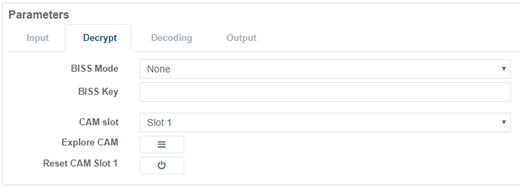 ## Explore CAM information CAM information varies per vendor and between different versions of the same CAM. You can set parameters such as the **CA PIN** or **Language**. You can see the model number, versions and CAM status. 1. From the **Home** page, select the **RECEIVER** item from the required feed then click `Edit` icon to edit 2. Select **Decrypt** for the **Current Input**. 3. Select the **Explore CAM** to see information for the selected **CAM slot**. 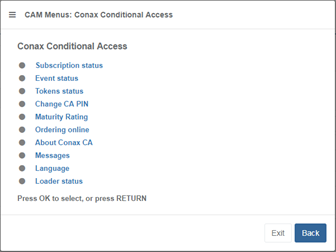 ## Reset the CAM You can trigger a soft reboot of a selected CAM.Content Processing currently only supports CI with Transport Streams up to 72 Mbps.
Caution1. From the **Home** page, select the RECEIVER item from the required feed then click `Edit` icon to edit 2. Select **Decrypt** for the **Current Input**. 3. Click the **Power** button to reset the selected **CAM slot**.Resetting the CAM causes a brief outage in the output SDI.