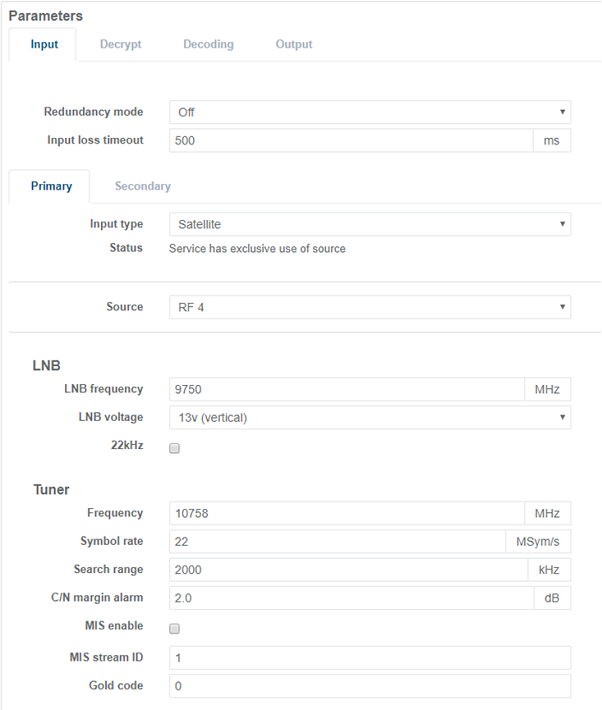
- Dektec DTA-2127
[Frequency and C/N Margin Alarm]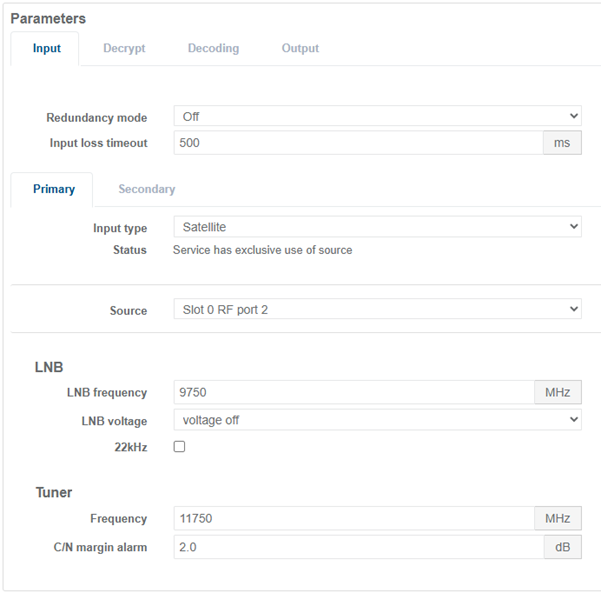
Note``` This will vary based upon the card fitted: ```Different cards are available on MK.IO Beam and RX1 for Satellite Input:
- MK.IO Beam only:
- MKP/HWO/DEMODSDI (Dektec DTA-2127 DVB-S2X Receiver with 3G-SDI Output)
- 2 x RF input ports (only one tuner/demod per RF input can be configured)
- RX1 and MK.IO Beam:
- MKP/HWO/PCI/SAT/DEMOD (Digital Devices SX8 Satellite Demod)
- 4 x RF input ports (only one tuner/demod per RF input can be configured)
Note
- Dektec DTA-2127
[Frequency and C/N Margin Alarm]
NoteThe Symbol Rate is not manually settable on the Dektec DTA-2127 because it is automatically detected.
Note5. Ensure that the **Source Status** is green (receiving) for existing sources, and that no errors occur. ### Configure the transport stream input for satellite The number of satellite inputs will depend on the option card installed. You can route each satellite input to an independent service, or route a single satellite input to multiple services. The satellite input option cards that are compatible with RX1 and MK.IO Beam will comply with the following standards: - DVB-S (EN300-421) - DVB-S2 (EN302-307-1) - DVB-S2X (EN302-307-2) DVB-S2 offers up to a 30% increase in data rate carriage for an equivalent link margin compared to what the older DVB-S standard can offer. This functionality is often partnered with MPEG-4 or HEVC compression to give bandwidth efficient distribution of high definition or ultra-high definition services. DVB-S2X is an extension to the DVB-S2 standard and can provide up to 20% performance improvement compared to DVB-S2 and increase the efficiency of satellite links. This will enable an increase in video quality or an increase in the number of video services or a reduction in leased satellite bandwidth, bringing lower operational expenditure. ## Configure transport stream input for ASI A Receiver service can support decoding or passthrough of transport streams over ASI. There are two orderable cards which can support ASI input: - MKP/HWO/PCI/SDI/DTA (deltacast-ASI-elp40 ASI card) - MKP/HWO/PCI/ASI/IN (Dektec 2174B SDI/ASI card) The Dektec 2174B card is a multipurpose card which can be used for SDI output or ASI input. If using an RX1 on which an accelerator card has been fitted, the accelerator card will be used for SDI output. If using an RX1 on which a Deltacast card has been fitted, the Deltacast card will be used for ASI input. ### Configure the card as an ASI card To use the card as an ASI card it must be configured as follows: 1. Select the **Appliance** Tab. 2. Select the **ASI/SDI interface** Tab. 3. Select the **Slot** Tab corresponding to the SDI/ASI card. If more than one card is present, there will be a separate slot tab for each card. 4. Select **4 ASI/HD-SDI/SD-SDI** from the **ASI/SDI Mode** drop down menu. This will now allow ASI to be selected as the current input in a feed. ### Configure a feed with an ASI input Before you start, ensure: - at least one feed is configured. - the following option is available within the server: **MKP/HWO/PCI/ASI/IN**. 1. From the **Home** page, select the RECEIVER item from the required feed then click `Edit` icon to edit. 2. From the **Primary** tab, select **ASI** for **Input type**.
- Digital Devices SX8
[Frequency*, Symbol rate, Search range, C/N Margin Alarm, MIS enable, MIS Stream ID, and Gold code]
Note3. Select the port on the ASI card where the transport stream is connected (the port number maps directly to the numbering on the card). 4. Configure the [**TS packet size** and the ASI **Port**](/traditional-products-and-appliances/components/receiver/parameters#asi). 5. Ensure that the [**Input Status**](/traditional-products-and-appliances/components/receiver/parameters#status) is green (receiving) and that they're no errors (this only applies if the source currently exists). ## Configure transport stream input for IP input A Receiver service can support decoding or passthrough of transport streams via Ethernet. ### Configure transport stream input for IP in unicast Before you start, ensure at least one **Receiver** service is configured. 1. From the **Home** page, select the RECEIVER item from the required feed then click `Edit` icon to edit. 2. From the **Primary** tab, tick [**Unicast**](/traditional-products-and-appliances/components/receiver/parameters#ip). [**Stream address**](/traditional-products-and-appliances/components/receiver/parameters#ip) is greyed out and a port parameter displays. 3. Enter the UDP [**Port**](/traditional-products-and-appliances/components/receiver/parameters#ip) number for the incoming transport stream. 4. Select the Ethernet port for the [**Network interface**](/traditional-products-and-appliances/components/receiver/parameters#ip) that the incoming transport stream is available on. 5. Ensure that the [**Input status**](/traditional-products-and-appliances/components/receiver/parameters#status) is green (receiving) and that they're no errors (this only applies if the source currently exists). ### Configure transport stream input for IP in multicast Before you start, ensure at least one **Receiver** service is configured. Transport streams can be streamed over either Ethernet (IP) or ASI depending on the hardware installation. 1. From the **Home** page, select the RECEIVER item from the required feed then click `Edit` icon to edit. 2. From the **Primary** tab, check that the [**Unicast**](/traditional-products-and-appliances/components/receiver/parameters#ip) checkbox is unticked then enter a multicast [**Stream address**](/traditional-products-and-appliances/components/receiver/parameters#ip).Packet size depends on the input format. For ASI options are either 188 or 204.
Note3. Enter the [**UDP port**](/traditional-products-and-appliances/components/receiver/parameters#ip) number for the incoming transport stream. 4. Select the Ethernet port for the [**Interface**](/traditional-products-and-appliances/components/receiver/parameters#ip) that the incoming transport stream is available on. 5. Ensure that the [**Input status**](/traditional-products-and-appliances/components/receiver/parameters#status) is green (receiving) and that they're no errors (this only applies if the source currently exists). ## Transport stream passthrough The Receiver service supports up to a maximum of 4 independent ‘TS passthrough’ **Receiver** services. The incoming transport stream can be received via either the IP, ASI or Satellite interface and can be routed unaltered to the IP output interface. It is possible to decrypt up to 15 services from the incoming TS using BISS v1, BISS v2 (including BISS-CA), Director or Common Interface (if fitted) before the stream is routed to the output. 1. From the **Services** page, click **Add** service then select **Receiver**. A new window opens. 2. Configure the following parameters: - Enter a suitable **Name** for the service. - Select the **Type** to be **TS Passthrough**. - Select the **Server** to be Receiver to create and configure the service. 3. Click `Edit` icon to edit the service. 4. See [Configure the input](/traditional-products-and-appliances/components/receiver/input#transport-stream-passthrough) for how to set up in the input interface to receive the incoming transport stream. 5. See [Configure the decryption](/traditional-products-and-appliances/components/receiver/decryption) for how to decrypt any of the incoming service in the transport stream.The Multicast parameter is grayed out if Unicast is selected.
Note6. Select the **Output** tab from the **Parameters** window. A new window opens. 7. Configure the following parameters: - Select the **Network interface** for the outgoing transport stream. - Enter a **Stream address** (Multicast IP address) and **UDP port** number for the outgoing transport stream. - Enter the **Time to live** for the outgoing data packets.A maximum of 15 Transport stream services can be decrypted.