Note### Select the HDR Down-conversion mode To select the HDR down-conversion mode, follow these steps: 1. From the homepage, select the **Servers** menu, then click `View` icon in the **Actions** column to view server information. 2. Navigate to the **Appliance** tab, then select the **HDR->SDR Conversion** tab on the resultant window. 3. Select the required standard using the **HDR to SDR standard** drop down list. The possible values are **HDR10 and PQ10** or **HLG10**. 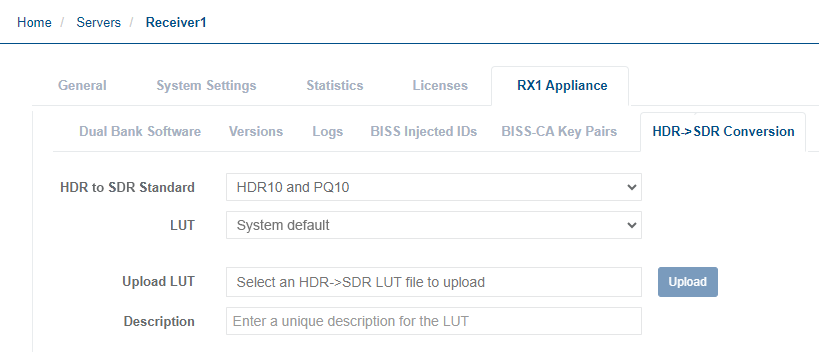The receiver is only capable of setting up 1 conversion within the unit. Individual outputs do not have the ability to uniquely configure their conversion characteristics.
Note### Upload Custom LUTs Each of the above modes can be supported by either a default LUT or a custom LUT (Look UP Table) uploaded into the unit (uploaded as a .cube file), these should be 3D LUTs of size 33.\ The unit can upload 5 custom LUTs.If the incoming HDR standard is not the same as selected within the drop down, an alarm will be seen.
NoteTo upload and select a LUT, follow these steps: 1. Navigate to the **HDR->SDR Conversion** tab as detailed above. 2. Select the **Upload LUT** textbox. A file explorer window will appear. 3. Navigate to the LUT file to upload. Note that the receiver will only accept LUT files in `.cube` form. 4. At this stage, a description of the LUT may be added. 5. Once the file has been selected click the **Upload** icon. ### Select Custom LUTs The user can select from default or custom LUTs uploaded. To select the required LUT, follow these steps: 1. Navigate to the **HDR->SDR Conversion** tab as detailed above. 2. From the **LUT** drop down select the desired LUT (either default or an uploaded custom LUT). ### Configure HDR to SDR Decoding Per Service The user can enable HDR to SDR conversion for each decode service.The receiver cannot determine if the custom LUT being used is correct for ‘HDR10 and PQ10’ or ‘HLG10’. Care should be taken when selecting the custom LUTs.
NoteTo do this, follow these steps: 1. From the **Home** page, select the **RECEIVER** item from the required feed then click `Edit` icon. 2. From the **Parameters** section, select the **Decoding** tab. 3. Tick the **HDR to SDR conversion** checkbox. 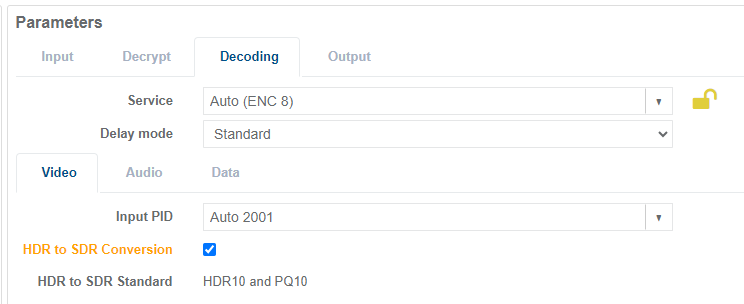The receiver cannot configure different conversions or LUTs for each service.