
Access, users and teams
MK.IO uses role-based access control (RBAC) to manage who can access resources and what they can do. Users are assigned permissions through teams, allowing you to control access to projects across your organization.
Concepts
- Organization: A company or group that uses MK.IO.
- Project: Holds resources such as assets, live events, and transforms. Projects are linked to an organization and to a subscription or payment method for billing.
- User: An individual who may belong to multiple teams and organizations. A user's permissions are granted through teams.
- Team: A group of users within an organization. Teams are granted permissions on projects and resources.
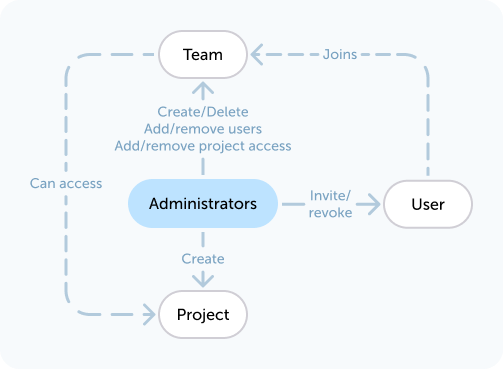
The first user in an organization is automatically granted Administrators access. Administrators have full control over the system, including the ability to invite users and create new teams.
Manage teams
Project access is granted to users through teams. By default, every organization has two predefined teams: Administrators and Everyone.
- Administrators — full access and administrative rights to all projects, including organization-level permissions such as viewing billing information.
- Everyone — automatically includes all users in the organization. By default, this team provides access to all projects at a permission level set by Administrators: either User or Reader. Optionally, it can be configured to have no access.
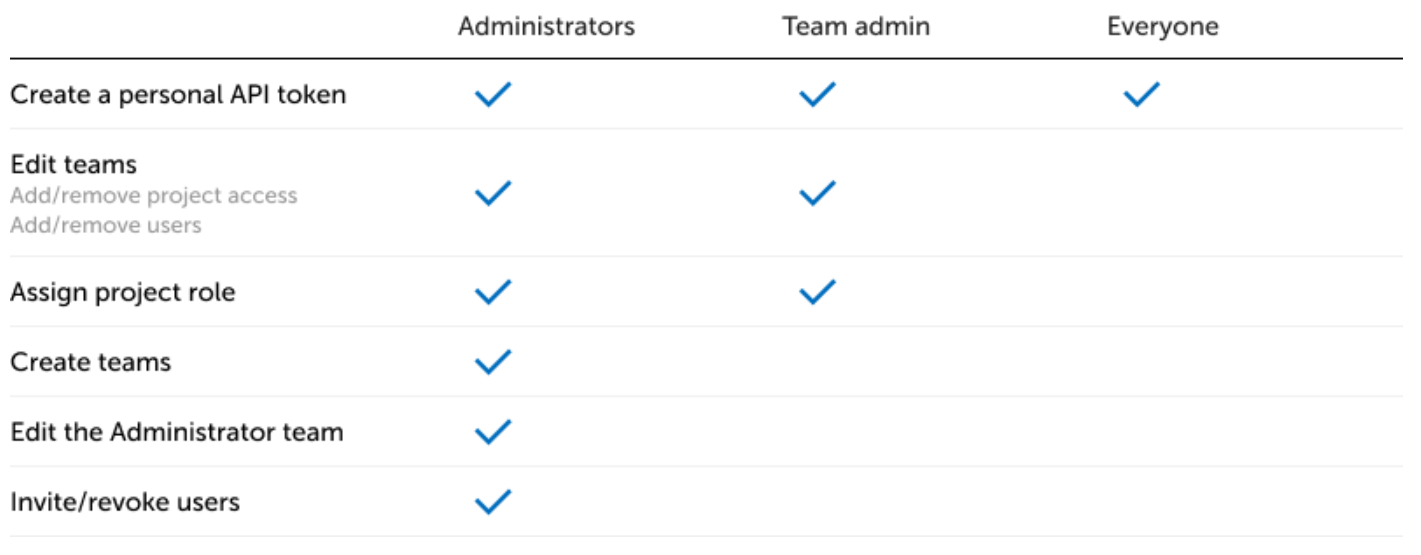
Create a team
This action is only available to members of the Administrators team.
- From the profile drop-down menu in the top right corner, navigate to Organization Settings, then select Access Management.
- From the Teams tab, click Create Team, then enter a name and a description.
- Click the team name to open it and manage members, projects, and access levels.
Edit team members
This action is only available to members of the Administrators team, or Team admins for the relevant team.
From the Teams tab, select a team. Use the Add user button to add members. To set a user as a Team admin or remove them from the team, select the three-dot menu to the right of their username.
Edit project access for a team
This action is only available to members of the Administrators team.
- From the Teams tab, select a team.
- In the right-hand pane, add the projects the team should have access to.
- For each project, select the access level:
- Reader — read-only access.
- User — full access to create and modify objects in the project.
Edit team details or delete a team
This action is only available to members of the Administrators team.
From the Teams tab, select the three vertical dots in the top right corner, then select the appropriate action.