
Advanced interface overview
The MK.IO Beam interface is designed for operators to simplify and accelerate feed configuration and control. The interface allows viewing all the running services as well as alarms and warnings in a single view. You can easily start or stop the services without navigating to the sub-menus.
Home page
Section titled “Home page”When you connect to MK.IO Beam, the Home page is displayed:
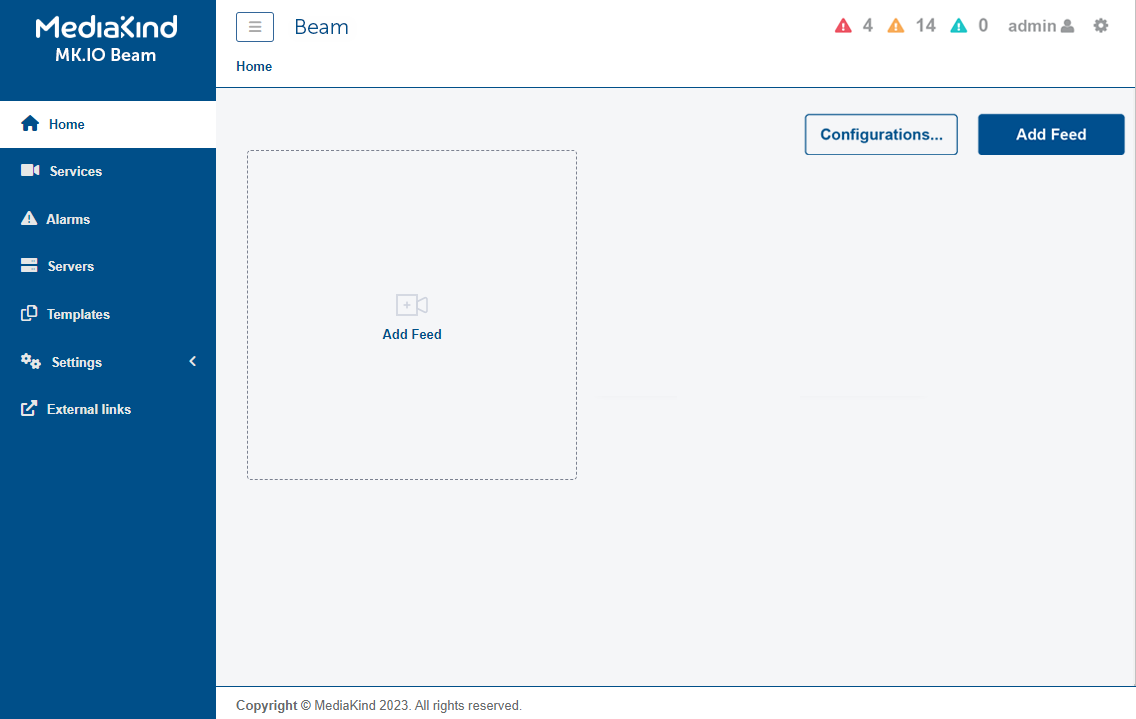
At the first connection, no feeds are created.
Add a feed
Section titled “Add a feed”To add a feed, follow these steps:
-
Click the Add feed icon. A new window is displayed.
-
You can either:
- Create a feed using default configurations. When creating a feed for the first time, use this method.
- Reuse a saved configuration.
Create a feed using default configurations
Section titled “Create a feed using default configurations”To add a feed, follow these steps:
-
Under Feed types, select a feed type. The selected template is surrounded by a blue frame.
-
Enter a name for that feed then click the Add feed button. A new feed is displayed on the Home page. This feed has some basic predefined settings for Live Encoder and Multiplexer components, but you will need to complete and configure some parameters.
Feed monitoring panel
Section titled “Feed monitoring panel”Once you have created a feed, it is added to the Home page. For each feed, the following information is displayed:
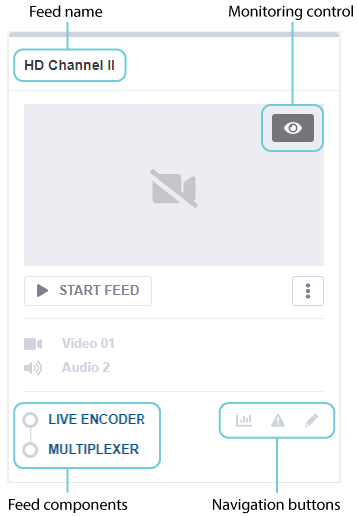
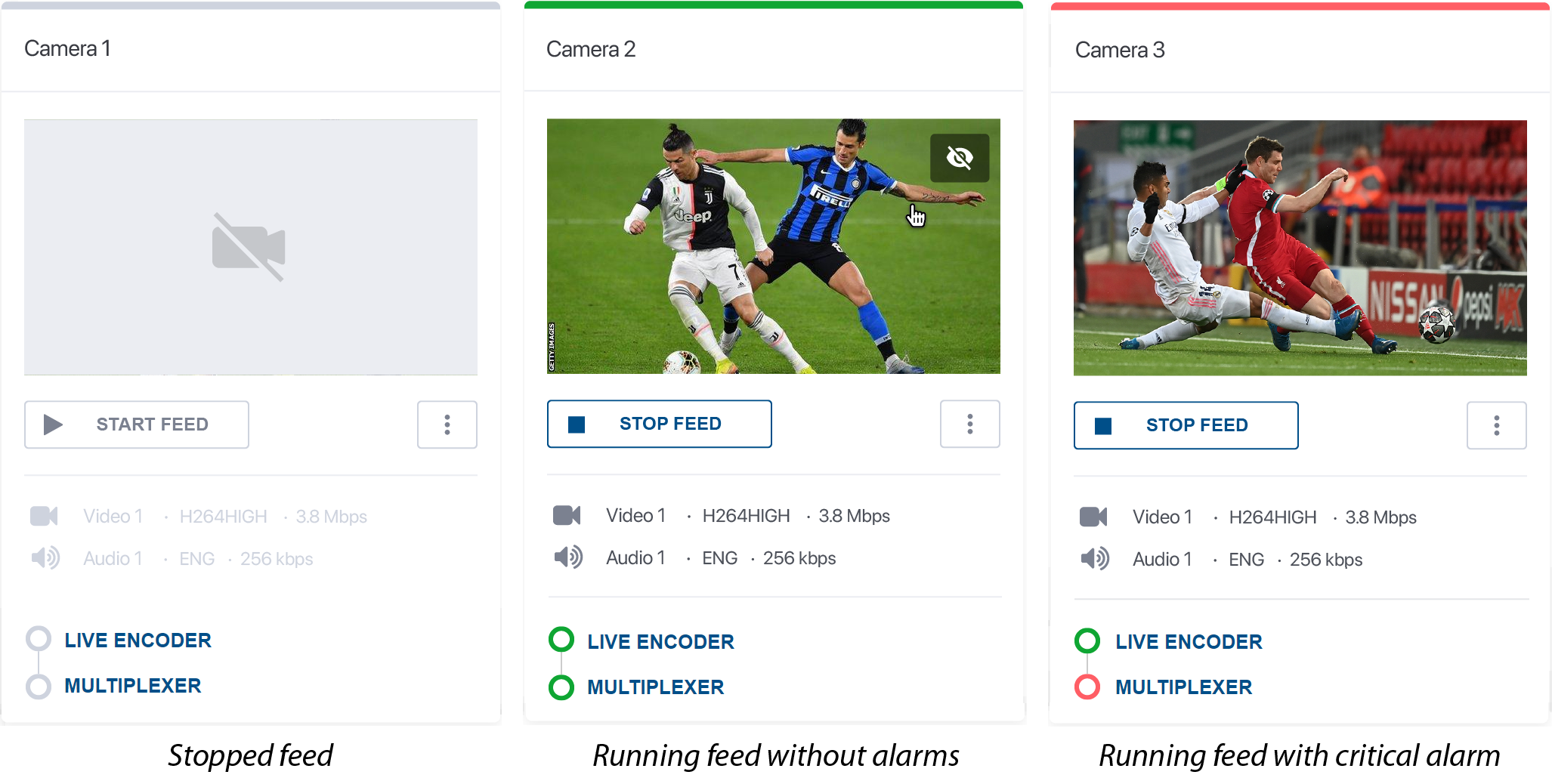
Depending on the feed status, the feed monitoring panel color may change. For more information on alarms, see Manage alarms.
Reuse a saved configuration
Section titled “Reuse a saved configuration”Before you start: ensure you have previously saved an existing configuration.
To reuse an existing configuration, follow these steps:
-
Select the saved configuration from the list in the Saved Configuration section of the Add Feed dialog.
-
Set the Feed name.
-
Click the Add feed button. A new feed is displayed on the Home page. This feed can be edited, started, saved, or downloaded.
Save an existing feed configuration
Section titled “Save an existing feed configuration”You can save an existing feed configuration. The saved configurations can then be reused thus facilitating a new feed configuration process.
To save a feed, follow these steps:
-
From the Home page, select a feed then click
 then select Save Configuration from the menu.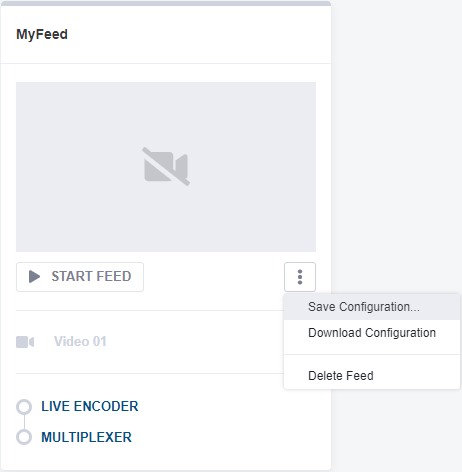
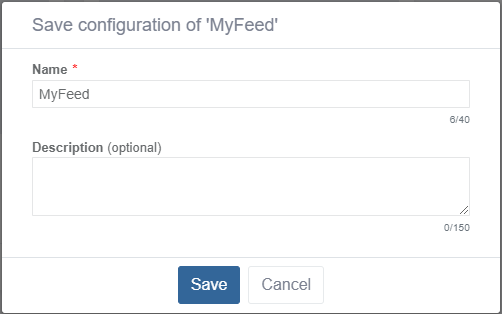
A new window is displayed.
-
Enter a Name and a Description then click Save.
For the Description, we recommend entering useful details that will help to know what parameters are set.
-
Click Save to validate. A message informs you that the configuration was saved.
You can access the saved configurations by clicking the Manage configurations link in the top right corner of the Home page. Saved configurations can then be renamed, deleted, or downloaded.
Export an existing feed configuration
Section titled “Export an existing feed configuration”To export an existing channel configuration, follow these steps:
-
From the Home page, select a feed then click the
then select Download Configuration from the menu.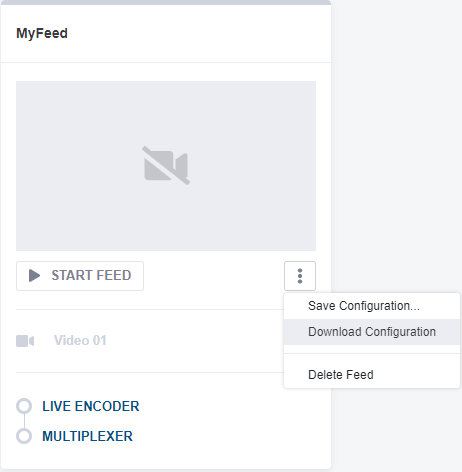
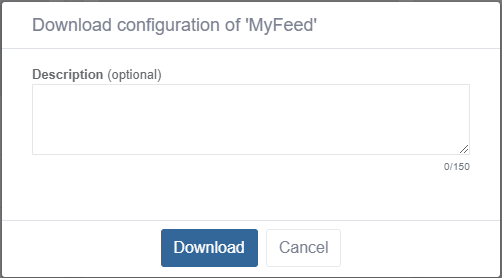
A new window is displayed.
-
Enter a Name and a Description then click Download.
-
Locate the folder where you want to export the configuration, enter a file name then click Save.
The configuration is downloaded. The exported configurations can then be sent by email, imported on the same device or onto another device.
Import an existing feed configuration
Section titled “Import an existing feed configuration”Before you start: ensure you have previously exported a feed configuration.
To import a configuration, follow these steps:
-
From the Home page, click the Manage Configurations in the top right corner.
-
You can either:
-
Drag and drop a configuration file,
-
or click on the Add from file area. A file explorer will be shown, select your file from the file explorer.
-
This new configuration is added to the saved configurations. You can change the name and description.
Show active feeds on top
Section titled “Show active feeds on top”The home page displays a maximum number of 32 feeds. You can toggle the Show running feeds at the top button to display the active feeds at the top of the home page.
This setting is retained per browser session and will need to be re-enabled after closing and re-opening the browser.
Delete a ghost feed from the Home page
Section titled “Delete a ghost feed from the Home page”It is best practice to delete and create feeds from the Home page.
-
When a user starts services from the service page, the thumbnails on the Home page will not be updated until the feed is started again from the Home page.
-
When a user deletes a service from the service page, the feed on the MK.IO Beam home page remains present and has to be deleted manually.
To delete such a feed, follow these steps:
-
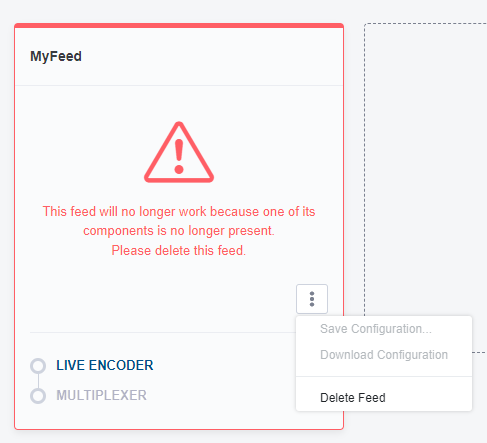
Go to the Home page. The feed will still be shown on the homepage, with a warning displayed.
-
Click
then select the Delete feed option.