
Configure SDI output
The Receiver service on MK.IO Beam can output uncompressed digital video, audio, and ancillary data using the SDI output standards.
Supported SDI Output Cards
Section titled “Supported SDI Output Cards”SDI output on MK.IO Beam requires supported hardware option cards. See the SDI Output section in the technical Reference documentation for a list of compatible cards.
Configuring SDI Output
Section titled “Configuring SDI Output”Configuring ASI/SDI mode
Section titled “Configuring ASI/SDI mode”To use the card as a SDI output card it must be configured as follows (see also Set up SDI/ASI cards):
-
Select Appliance from the left-hand side menu.
-
Click the ASI/SDI Interface tab.
-
Select the Slot Tab corresponding to the SDI/ASI card. If more than one card is present, there will be a separate slot tab for each card.
-
Select the appropriate ASI/SDI mode from the ASI/SDI Mode drop down menu. The description shows which SDI standards are supported (for example, UHD output may not be supported).
-
Click the Apply and Reboot button.
-
A confirmation pop-up window will appear asking, “Are you sure?”
-
Review any warnings or guidance provided. If you are sure, click Yes, configure and REBOOT! Otherwise, click Cancel to abort.
-
Following the reboot, refresh the web page. The reboot may take a few minutes to complete.
Determine SDI output card Slot number
Section titled “Determine SDI output card Slot number”SDI port selection is referenced with its card slot number to differentiate where multiple cards are fitted to the server. The card name/type for an assigned slot number can be determined using the following steps:
-
Select Appliance from the left-hand side menu.
-
Click the ASI/SDI Interface tab.
-
Select the Slot Tab corresponding to the SDI/ASI card. If more than one card is present, there will be a separate slot tab for each card.
The selected Slot tab should list some useful data such as card model, serial number, etc.
There is a known issue on some servers where the reported slot number does not match the slot number printed on the rear chassis.
SDI output port
Section titled “SDI output port”Before you start, ensure at least one Receiver service is configured.
-
From the Home page, select the RECEIVER item from the required feed then click
 .
. -
In the Parameters window, select the Output tab.
-
Select the SDI 1 tab. If the SDI tab is not present under the Output tab:
- Click the
 to bring up a prompt to add a new output
 - Select SDI from the drop down menu
- Click the Add button to complete and add the SDI output tab
- Click the
-
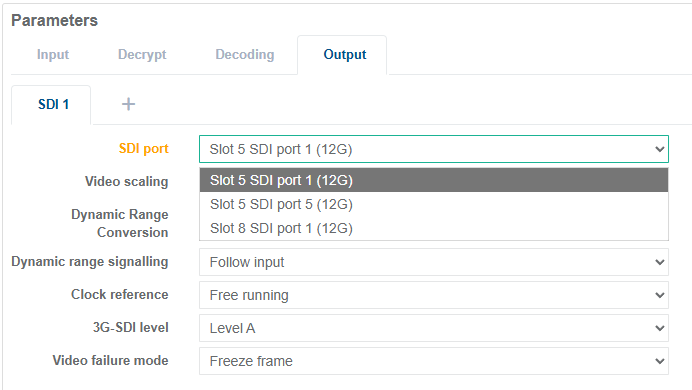
Select the SDI port required from the drop down menu.
-
Select any required video options as detailed in the SDI output parameters section
SDI ports in use by other running services are listed in the drop-down menu, along with the associated service name. A service configured to use an SDI port that is already in use will be prevented from running.
If an SDI port appears to be missing or listed as 3G-capable instead of 12G-capable, this may be due to the selected ASI/SDI mode. Refer to the Configuring ASI/SDI mode section to update the setting.