
Purpose
This page describes a procedure to reset the mfeng user password of a Beam 1.x.x server in case:
- you have forgotten it
- you inherit a Beam unit and do not know the mfeng user password
Pre-requisites
You will need console access to see and interact with the bootloader.:
- Either at a keyboard and monitor locally
- Or via Virtual Machine remote console
Steps
- Reboot the machine: As soon as the bootloader comes up with the selection screen, quickly tap the up and down arrow keys to pause the countdown.
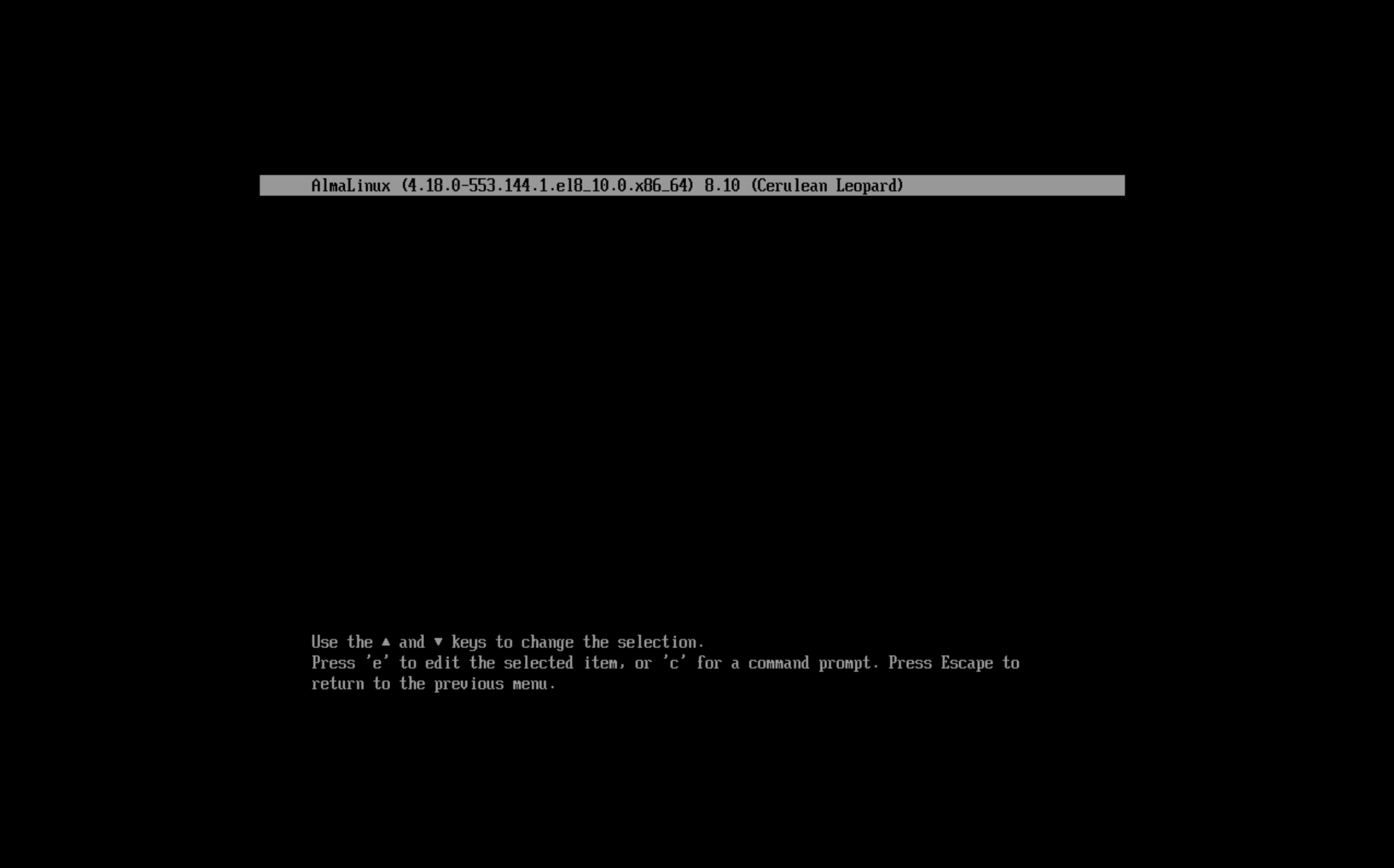
- Select the kernel you want to boot into. In the screenshot above, the kernel is
AlmaLinux (4.18.0-553.144.1.el8_10.0.x86_64) 8.10 (Cerulean Leopard). Hite: This will take you into a screen where you can edit the grub bootloader script.
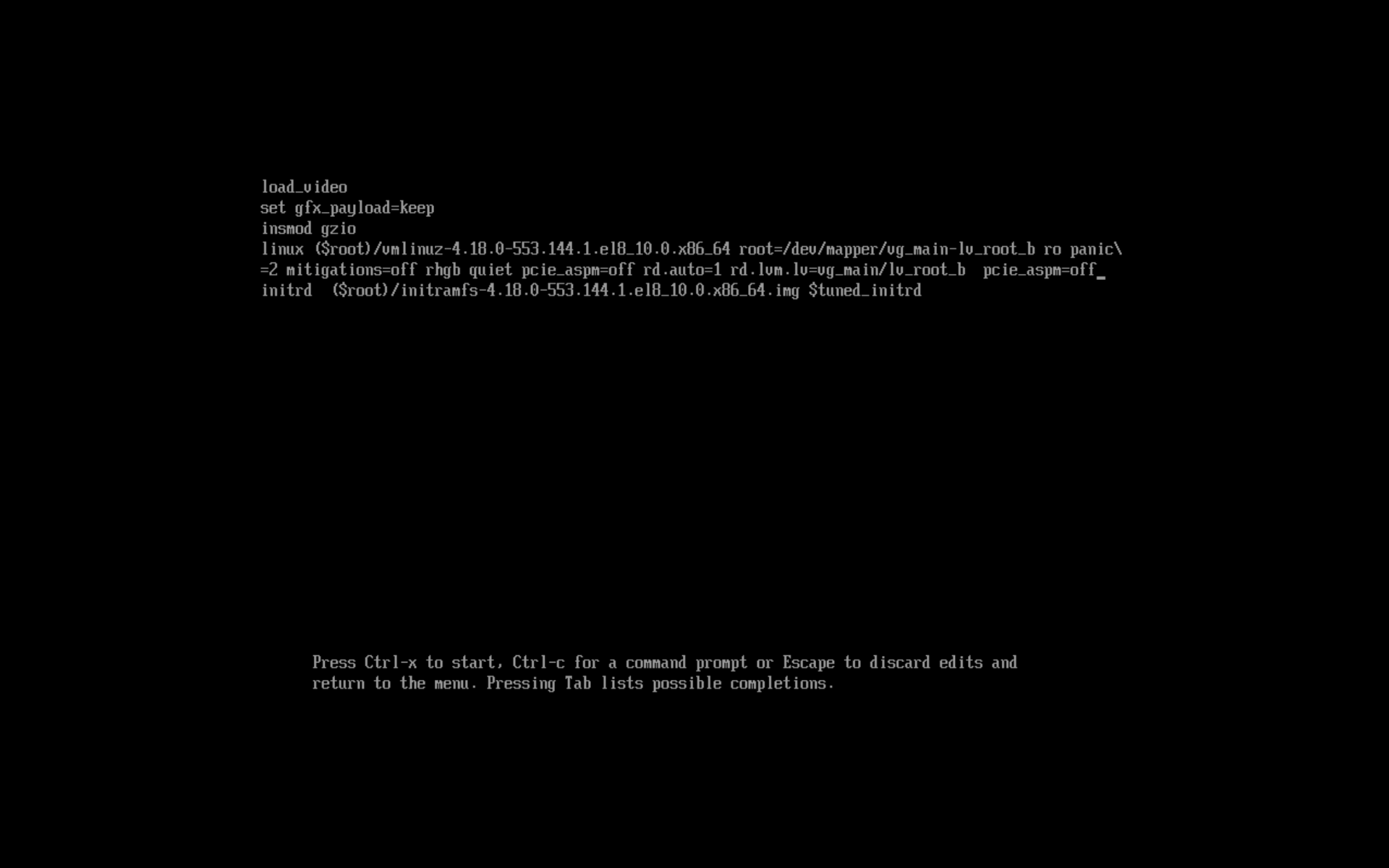
- Find the line that refers to the kernel: There will be a series of boot parameters here: these are instructions passed during the loading of the kernel. For RHEL/CentOS/AlmaLinux/RockyLinux 8x or above the line usually starts with
linux.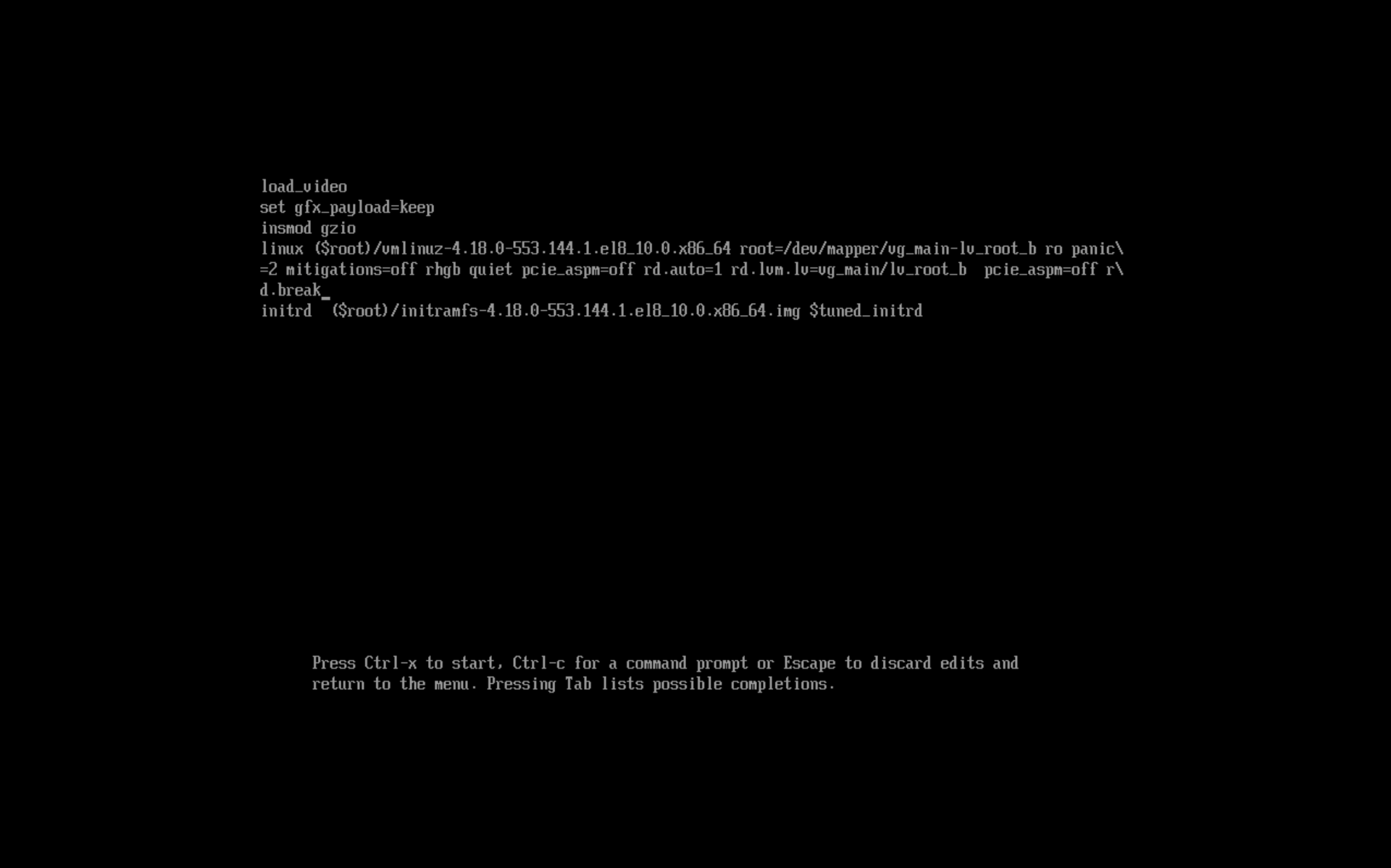
- Add
rd.breakat the end of that line (There are other things you can do here, but for now, this is all you need) Note: This change is temporary.. - Now hit Ctrl-x to run the edited bootloader script.
- You’ll boot to a 'rescue' prompt that looks like this:
switch_root:/#.
- Remount the root partition in read-write mode so that you can run commands. Enter the following:
mount -o remount,rw /sysrootand then hit ENTER. - Now type
chroot /sysrootand hit enter. This will change you into the sysroot (/) directory, and make that your path for executing commands. - Now you can simply change the password for mfeng using the
passwd mfengcommand.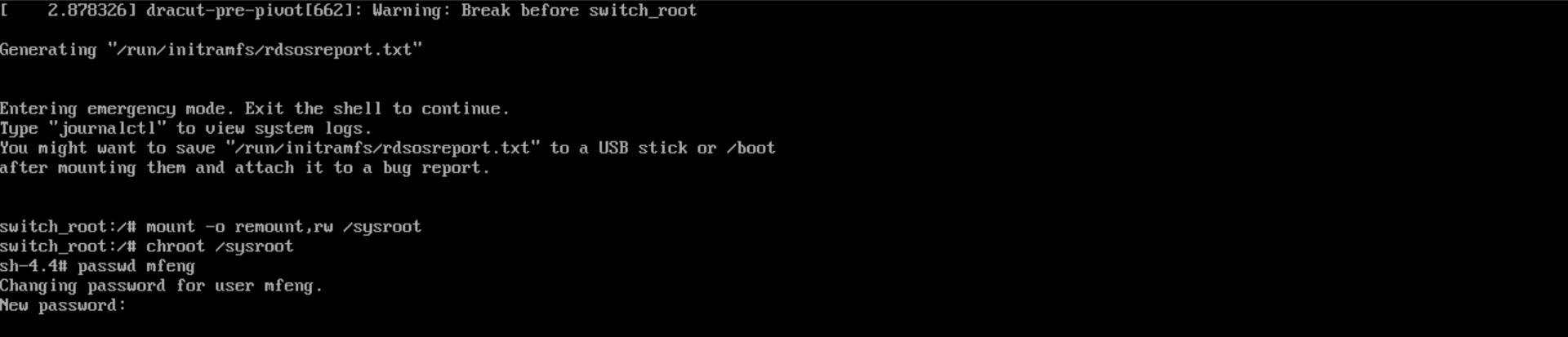
- You should get confirmation that the password was changed, such as:
passwd: all authentication tokens updated successfully. - Next, before you reboot, you will need to make sure that SELinux allows the file changes. At the prompt ,enter:
touch /.autorelabel. This will signal SELinux on the next reboot that the filesystem has changed (the changed password) and allow the change to be loaded. This will cause the whole filesystem to be 'relabeled' which might take a while, depending on the size of the filesystem and the speed of the machine, so be aware of this possibility. - Type
exitto leave the chroot environment and enterreboot.
The system will reboot and SELinux should attempt to relabel files. Once relabelling is complete, the system should reboot again and present the regular terminal prompt.
Congratulations, you've reset the mfeng user password!