HDR to SDR Conversion
MK.IO Beam supports HDR-to-SDR conversion for decoded video, compressing the dynamic range of HDR content to ensure compatibility with standard dynamic range (SDR) systems.
Supported HDR formats
Section titled “Supported HDR formats”Conversion is supported for the following HDR formats:
- PQ10/HDR10
- HLG10
Inputs in these formats are tone-mapped to SDR, producing an SDR signal with transfer characteristics compliant with BT.709, as defined by the selected tone-mapping lookup table (LUT).
Configuring HDR to SDR Conversion
Section titled “Configuring HDR to SDR Conversion”Enabling Dynamic Range Conversion
Section titled “Enabling Dynamic Range Conversion”Each Receiver service can be configured for HDR to SDR conversion. Before you start, ensure at least one Receiver service is configured.
-
From the Home page, select the RECEIVER item from the required feed then click
 .
. -
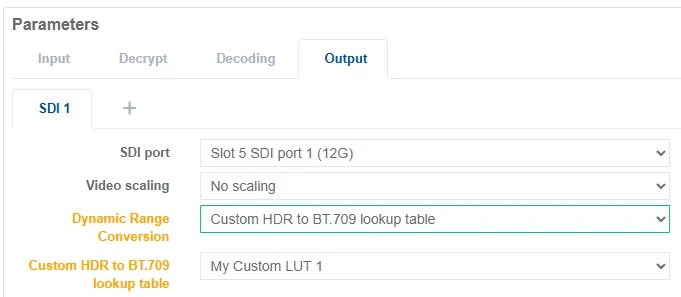
In the Parameters window, select the Output tab.
-
Configure HDR-to-SDR conversion by setting the Dynamic Range Conversion option to one of the following selections:
- None: HDR-to-SDR conversion is disabled; the video is passed through unchanged
- Custom HDR to BT.709 lookup table: Use the specified custom LUT to output BT.709 encoded SDR
- Convert to BT.709: Use proprietary tone-mapping LUT to output BT.709 encoded SDR
-
If Dynamic Range Conversion has been set to Custom HDR to BT.709 lookup table then select the required custom LUT description from the Custom HDR to BT.709 lookup table drop-down option.
-
Click Save and continue to save your changes.
- If the incoming stream is already SDR, conversion is automatically bypassed.
- It cannot be verified whether a selected custom LUT is compatible with the supported HDR formats listed above, so care should be taken when selecting custom LUTs.
- If an issue occurs during HDR-to-SDR conversion, an alarm is raised.
HDR to SDR Conversion Lookup Tables
Section titled “HDR to SDR Conversion Lookup Tables”HDR-to-SDR conversion uses 3D look-up tables (3D LUTs), provided as .cube files, to map input RGB values to output RGB values within a three-dimensional grid, enabling complex colour transformations.
MK.IO Beam supports size 33 LUTs.
Viewing Stored LUTs
Section titled “Viewing Stored LUTs”Multiple LUTs can be stored on MK.IO Beam and individually selected by a Receiver service. The Stored LUTs section lists custom LUTs which have been uploaded to the MK.IO Beam device:
-
Select Appliance from the left-hand side menu.
-
Click the HDR > SDR Conversion tab.
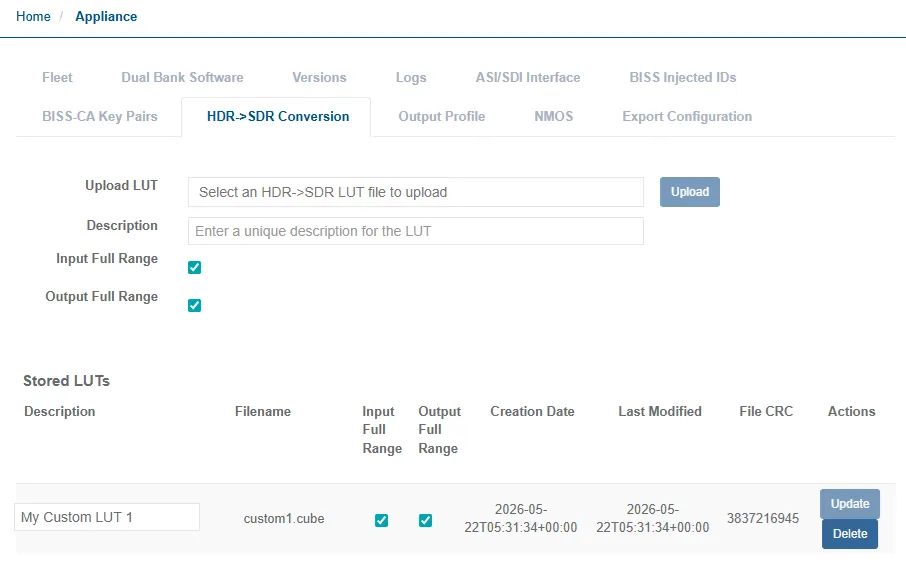
Each row in the Stored LUTs section provides the following information and their current settings. Some settings can be modified and saved using the Update button.
| Parameter | Description |
|---|---|
| Description | The reference description given to the custom LUT. This will be listed in the selection when configuring HDR to SDR conversion in the Output settings of a Receiver service. |
| Filename | The filename of the .cube file that was uploaded. |
| Input Full Range | This determines whether input samples are processed using the full (EBU R 103) range or the standard (limited) YUV range. |
| Output Full Range | This determines whether output samples are processed using the full (EBU R 103) range or the standard (limited) YUV range. |
| Creation Date | Date and time when the custom LUT was uploaded. |
| Last Modified | Data and time when the custom LUT was last modified. |
| File CRC | Unique CRC value of the .cube file that was uploaded. |
| Actions | Possible actions for the custom LUT: - Update: Any modifications must be saved by using this button - Delete: Delete the custom LUT from the device |
Built-in LUTs
Section titled “Built-in LUTs”MK.IO Beam includes built-in 3D LUTs. These do not appear in the Stored LUTs table on the Appliance pages, but are available for selection when configuring HDR to SDR conversion in the Output settings of a Receiver service. See the Configuring HDR to SDR Conversion section for more information.
Uploading Custom LUTs
Section titled “Uploading Custom LUTs”To upload additional LUTs, follow these steps:
-
Select Appliance from the left-hand side menu.
-
Click the HDR > SDR Conversion tab.
-
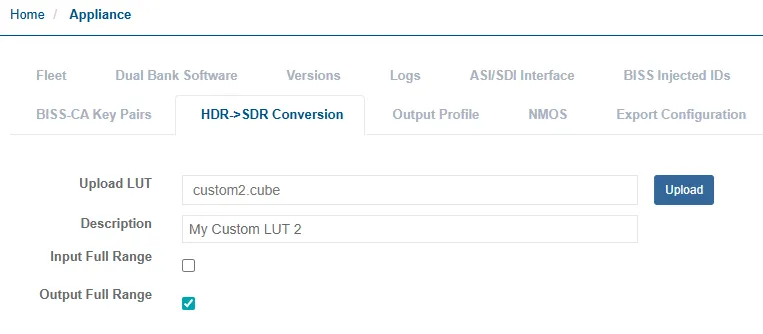
Select the Upload LUT textbox. A file explorer window will appear.
-
Use the file explorer to navigate to the LUT file to upload. Only .cube files will be accepted by MK.IO Beam.
-
Click the Description testbox to add a unique description of the LUT so that it can be easily referenced when enabling Dynamic Range Conversion.
-
Enable or disable the Input Full Range setting as required.
-
Enable or disable the Output Full Range setting as required.
-
Once the settings are complete, click the Upload button to store the custom LUT on the device.