
Configure the output
Configure the output stream general parameters
Section titled “Configure the output stream general parameters”To configure the output stream general parameters, follow these steps:
-
From the Output tab, click
 to edit the output parameters. The Output parameters display.
 -
Configure the General parameters.
-
With MPEG-2 TS output, configure the associated parameters.
-
With DASH-IF CMAF Ingest, configure the associated parameters.
-
Configure the output streams.
-
Click Save and continue or Save and exit to save your changes.
Activate EBP on audio output
Section titled “Activate EBP on audio output”-
From the Output tab, click
to edit the output. -
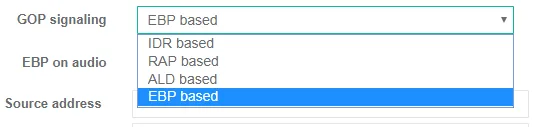
From the General parmeters section, unfold the GOP signaling dropdown menu to display possible values.
-
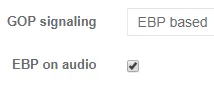
Select either EBP based or ALD based to display EBP on audio checkbox.
-
Tick the checkbox to activate EBP on audio, then click OK.
Configure the output stream MPEG-2 TS parameters
Section titled “Configure the output stream MPEG-2 TS parameters”To configure the output stream MPEG-2 TS parameters, follow these steps:
-
From the Output tab, click
to edit the output. -
Go to the Common MPEG-2 TS parameters section. The MPEG-2 TS parameters are displayed.
-
Enter the appropriate values for each MPEG-2 TS parameter.
-
You can specify the streams that will be included in the output stream).
-
Click Save and continue or Save and exit to save your changes.
Create output streams
Section titled “Create output streams”Before you start: ensure input streams are configured.
-
From the Output tab, click
to edit the output. -
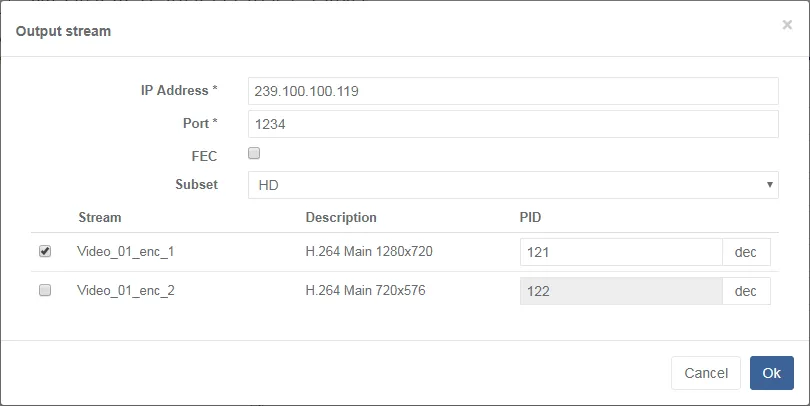
Go to the Output streams section then click the Add button. Output stream parameters are displayed.
-
Configure settings and select streams.
-
Activate FEC to display additional FEC options.
-
Link the output to a predefined subset to synchronize streams or to distribute the streams across multiple servers.
-
Select any video, audio or subtitle streams to add to the output.
-
Click Ok to save.
Define the output stream composition
Section titled “Define the output stream composition”You can specify the composition of the output stream by selecting the video, audio and private streams that will be sent to the output.
Before you start: ensure input stream configurations are set.
-
From the Output tab, click
to edit the output. -
Go to the Output streams section then click
to edit the output stream.
Example of output stream configuration -
Tick the check boxes to select the streams to include in the output. Available streams depend on configured Inputs, Processing, and Encoding options.
- video
- audio
- subtitle
- metadata
- etc.
By default, one transport stream is defined using the first video stream and the first audio stream.
-
Click Ok to confirm. The output stream configuration is displayed in the output stream IP address and stream composition.
-
Click Save and continue or Save and exit to save your changes.
Activate FEC on existing output streams
Section titled “Activate FEC on existing output streams”Only available with MPEG-2 TS/RTP transport protocol.
-
From the Output tab, click
to edit the output. -
Go to the Output streams section then click
to edit the output stream. -
Tick the FEC checkbox to activate. Additional FEC parameters display.
-
Enter FEC parameters
-
Click Ok to save.
Link an output stream to a predefined subset
Section titled “Link an output stream to a predefined subset”You can link an output stream to a subset. Once linked, these subsets can be used to synchronize streams or to distribute the streams across multiple servers.
Before you start: ensure server subsets are created.
-
From the Output tab, click
to edit the output. -
Go to the Output streams section then click
to edit the output stream. -
For the Subset parameter select an existing preset in the drop-down list. The output stream is linked to the selected subset.
-
Click Ok to save.
Configure a DASH-IF CMAF output
Section titled “Configure a DASH-IF CMAF output”DASH-IF CMAF Ingest is a protocol for transport of fragmented MP4 in CMAF container format between Live Encoder and a Packager.
To configure a DASH-IF CMAF output, follow these steps:
-
From the Encoding tab, go to the Video > Gop settings section then enter a value for Low latency fragment(s) per GOP (see GOP settings).
-
From the Output tab, create or edit an existing output.
-
In the General parameters section, set the Transport protocol to DASH-IF CMAF INGEST, then define the associated parameters (see Output general parameters).
-
In the MP4 general parameters section, set the number of GOPs per segment. You can optionally enable Low latency and Unix epoch relative timestamps. Fragment(s) per GOP value is retrieved from the Low latency fragment(s) per GOP field that you previously defined. (See DASH-IF CMAF parameters)
-
The Tracks section displays all the streams configured in the Encoding tab. You can change their track ID and add an optional label.
-
In the Output groups section, select the tracks to be added in the output (see Defining the output stream composition).
-