
Common Interface Decryption
Common Interface (DVB-CI) provides a descrambling solution using a PCMCIA-based card, commonly referred to as a Conditional Access Module (CAM). CAMs are available from many different CA vendors and offer varying capabilities.
Consumer CAMs are typically limited to descrambling a single service and may also restrict the number of components (PIDs) that can be descrambled simultaneously. Professional CAMs, in contrast, can often descramble multiple services and multiple components per service.
Each CAM is typically limited to a single CA vendor. Therefore, supporting multiple CA vendors requires multiple CAMs, one provided by each vendor. Entitlements are usually stored either on the CAM itself or on a smartcard inserted into the CAM. Decryption can only be enabled on a CAM once the appropriate entitlements have been delivered to the CAM or its associated smartcard, in accordance with the CA vendor’s implementation.
System-level analysis is required to select an appropriate CAM for a given deployment.
Supported DVB-CI Option Cards
Section titled “Supported DVB-CI Option Cards”To decrypt transport streams on MK.IO Beam using CAMs, supported Common Interface option cards are required. Refer to the Decryption section of the technical Reference documentation for a list of compatible cards.
MK.IO Beam supports multiple PCMCIA slots for CAM insertion.
The Common Interface option card supported by MK.IO Beam is capable of descrambling transport streams with bitrates of up to 96 Mbps. The actual bitrate that can be processed by each CAM depends on the capabilities of the CAM itself.
If the transport stream bitrate exceeds the CAM’s limit, there is no service-limiting feature to remove unused PIDs and reduce the bitrate before it enters the CAM.
Mutli-Service Descrambling
Section titled “Mutli-Service Descrambling”Depending on the capabilities of the CAM in use, one or more programmes (services) can be descrambled using a single CAM. When the Receiver Configuration Type is set to TS passthrough, multiple programmes from a single MPTS can be descrambled using the CAM.
For decode-oriented Receiver Configuration Types, such as SD/HD or UHD, only one programme can be configured for descrambling per CAM.
A CAM cannot be shared between multiple running Receiver services. To work around this, a common approach is to configure a single TS passthrough Receiver service to descramble multiple programmes using one CAM and output them as a local multicast stream on the MK.IO Beam server. Additional decode-oriented Receiver services can then ingest this locally descrambled multicast and decode individual programmes as required.
Configuring Common Interface Decryption
Section titled “Configuring Common Interface Decryption”Refer to DVB-CI configuration parameters for additional settings.
Enable Common Interface Decryption for Service Decode
Section titled “Enable Common Interface Decryption for Service Decode”Common Interface decryption is enabled by assigning a CAM slot in the receiver service configuration.
For a Receiver service that has been configured for UHD or SD/HD, enable Common Interface decryption using the following steps.
-
From the Home page, select the RECEIVER item from the required feed, then click
 to edit
 -
From the Parameters window, select the Decrypt tab.
-
Click the DVB-CI tab.
-
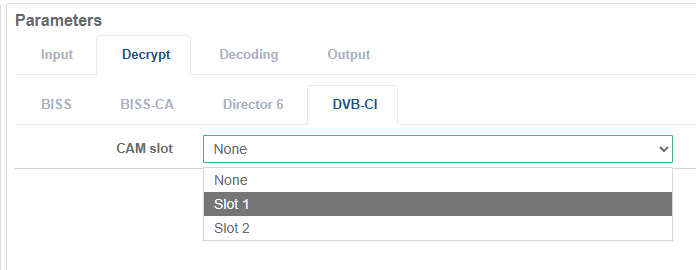
Select the required CAM from the list of detected CAMs in the CAM slot drop-down menu to enable descrambling.
-
From the Parameters window, select the Decoding tab.
-
From the Service drop-down menu, select the programme to be descrambled and decoded, or enter the programme number manually.
-
Once configuration is complete, click Save and Continue to apply the changes.
Enable Common Interface Decryption for TS Passthrough
Section titled “Enable Common Interface Decryption for TS Passthrough”For a Receiver service that has been configured for TS Passthrough, enable Common Interface decryption using the following steps.
-
From the Home page, select the RECEIVER item from the required feed then click
to edit -
From the Parameters window, select the Decrypt tab.
-
Click the DVB-CI tab.
-
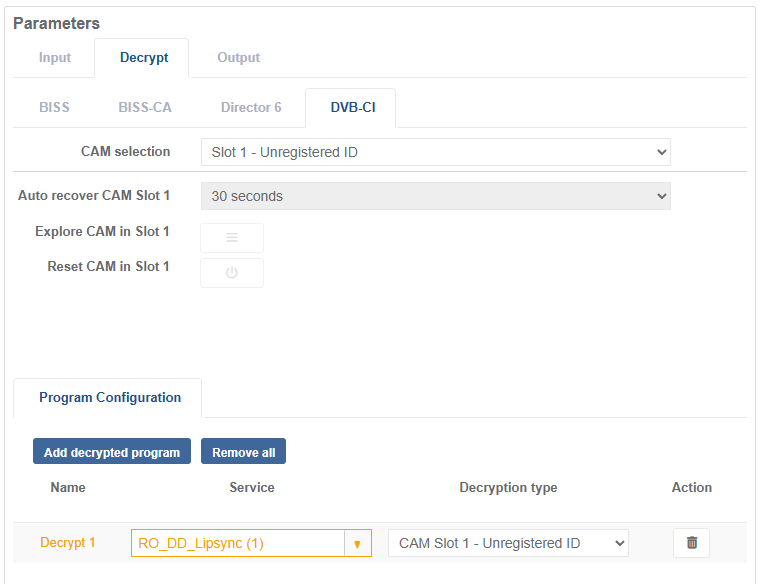
Under the Program Configuration section, click the Add Decrypted Program button. A new row will appear in the decryption table.
-
Under the Service column, select the programme to be descrambled, or enter the programme number manually.
-
Under the Decryption Type column, select the required CAM from the drop-down list of detected CAMs and other CA types to enable descrambling.
-
Repeat steps 4 - 6 to add more programmes for descrambling.
-
Once configuration is complete, click Save and Continue to apply change.
When a Receiver service is configured for TS Passthrough, the DVB-CI tab includes a CAM selection option listing detected CAM slots. Selecting a CAM here enables exploring CAM information and resetting the CAM.
Explore CAM Information
Section titled “Explore CAM Information”CAM information varies by vendor and between different versions of the same CAM. You can configure parameters such as the CA PIN or language, and view details including the model number, version, and CAM status. The menu structure and its contents are generated by the CAM.
To explore CAM information:
-
The Receiver service or Feed must be in a Running state.
-
From the Home page, select the RECEIVER item from the required feed then click
to edit -
From the Parameters window, select the Decrypt tab.
-
Click the DVB-CI tab.
-
Select the required CAM according to the Receiver Configuration Type:
Select the CAM from the CAM selection drop-down menu.
Select the CAM from the CAM slot drop-down menu.
Switching between CAMs will interrupt any programmes currently being descrambled!
-
Click the Explore CAM in Slot button to bring up the CAM menu for the CAM assigned in the previous step.
-
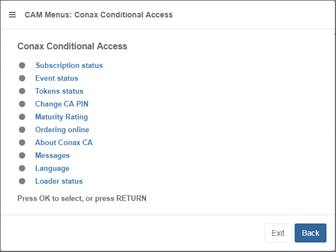
A CAM Menu pop-up dialog appears showing the menu structure generated by the CAM.
-
Click menu items to navigate through the CAM menus. Some navigation terms within the CAM Menu may be confusing, such as “pressing OK” on a television remote control. In a web browser, simply clicking the menu item performs the same action.
-
Click Exit at the bottom of the CAM Menu pop-up dialog to close it.
Reset the CAM
Section titled “Reset the CAM”If the CAM or smartcard develops a fault, it may be necessary to remove and reinsert it. If immediate access is not possible, the CAM can be reset remotely through the user interface.
Resetting the CAM briefly stops descrambling, which may disrupt the output transport stream or cause decode errors.
To reset the CAM:
-
The Receiver service or Feed must be in a Running state.
-
From the Home page, select the RECEIVER item from the required feed then click
to edit -
From the Parameters window, select the Decrypt tab.
-
Click the DVB-CI tab.
-
Select the required CAM according to the Receiver Configuration Type:
Select the CAM from the CAM selection drop-down menu.
Select the CAM from the CAM slot drop-down menu.
Switching between CAMs will interrupt any programmes currently being descrambled!
-
Click the Reset CAM in Slot button to reset the CAM