
Templates are a set of parameters saved from an existing service configuration. This allows you to easily create new services that share the same settings.
You can create a template from an existing service configuration. The template is stored separately from the services.
Service templates include:
- Constants: all parameters that are common to all services sharing the template.
- Variables: parameters that depend on the service.
Selecting a template when creating a service replaces the default settings with the template presets. It still requires entering missing variable information identified in the user interface.
Changing a template requires:
- Changing the template name.
- Version management is implemented (can embed versions).
Display templates
-
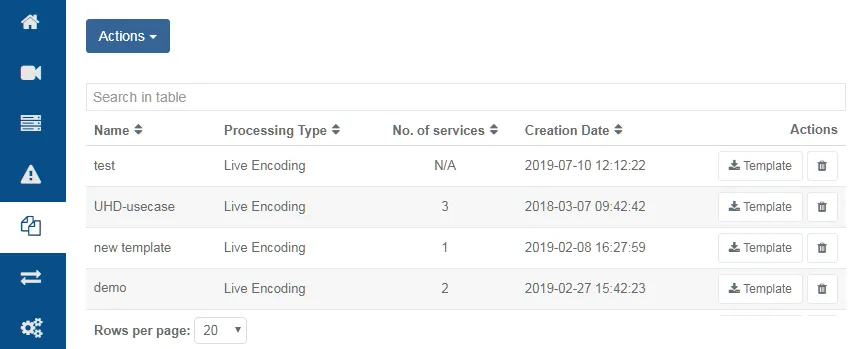
Click Templates from the left-side menu panel. If any, the available templates display in a table.
-
You can edit the number of rows displayed or use the search bar to filter the display.
Template parameters
| Column | Description |
|---|---|
| Name | Unique template name. |
| Processing Type | The service processing type. |
| No. of Services | Total number of services in your solution that are configured with the template. |
| Creation date | Template creation date (YYYY-MM-DD) and time (HH:MM:SS). |
| Actions | Export or delete. |
Create a template
To create a template, follow these steps:
-
Click
 and ensure that service parameters comply to expected configurations.
-
From the Services page, Click the 3-vertical dots icon then select Save as template.
-
Enter a unique Name and click Create.
Delete a template
To delete a template, follow these steps:
-
Display templates.
-
Click
 in the Actions column.
-
Confirm the action if prompted. The template is deleted and no longer displays in the table.
Create a new service from a template
When creating a new service, you can apply a template to automatically insert existing service configuration parameters.
Before you start, ensure a template already exists.
-
Click Services in the left-side menu panel.
-
Click Add service then select a service type from the list to display options.
-
Next to the Template parameter, select a template from the list of available templates.
-
Click Save. The service is created and displays in the Services grid.
-
Click
to edit or to check the service configuration for accuracy.
Export a template
You can export templates to share them on different MediaKind Controllers.
-
Click
 to export. The file is downloaded in relation to your web browser download settings.
Export a template variables form
You can download template variables to use in massive configurations.
-
Click
 to export. A .csv file is downloaded in relation to your web browser download settings.
Import a template
Before you start, ensure a template file exported from a different Controller environment is available.
-
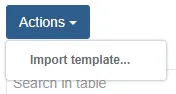
Click Actions.
-
Select Import template.
-
Click Select file to choose a file, then click Import.
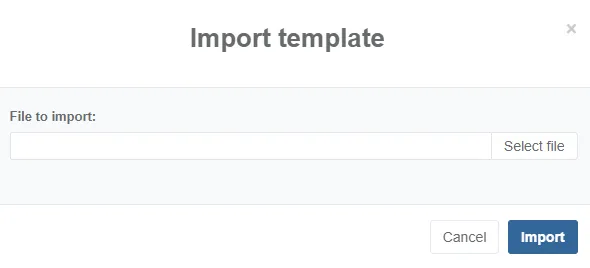
The template is uploaded and available in the Templates table.