
MK.IO Beam implements industry-standard communication interface, namely:
-
Above-mentioned interfaces provide a way for MK.IO Beam to control and enforce previously ingested events by interfacing with third-party components such as encoder/transcoder.
ESAM configuration
To configure ESAM communication to downstream target devices (such as an encoder, a TS processor for instance), proceed as follows:
-
Click the Connections tab
-
Enter and/or select the appropriate value for each parameter:
Parameter Description Connection type Select ESAM. Version Select 2013. Expect notifications When enabled, allows Stream Conditioning to get notifications from ESAM devices processing. -
In the Endpoints section, click the Add button to configure the endpoints.
Parameter Description ID Set to Auto by default. You can switch to Manual and specify and ID. Network name This field corresponds to the acquisition Point Identity defined by the ESAM standard. The same field value must be configured at the target device level for appropriate communication. It is used to identify the target device on a specific channel. Zone identity Additional field that can be used to represent the location of the stream/channel. Signal acquisitions Possible values:
- URL: URL to which the Signal Processing System endPoint can reach the Signal Acquisition System endPoint (such as encoder, TS processor).
- Listening path: The listening path is used by the SAS endPoint to return status notifications to the SPS endPoint. A typical use of this path is when signals are received from multiple acquisition points. It allows identifying which systems issued the response.
Default value: listening path =/, Example: listening path =/encoder1
Note: You can add an additional URL/path by clicking the Add button.Attributes EndPoint attributes can be used for additional filtering in SCTE-224 input translations. It allows applying the translation actions to specific endPoint(s).
Example: name = VIRD, value= NY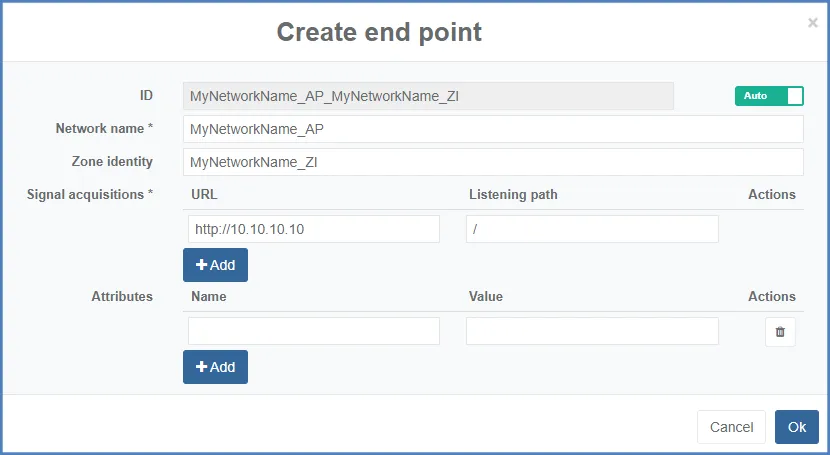
SCTE-104/30 configuration
To configure SCTE-104/30 communication to downstream target devices (such as an encoder, a TS processor for instance), proceed as follows:
-
Click the Connections tab.
-
Enter and/or select the appropriate value for each parameter:
Parameter Description Connection type Select SCTE 104/SCTE 30. -
Click Add to configure the end points.
-
Enter and/or select the appropriate value for each parameter:
Parameter Description ID Set to Auto by default. You can switch to Manual and specify and ID. DPI PID index Digital Program Insertion PID index (shall be aligned with the one configured on the encoding/transcoding device for instance). Channel name Identifier for the SCTE-30 communication. Injectors - Address: IP address of the device implementing SCTE-104/30.
- SCTE-104 port: communication port used for SCTE-104 communication.
- SCTE-30 port: communication port used for SCTE-30 communication.
Note: You can add an additional URL/ports by clicking the Add button.Attributes EndPoint attributes can be used for additional filtering in SCTE-224 input translations. It allows applying the translation actions to specific endPoint(s).
Example: name = VIRD, value= NY
SCTE-30/30 configuration
To configure SCTE-30/30 communication to downstream target devices (such as an encoder, a TS processor for instance), proceed as follows:
-
Click the Connections tab.
-
Enter and/or select the appropriate value for each parameter:
Parameter Description Connection type Select SCTE 30/SCTE 30. -
Click Add to configure the end points.
-
Enter and/or select the appropriate value for each parameter:
Parameter Description Channel name Identifier for the SCTE 30 communication. Injectors - Address: IP address of the device implementing SCTE-30.
- SCTE-30 port: communication port used for SCTE-30 communication.
Note: You can add an additional URL/ports by clicking the Add button.Attributes EndPoint attributes can be used for additional filtering in SCTE-224 input translations. It allows to apply the translation actions to specific endPoint(s).
Example: name = VIRD, value= NY