
There are multiple types of transport stream configurations. Each type presents a different set of parameters.
Satellite transport stream input
The number of satellite inputs will depend on the option card installed. You can route each satellite input to an independent service, or route a single satellite input to multiple services.
The satellite input option cards that are compatible with MK.IO Beam will comply with the following standards:
- DVB-S (EN300-421)
- DVB-S2 (EN302-307-1)
- DVB-S2X (EN302-307-2)
DVB-S2 offers up to a 30% increase in data rate carriage for an equivalent link margin compared to what the older DVB-S standard can offer. This functionality is often partnered with MPEG-4 or HEVC compression to give bandwidth efficient distribution of high definition or ultra-high definition services.
DVB-S2X is an extension to the DVB-S2 standard and can provide up to 20% performance improvement compared to DVB-S2 and increase the efficiency of satellite links. This will enable an increase in video quality or an increase in the number of video services or a reduction in leased satellite bandwidth, bringing lower operational expenditure.
Supported Satellite Demodulator Cards
Satellite input on MK.IO Beam requires supported hardware option cards. See the Satellite Input section in the technical Reference documentation for a list of compatible cards.
Input ports with multiple Tuners and Demodulators
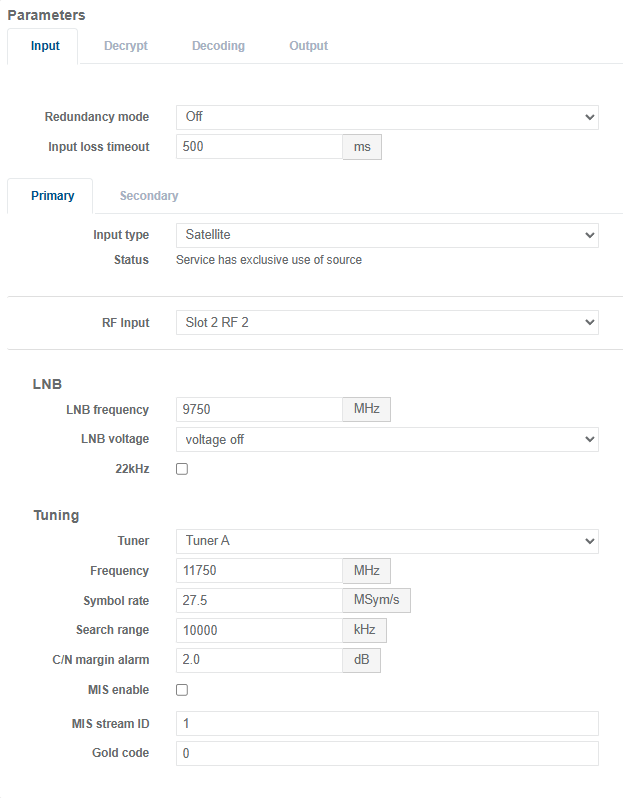
Some satellite demodulator cards support more than one tuner and demodulator pairs connected to each RF input port. In this case, an additional tuning parameter is available in the configuration called Tuner where the tuner is referenced alphabetically for that RF port, for example Tuner A and Tuner B.
| Physical RF Input | First Tuner/Demod | Second Tuner/Demod |
|---|---|---|
| RF port 1 | Tuner A | Tuner B |
| RF port 2 | Tuner A | Tuner B |
Each tuner operates independently and can tune to either a different frequency or the same frequency as another tuner. LNB control is independent per physical RF input; therefore, Tuners A and B share the same LNB control.
Configure a receiver service for satellite input
Before you start, ensure a Receiver service is configured.
-
From the Home page, select the RECEIVER item from the required feed then click
 .
. -
From the Primary tab, select Satellite for the Input type. Satellite input options display.
-
Set the LNB parameters, LNB frequency, LNB voltage and 22kHz.
-
Set the Tuning parameters. This will vary based on the card fitted:
If Digital Devices SX8 installed, configure Tuner, Frequency, Symbol rate, Search range, C/N Margin Alarm, MIS enable, MIS Stream ID, and Gold code
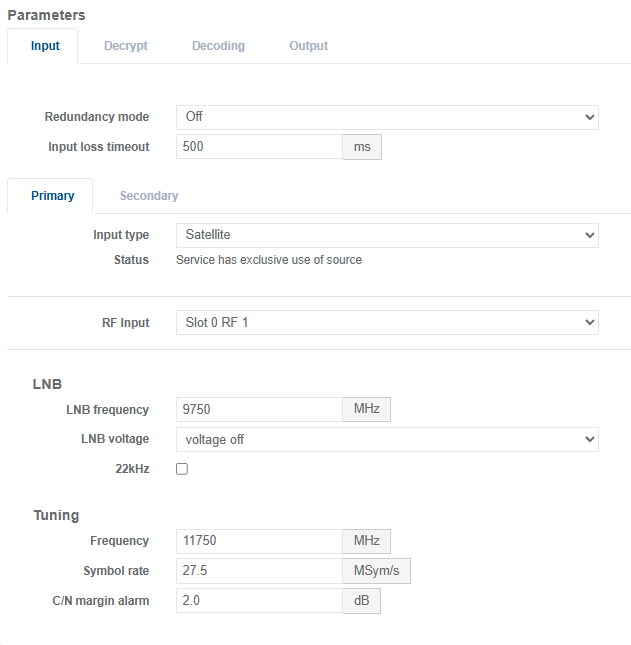
If Dektec DTA-2127 installed, configure Frequency, Symbol rate and C/N Margin Alarm
-
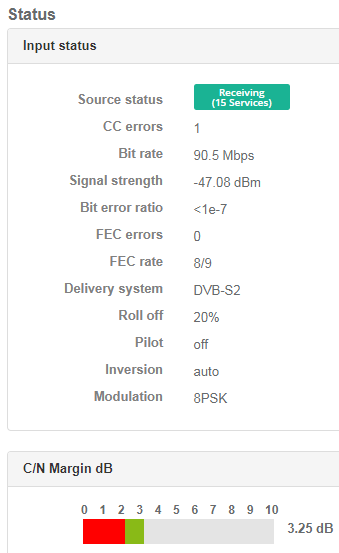
Ensure that the Source Status is green (receiving) for existing sources, and that no errors occur.
ASI transport stream input
Supported ASI Input Cards
ASI input on MK.IO Beam requires supported hardware option cards. See the ASI Input section in the technical Reference documentation for a list of compatible cards.
Setup ASI/SDI option card for ASI mode
To use the card as an ASI card it must be configured as follows (see also Set up SDI/ASI cards):
-
Select Appliance from the left-hand side menu.
-
Click the ASI/SDI Interface tab.
-
Select the Slot Tab corresponding to the SDI/ASI card. If more than one card is present, there will be a separate slot tab for each card.
-
Select :
- For the Dektec 2174B cards : 4 ASI/HD-SDI/SD-SDI from the ASI/SDI Mode drop down menu.
- For the Dektec 2178 cards : 8 ASI/HD-SDI/SD-SDI from the ASI/SDI Mode drop down menu.
-
Click the Apply and Reboot button.
-
A confirmation pop-up window will appear asking, "Are you sure?"
-
Review any warnings or guidance provided. If you are sure, click Yes, configure and REBOOT! Otherwise, click Cancel to abort.
-
Following the reboot, refresh the web page. The reboot may take a few minutes to complete.
Configure a receiver service for ASI input
Before you start, ensure a Receiver service is configured.
-
From the Home page, select the RECEIVER item from the required feed then click
to edit. -
From the Primary tab, select ASI for Input type.
-
Select the port on the ASI card where the transport stream is connected (the port number maps directly to the numbering on the card).
-
Ensure that the Input Status is green (receiving) and that they're no errors (this only applies if the source currently exists).
IP transport stream input
A Receiver service can support decoding or passthrough of transport streams via Ethernet.
Configure a receiver service for IP unicast input
Before you start, ensure at least one Receiver service is configured.
-
From the Home page, select the RECEIVER item from the required feed then click
to edit. -
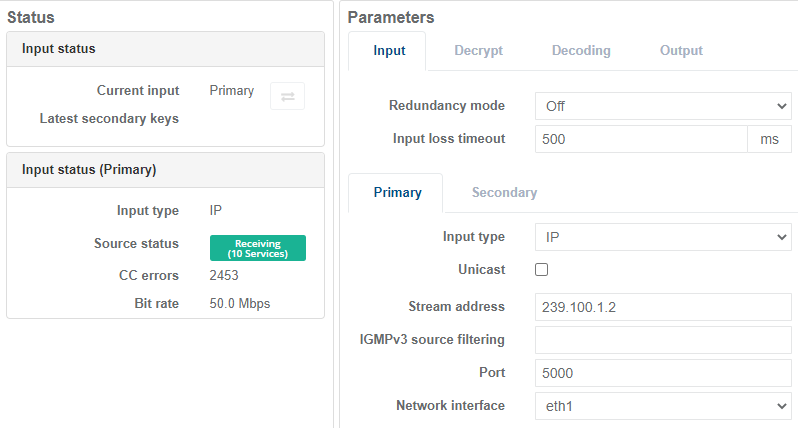
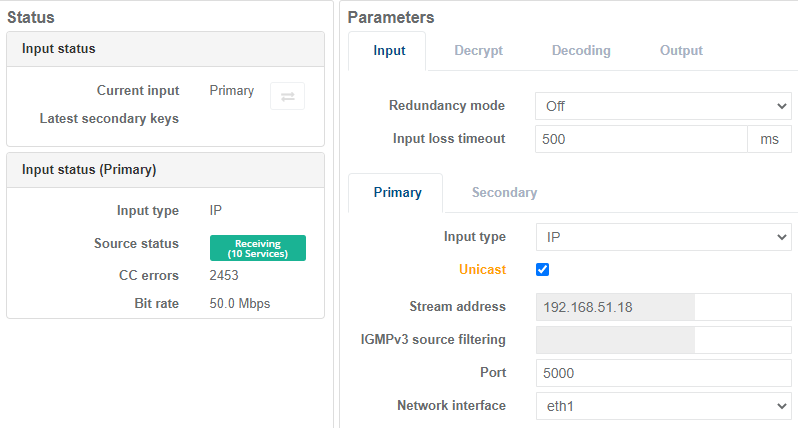
From the Primary tab, tick Unicast. Stream address is greyed out and a port parameter displays.
-
Enter the UDP Port number for the incoming transport stream.
-
Select the Ethernet port for the Network interface that the incoming transport stream is available on.
-
Ensure that the Input status is green (receiving) and that they're no errors (this only applies if the source currently exists).
Configure a receiver service for IP multicast input
Before you start, ensure at least one Receiver service is configured.
Transport streams can be streamed over either Ethernet (IP) or ASI depending on the hardware installation.
-
From the Home page, select the RECEIVER item from the required feed then click
to edit. -
From the Primary tab, check that the Unicast checkbox is unticked then enter a multicast Stream address.
-
Enter the UDP port number for the incoming transport stream.
-
Select the Ethernet port for the Interface that the incoming transport stream is available on.
-
Ensure that the Input status is green (receiving) and that they're no errors (this only applies if the source currently exists).