
Run VOD processing jobs
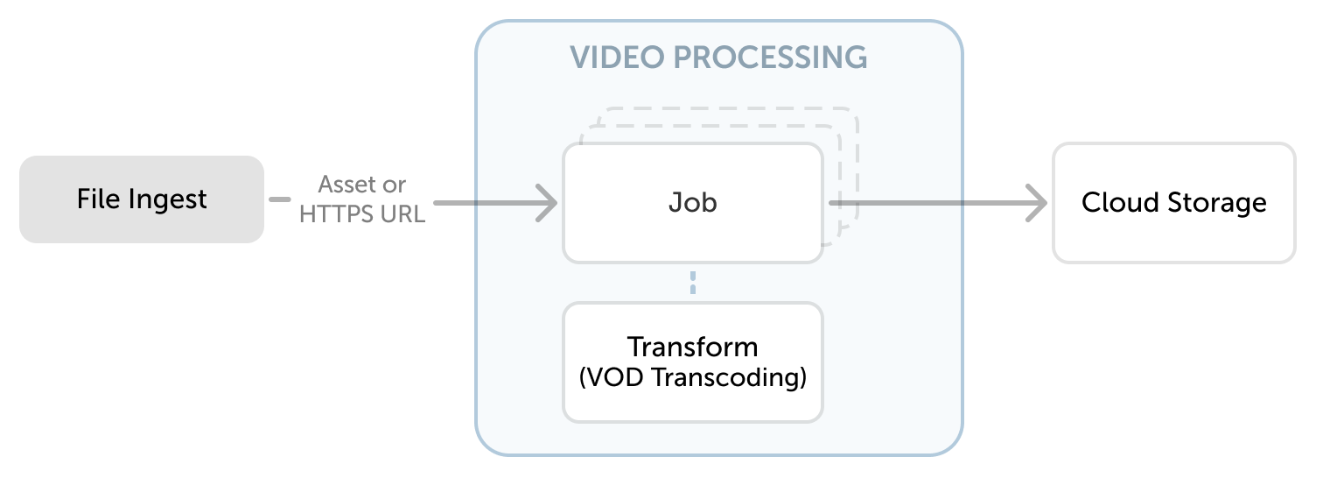
A VOD processing job applies a transform to one of your assets. It can transcode adaptive bitrate renditions, extract thumbnails, generate subtitles, or convert the asset format. Each job takes an input (an asset or an HTTPS URL), runs it through your selected transform, and writes the output to a new asset in your chosen storage account.
Prerequisites
Section titled “Prerequisites”- An asset with source content ready to process. See Add an asset in MK.IO or add the source asset.
- A transform configured for the type of processing you want to run. See Configure transformations.
Create a processing job
Section titled “Create a processing job”Open Video Processing
Section titled “Open Video Processing”Go to Video Processing in the left navigation and click Create Job.
Select a transform
Section titled “Select a transform”Choose the transform to apply from the dropdown. The transform determines the output, such as an adaptive bitrate encode, thumbnails, or an AI transcription.
Name and configure the job
Section titled “Name and configure the job”- Name (required): A unique identifier for this job.
- Description (optional): A note about what this job is doing.
- Priority: Jobs run at Normal priority by default. Set it to High to move the job to the front of the queue. High-priority jobs do not interrupt running jobs, but are picked up next when a slot is free. Set it to Low for background processing that should not compete with time-sensitive work.
Configure the input
Section titled “Configure the input”The job input can be an existing asset or an external URL:
- Asset: Click Select existing asset to browse assets in your project, or enter the asset name and filename directly. You can also click Upload asset to create a new asset by uploading files.
- External URL: Enter the full HTTPS or SAS URL of the source file. The URL must be publicly accessible.
Configure the output
Section titled “Configure the output”- Storage account: Select where the output asset should be stored.
- Asset name: Give the output asset a descriptive name.
Submit the job
Section titled “Submit the job”Click Submit. The job enters the queue immediately.
You can duplicate an existing job from the Jobs list to reuse its settings with minor adjustments.
Monitor job progress
Section titled “Monitor job progress”The job moves through these states: queued → scheduled → processing → finished.
Track progress from the Video Processing page, or poll the jobs endpoint in the MK.IO API for programmatic monitoring. The progress percentage updates as each output is produced.
Once the job reaches finished, the output asset appears on the Assets page. Add a streaming locator to make it available for playback. See Publish content for streaming.
Use the Transforms and jobs API Guide to submit, monitor, cancel, and delete jobs through the Media API.