
This guide uses Live Events. For the Live interface, including reusable sources and multiview, start with Live and multiview.
In this guide we will send a live video source via OBS to MK.IO and play it through the built-in player. This path uses Real-Time Messaging Protocol (RTMP) and the MK.IO portal, so you can see how the main live resources fit together before exploring advanced options.
The five-minute workflow begins after your account, storage, and source encoder are ready.
What you will create
Your source passes through four parts of MK.IO before you can watch it:
- A live event receives and encodes the RTMP source.
- A streaming endpoint supplies the delivery hostname.
- A streaming locator applies a streaming policy and provides the playback path.
- The built-in player opens the completed playback URL.
The live event also records the stream to an asset in your connected cloud storage.
Prerequisites
You need:
- An MK.IO account and an MK.IO project.
- Connected cloud storage for the live recording.
- OBS Studio or another encoder with a video and audio source ready to send.
If you still need to prepare OBS, follow Stream with OBS Studio, then return here.
Create your first stream
Create the live event
The live event receives your source and produces the encoded stream. The 720p encoding option gives this first workflow an adaptive output without requiring the source encoder to produce every output quality.
- In the MK.IO portal, open Live Events from the left sidebar.
- Select + Create Live Event in the top right.
- Enter a name for the event.
- Select Live Encoding (720p) as the event type.
- Select RTMP as the input protocol.
- Select the storage account for the recording.
- Select Review, then Submit.
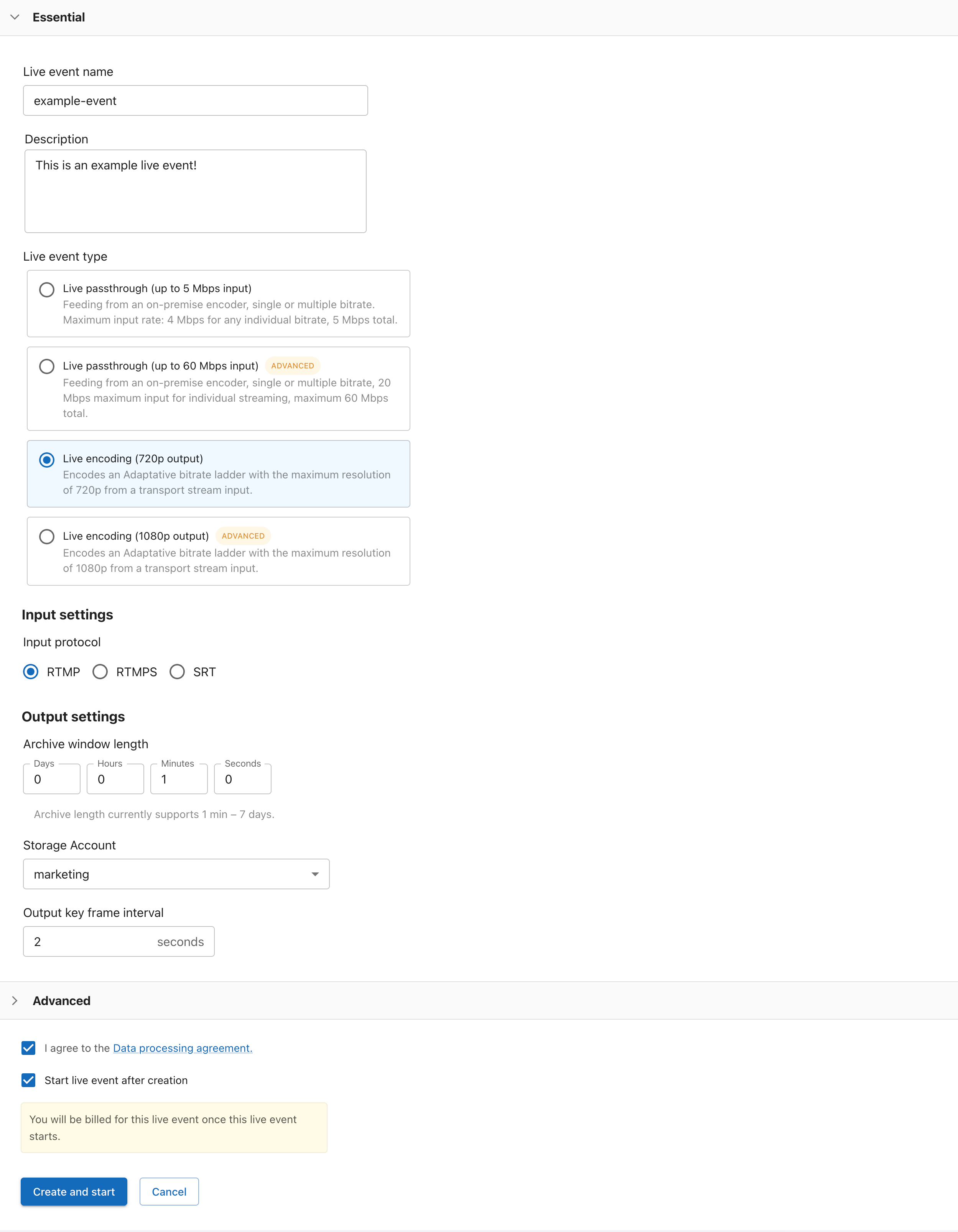
For passthrough, Secure Reliable Transport (SRT), transcription, and archive settings, use Configure a live event.
Start a streaming endpoint
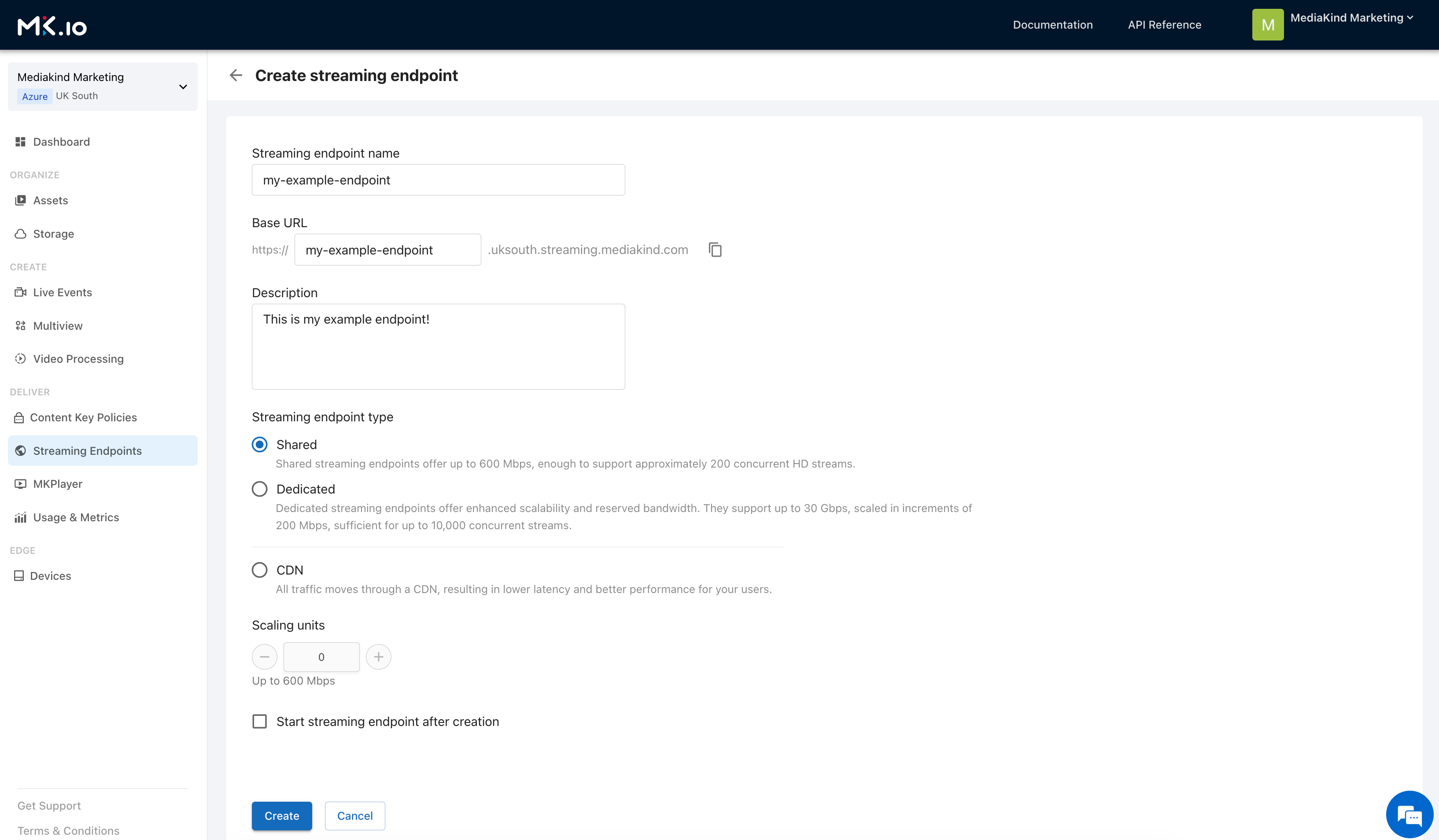
A streaming endpoint is the origin service that delivers your content. You can reuse an existing running endpoint or, if the project does not have one, create it now:
- Open Streaming Endpoints.
- Select + Create Streaming Endpoint.
- Enter a name and base URL.
- Select Shared for this first stream.
- Create and start the endpoint.
Add the streaming locator
A streaming locator publishes the live recording under a streaming policy. Return to your previously created Live Event and create the locator:
- In the left sidebar select Live Events, then select your previously created Live Event.
- Under Streaming Locator, select + Add streaming locator.
- Enter a unique name.
- Select
Predefined_ClearStreamingOnlyas the streaming policy. - Leave the content key policy, expiration, and filters empty.
- Select Add.
- Select Apply
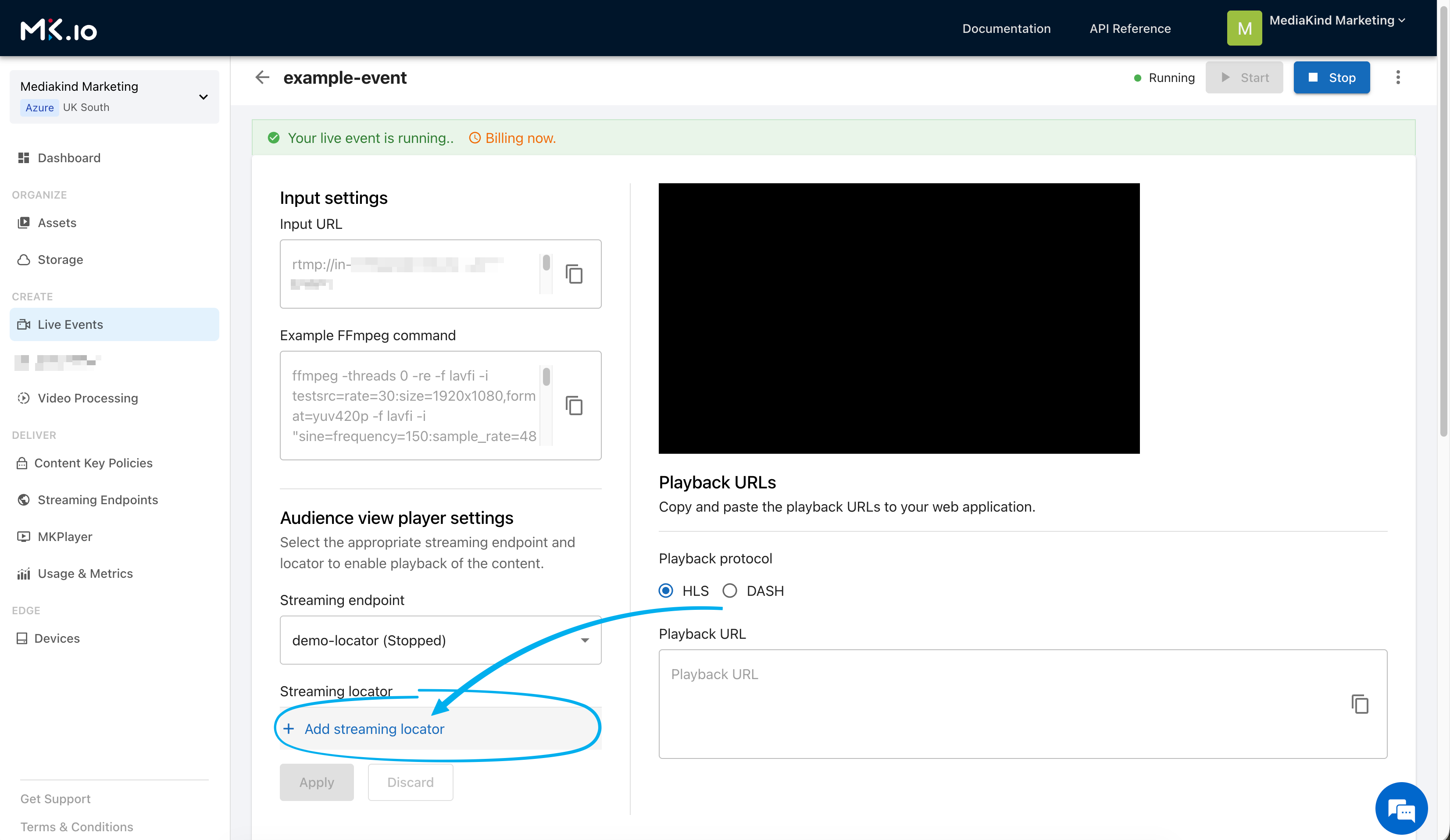
Predefined_ClearStreamingOnly creates unprotected playback paths for this test. The locator supplies the path, while the endpoint supplies the hostname. Publish content for streaming explains both resources and the available protection options.
Send the source to MK.IO (OBS)
Now its time to start the live event! Once your Live event has started, MK.IO will provide the input address that tells OBS where to send the stream.
- Start the live event in MK.IO.
- Copy the Input URL.
- In OBS, open Settings > Stream.
- Set Service to Custom.
- Enter the Input URL without the
/streamsuffix as the Server. - Enter
streamas the Stream Key. - Select Start Streaming in OBS.
- When MK.IO receives the input, apply the streaming locator.
The /stream suffix becomes the OBS stream key, which is why you remove it from the server address. When MK.IO receives the source, it generates HTTP Live Streaming (HLS) and Dynamic Adaptive Streaming over HTTP (DASH) playback URLs.
FFmpeg
Alternatively, if you would prefer to send a stream using a local FFmpeg command in the terminal, you can do so by copying the "Example FFmpeg command" within the live event view.
This command has the current live event input URL preflled for you: just copy, paste, and run in your terminal window:
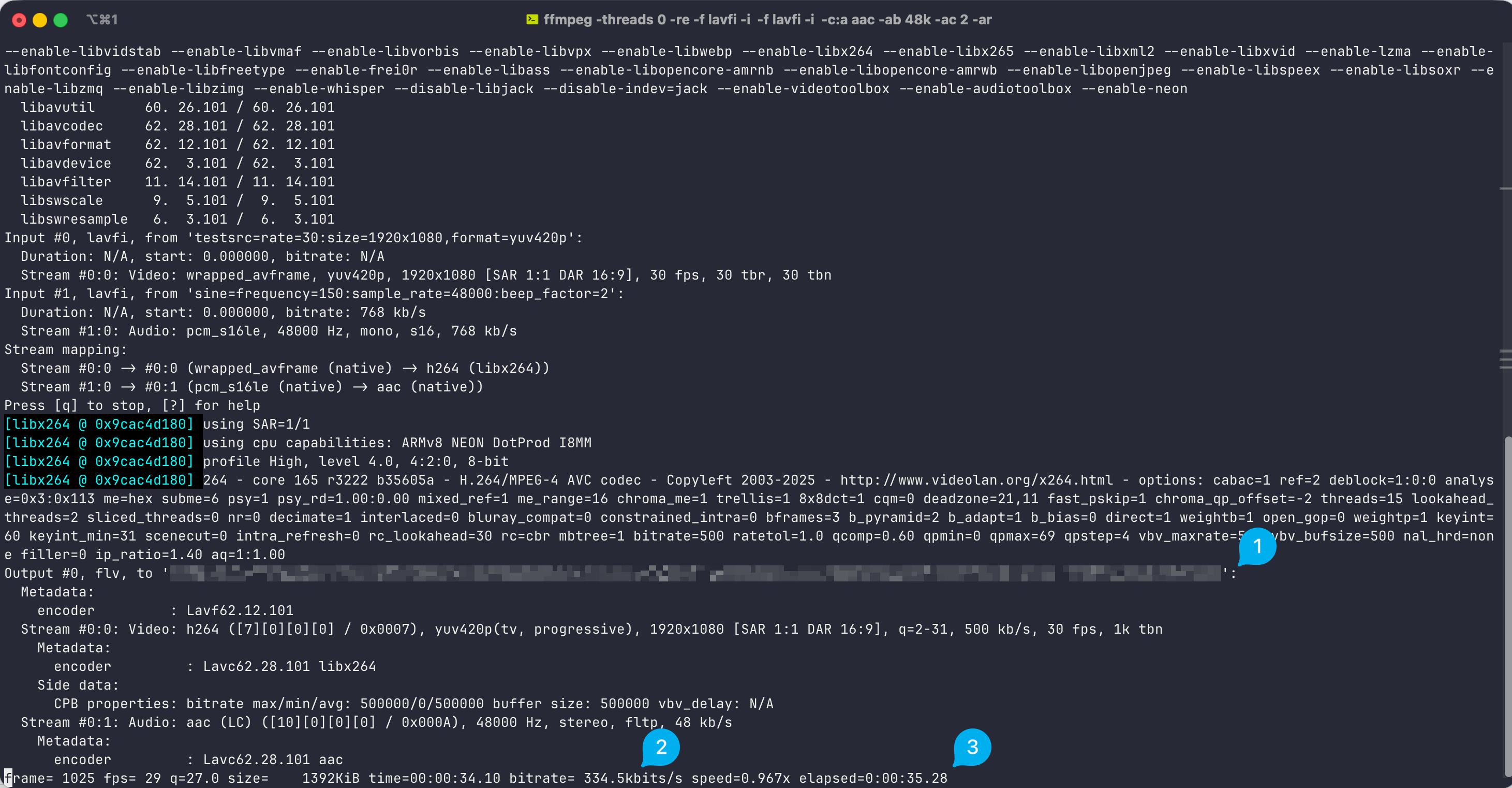
You can then see via your terminal window:
- The Ingest URL
- The current bitrate and
- the elapsed time of the stream.
Amongst a lot of other information! This can be usefull for simple monitoring and latency testing on systems where you either do not have OBS installed, or want to quickly test a stream.
Watch the stream
Once the live event shows that it is receiving your source, you are ready to watch the stream!
You can use the built-in player for this first test, or copy a playback URL if you want to test the stream in another player.
- Open Live Events and select the live event you created.
- Confirm that the event shows the incoming stream from OBS or FFmpeg.
- Open the built-in player and start playback.
- Check that you can see the video and hear the audio.
If you want to test playback outside the MK.IO portal, copy one of the generated HTTP Live Streaming (HLS) or Dynamic Adaptive Streaming over HTTP (DASH) URLs. Use the URL with a compatible external player or application.
If the player does not show video or audio, check the workflow in this order:
- Make sure OBS or FFmpeg is still sending the source.
- Confirm that the live event shows the incoming stream.
- Confirm that the streaming endpoint is running.
- Confirm that the streaming locator was created for the live event.
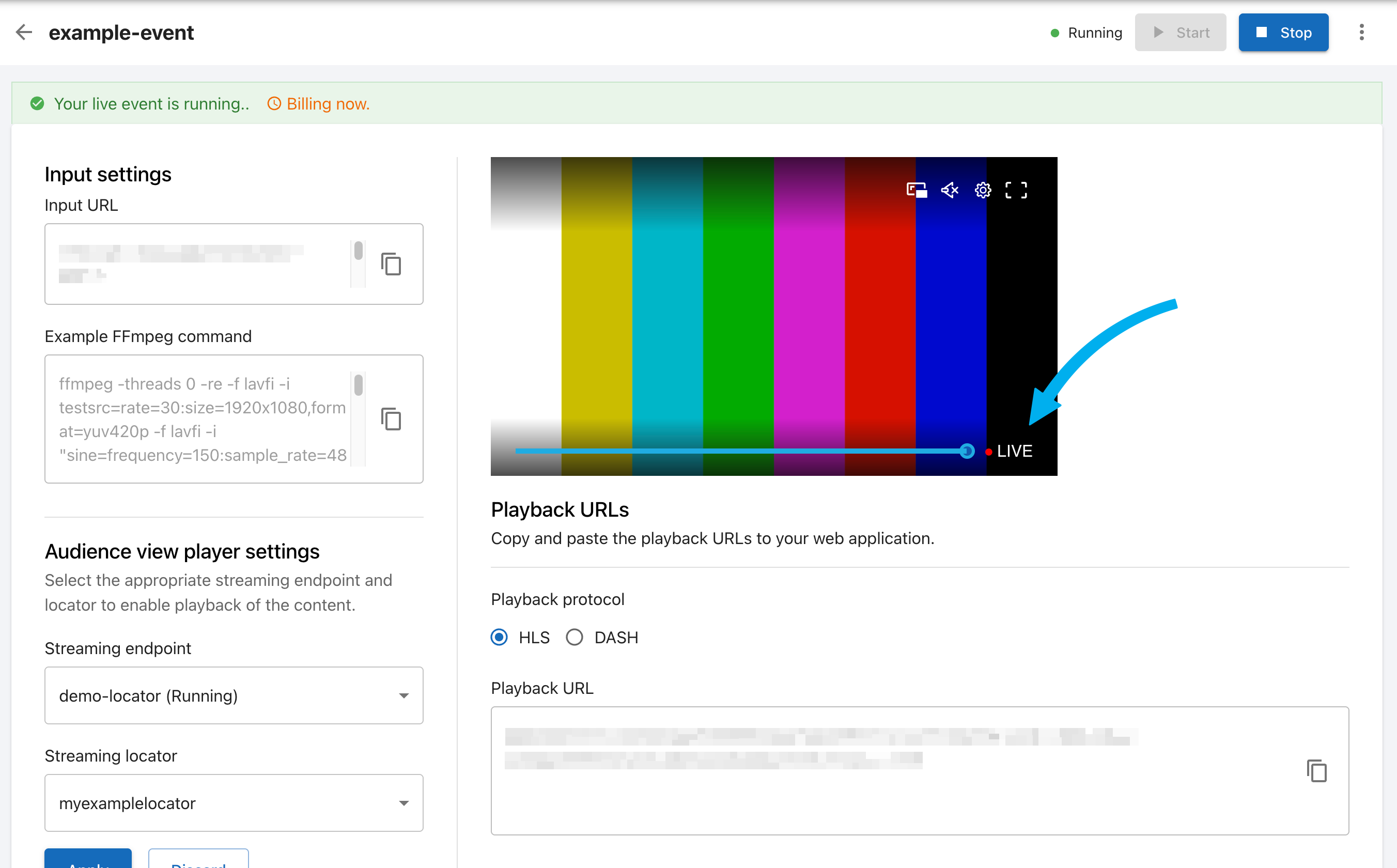
When video and audio play, your first MK.IO live workflow is complete! The same locator paths can be used in a compatible external player or application.
Stop the test resources
- Stop streaming in OBS/FFmpeg.
- Stop the live event in MK.IO.
- Stop the streaming endpoint if it is no longer needed.
The live recording remains in the selected storage account as an asset. You can process or publish that asset as Video on Demand (VOD) content after the event ends.
Your first live stream is complete
Well done! You have now created a live event, sent a source to MK.IO, published it through a streaming endpoint and locator, and watched the result in the built-in player.