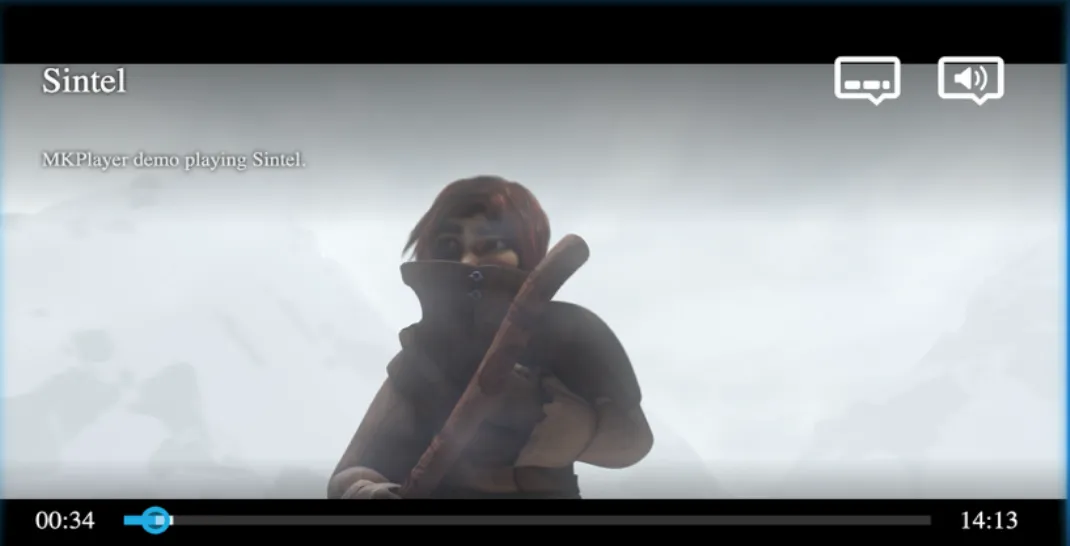
UI configuration and variants
uiConfig controls global playback UI behavior and can be shared across custom and responsive UI variants.
uiConfig example
Section titled “uiConfig example”const uiConfig = { disableAutoHideWhenHovered: false, container: HTMLElement, disableStorageApi: false, autoUiVariantResolve: false, playbackSpeedSelectionEnabled: true, metadata: { markers: [ { time: 24, title: "Marker1" }, { time: 69, title: "Marker2" }, ], },};Key fields from the source guide:
disableAutoHideWhenHovered: keeps the control bar visible while the cursor is over the player.playbackSpeedSelectionEnabled: enables playback speed controls in settings.metadata.markers: adds visual seekbar markers at specific timestamps.
Build a custom browser UI with customUi
Section titled “Build a custom browser UI with customUi”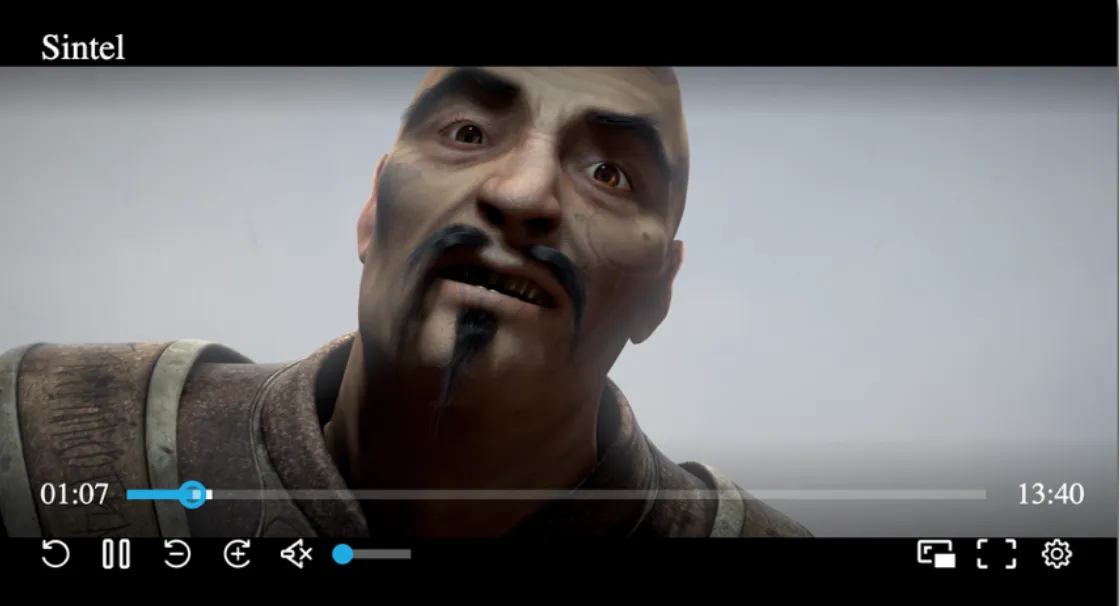
const simpleUI = new mkplayercustomuiPlugin.MKCustomizeUI.UIContainer({  components: [    new mkplayercustomuiPlugin.MKCustomizeUI.SubtitleOverlay(),    settingsPanel, // Contains selection controls on the settings panel    new mkplayercustomuiPlugin.MKCustomizeUI.BufferingOverlay(),    new mkplayercustomuiPlugin.MKCustomizeUI.ReplayButton(),    new mkplayercustomuiPlugin.MKCustomizeUI.PlaybackToggleButton(),    new mkplayercustomuiPlugin.MKCustomizeUI.QuickSeekButton({ seekSeconds: -10 }),    new mkplayercustomuiPlugin.MKCustomizeUI.QuickSeekButton({ seekSeconds: 10 }),    new mkplayercustomuiPlugin.MKCustomizeUI.VolumeToggleButton(),  ],});
uiManager = mkCustomizeUI.customUi(simpleUI, uiConfig);
This pattern creates a custom UI container and attaches it through customUi.
The source guide’s browser custom UI example includes:
- Subtitles and overlays (subtitle display, buffering indicator, play/pause overlay, error messages)
- Settings panel options for video quality, audio quality, audio track, playback speed, and subtitles
- Control bar items such as replay, play/pause, skip
-10s/+10s, volume, PiP, fullscreen, and settings - Title bar metadata display
Build responsive UIs with customUiVariant
Section titled “Build responsive UIs with customUiVariant”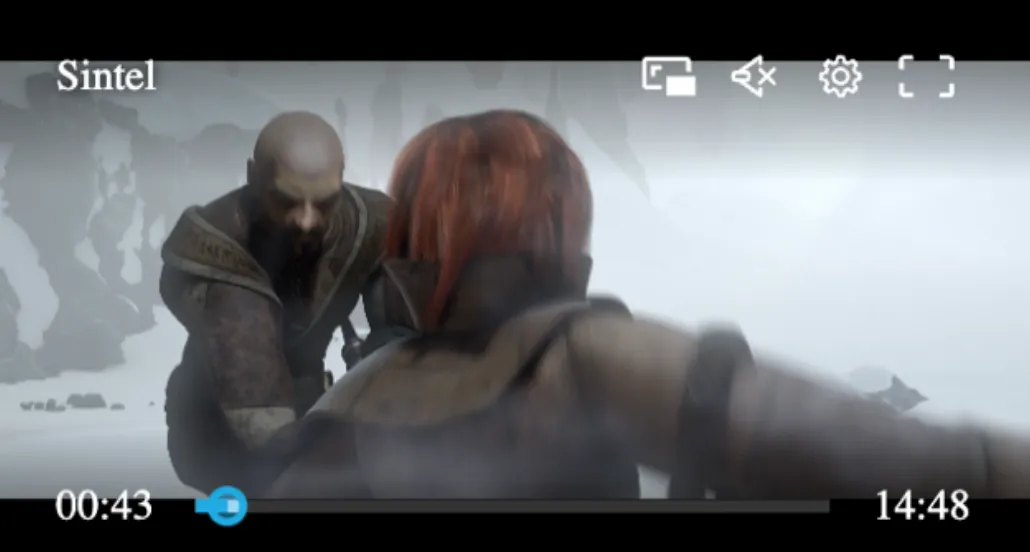
const isSmallScreen = (context) => {  return context.documentWidth < 800;};
function createMobileUIContainer() {  return mkCustomizeUI.modernSmallScreenUI();}
const simpleUI = createBrowserUIContainer();
uiManager = mkCustomizeUI.customUiVariant(  [    {      ui: createMobileUIContainer(),      condition: isSmallScreen,    },    {      ui: simpleUI,    },  ],  uiConfig);
Behavior:
- Mobile variant is selected when
isSmallScreenreturnstrue. - Desktop/browser UI is used as fallback when no condition matches.
- A shared
uiConfigapplies across all variants.
Lifecycle events
Section titled “Lifecycle events”Use lifecycle hooks to observe when variants resolve and become active:
uiManager.onActiveUiChanged.subscribe(() => {  console.log("[customUi] UI is ready, attaching onUiVariantResolve");});
uiManager.onUiVariantResolve.subscribe((context) => { console.log("[customUi] onUiVariantResolve fired:", context);});onActiveUiChanged: triggered when the active UI is fully attached.onUiVariantResolve: triggered when the variant-selection logic runs.
UI factory variant shortcuts
Section titled “UI factory variant shortcuts”The guide also includes built-in factory-based options:
uiManager = mkCustomizeUI.buildDefaultUI(uiConfig);uiManager = mkCustomizeUI.buildDefaultSmallScreenUI(uiConfig);uiManager = mkCustomizeUI.buildModernTvUI(uiConfig);buildDefaultUI: default responsive UI that adapts between browser and mobile dimensions:
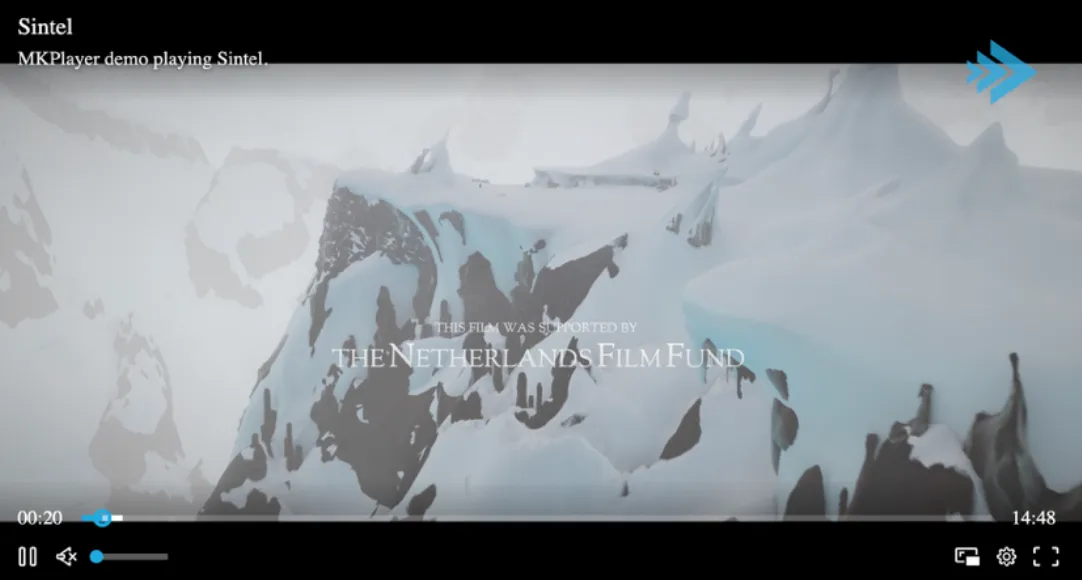
buildDefaultSmallScreenUI: default small-screen style UI layout:

buildModernTvUI: modern TV playback UI layout: