
Assets & Asset Filters
Understand how MK.IO assets map to cloud storage and how asset filters change the manifests delivered to players.
What is an asset?
Section titled “What is an asset?”An asset in MK.IO is a logical pointer to a location in your cloud storage. It is not a copy of your files: it is a reference that tells MK.IO where to find, process, and stream content.
Every asset maps to exactly one storage location:
- Azure Blob Storage → a container (or a subfolder within a container)
- Amazon S3 → a bucket or prefix
The files themselves live in your cloud storage. MK.IO reads from and writes to that location on your behalf. This is why:
- Creating an asset does not move or copy any files
- An asset can appear empty if the storage location is empty or the container name is incorrect
- Deleting an asset in MK.IO can delete the associated files from storage (depending on the deletion setting chosen at creation time)
What goes into an asset?
Section titled “What goes into an asset?”Assets contain information about digital files stored in cloud storage, including:
- Source files: the original uploaded video, audio, or image files
- Encoded output: adaptive bitrate segments and manifests produced by encoding jobs
- Subtitle and caption files: VTT, SRT, TTML
- Thumbnails and images
- Log files: generated during processing jobs
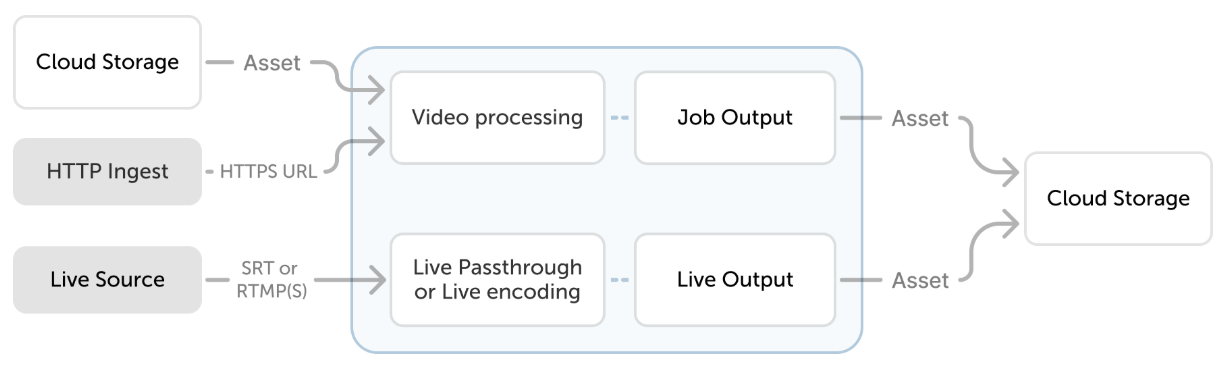
On the input side, an encoding job or a live output references an asset as its source or destination. On the output side, a streaming locator references an asset to generate playback URLs.
Naming files within an asset
Section titled “Naming files within an asset”File names within an asset must follow both:
- Azure blob name requirements and NTFS name requirements (for Azure storage)
- AWS bucket naming rules (for S3 storage)
Reserved characters
Section titled “Reserved characters”The output URL for streaming content is built from the asset file name. File names must not contain any of the following percent-encoding-reserved characters: !*'();:@&=+$,/?%#[]". There can also be only one . for the file extension. File names must be 260 characters or fewer.
Deleting an asset in MK.IO may also delete the underlying files in your cloud storage, depending on the containerDeletionPolicy set when the asset was created. Delete removes the storage container’s contents along with the asset record, Retain leaves your files in place. Check this setting before deleting.
Asset Filters and Account Filters
Section titled “Asset Filters and Account Filters”Filters let you trim the timeline or restrict the tracks and bitrates exposed by a streaming locator without re-encoding the content.
Asset Filter: Applied to a specific asset. Lets you define start/end times or filter by track type (video only, specific audio language, etc.) for that individual asset.
Account Filter: Applied at the account level and reusable across multiple assets. Enforces consistent delivery rules across your entire library without configuring each asset individually.
Filters are specified by name when creating a streaming locator, and can be combined (asset filter + account filter). See Create an asset filter for step-by-step instructions.