
A source supplies video to a Live event. Create the source before you create a live event or multiview event.
Use an SRT listener source to receive an external Secure Reliable Transport (SRT) stream from your encoder. Configure network access, then copy the source address into the encoder.
How a source fits into the workflow
The source is the ingest connection for your encoder. After you create it, it becomes available from Add source when you create a live event or multiview event. The source keeps its input mode, port, encryption, and network access settings so that you can use the same source configuration when planning an event.
For an external SRT connection, the encoder must send to the source address and its public IP address must be listed in Allowed IPs. Configure those settings before you start the event, so that the connection settings are ready when you begin the broadcast.
Prerequisites
- An MK.IO project with access to Live.
- The public Internet Protocol (IP) address of the encoder you will use for this test.
- A chosen port and an encoder ready to send Secure Reliable Transport (SRT).
Create the source
- Go to Live > Sources. The Sources tab lists the sources available to use in new events.
- Select New source.
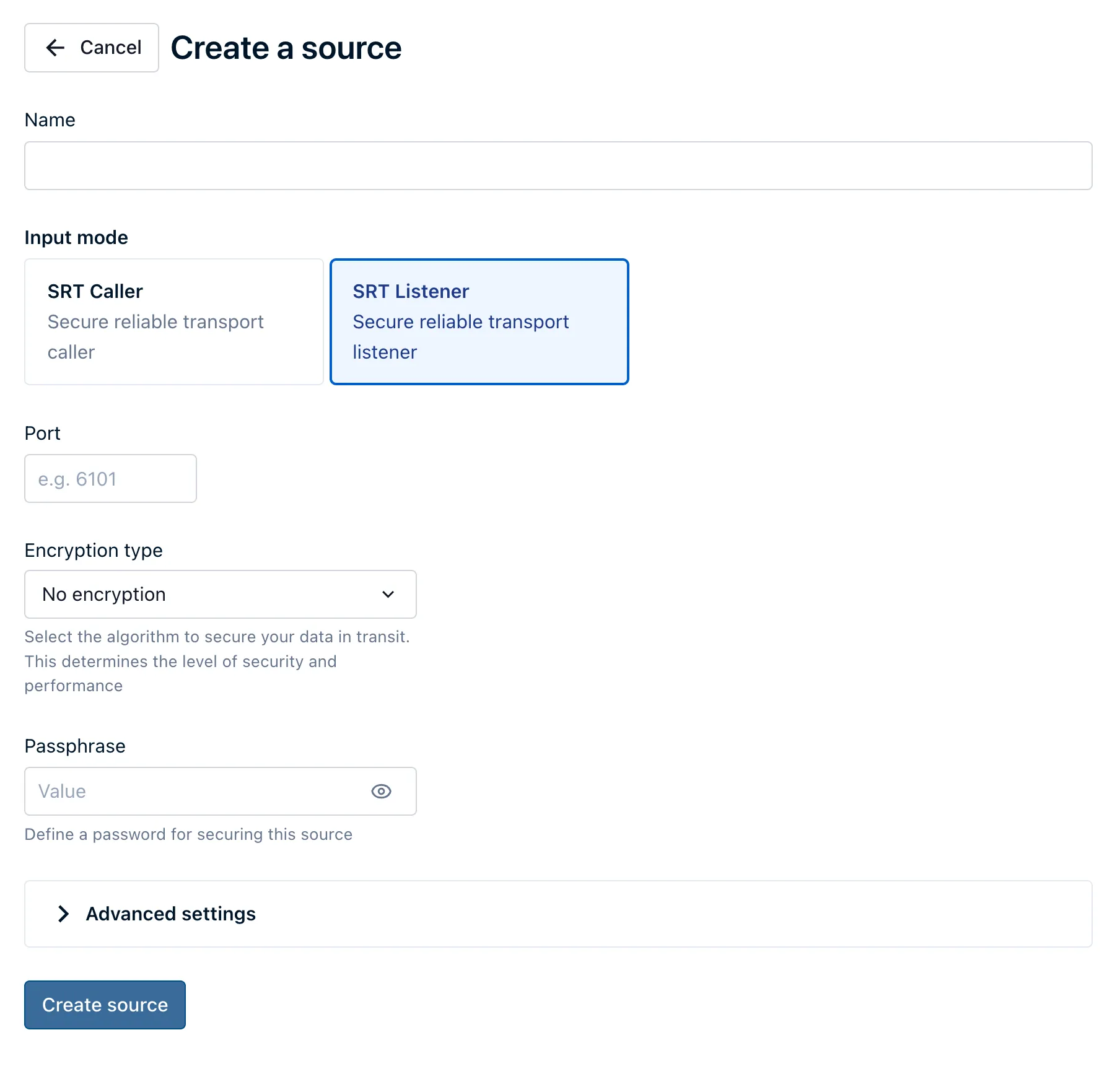
- Enter a value in Name.
- Under Input mode, select SRT Listener.
- Enter the listening port in Port.
- Under Encryption type, select the option that matches your encoder. The available choices are No encryption, AES-256, AES-192, and AES-128.
- If you selected an encryption option, enter its matching value in Passphrase.
- Expand Advanced settings.
- Set IP resource to External.
- Under Allowed IPs, select Add IP address and enter the public IP address of the encoder.
- Select Create source.
Check the connection settings
Before you create the source, check these values against the encoder configuration:
| Setting | What to check |
|---|---|
| Port | Use the same port in the encoder connection. |
| Encryption type | Select the same encryption option as the encoder. |
| Passphrase | Enter the matching passphrase when encryption is enabled. |
| IP resource | Select External for an encoder that connects from outside MK.IO. |
| Allowed IPs | Add the public IP address used by the encoder. |
Use the source in an event
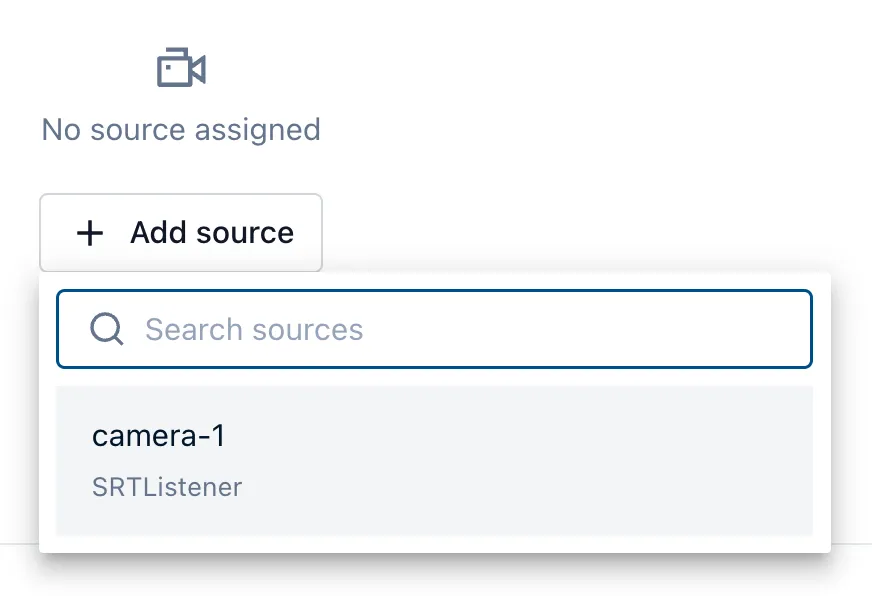
When you create an event, select Add source and choose the source you created. Search for the source by name if required.
After you create the source, go to Live > Sources. Copy its address from the Host and port column and use those values in your encoder configuration. The event's Overview also displays the full SRT URLs for its assigned source. Use the same port, encryption type, and passphrase that you entered when creating the source.
Verify the source settings
Open the source and confirm that IP resource is External and that Allowed IPs includes the public IP address of the encoder. Then create an event that uses the source.
The Sources tab reports whether a source is Active or Inactive. Active means the source is in use. It does not confirm that video or audio is arriving.
If the source stays inactive, confirm that the event references it and check the event state. If the event is using the source but playback is missing, check the source address, allowed encoder IP address, and encoder settings. Troubleshoot Live playback gives the checks in order.
What comes next
- Create a live event to use one source.
- Create a multiview live event to assign sources to a layout.
- Content, sources, and destinations for API source configuration.
- Live API inputs for API source-to-event assignments.