
Configure BISS-CA scrambling for a Multiplexer output. First, configure the Multiplexer.
Configure a BISS-CA output transport stream
Start with an unscrambled output transport stream (TS) containing three services in the Multiplexer. The input can be a fixed-source single-program or multiple-program transport stream. In this example, you remultiplex and scramble services in the output.
Add BISS-CA scrambling with an EMM stream to the unscrambled TS:
- EMM stream on PID 400 from ClientID 0x5555 with 500Kbs limit Channel and Stream unknown.
- Create two output Scrambling Control Groups (SCG):
- SCG 1
- Scramble all components in Service 1
- Scramble with CSA1 scrambler
- Access Criteria 0x11112222
- Private Data 0x33334444
- One ECM with SuperCASID 0x12345678 with PSI signaling at service level
- SCG 2
- Scramble with CSA1 scrambler
- Scramble video PID 200 from Service 2
- Scramble video PID 300 from Service 3
- No Access Criteria or Private Data required
- One ECM SuperCASID 0x12345678 with PSI signaling at service level
- SCG 1
Create SCG 1
-
Click Services in the left-side menu panel.
-
Edit the Multiplexing service that you want to scramble. The service configuration options display.
-
Select the Scrambling tab.
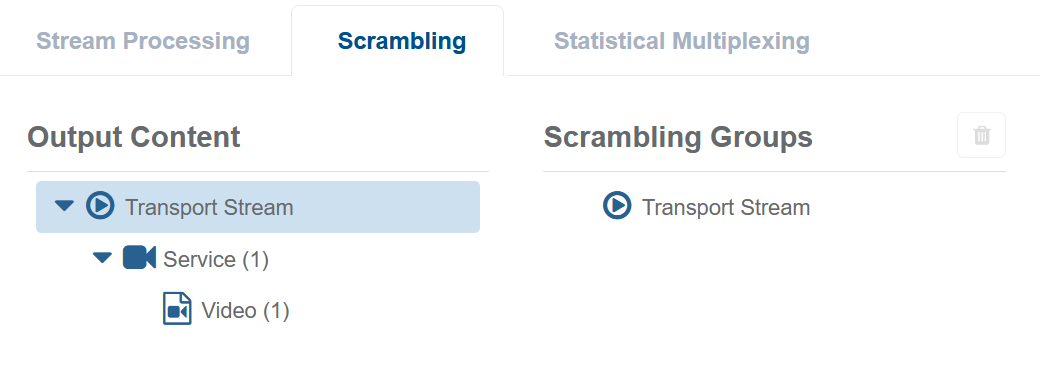
Configure scrambling for Service 1
-
Drag and drop Service 1 to the Transport Stream in the Scrambling Groups panel. A new SCG is created.
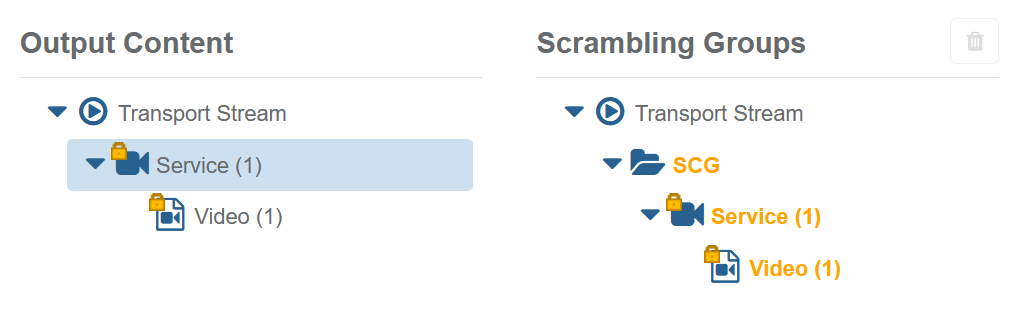
-
Click SCG to display options. The Scrambling Group Properties displays.
-
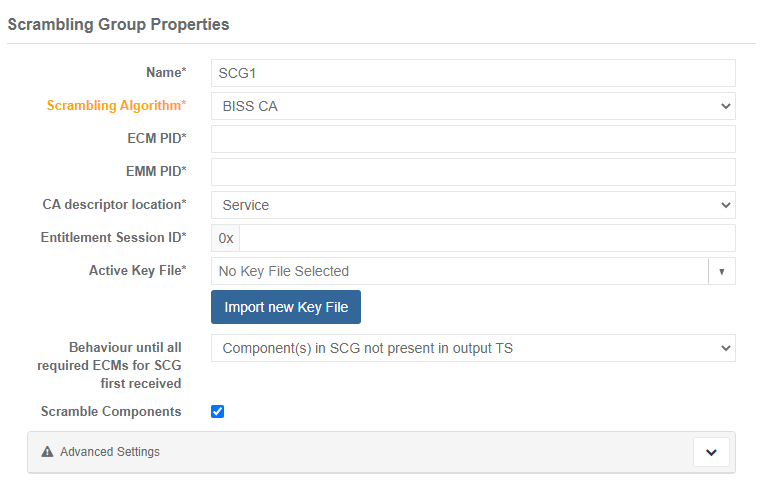
Enter a name for the SCG. The SCG name updates in the tree view.
-
Select BISS-CA as Scrambling Algorithm.
-
Enter the ECM PID and EMM PID.
-
Select the location in the PMT of the CA descriptor:
- Service
- Component
-
Enter the four-hex unique ID for the Entitlement Session.
-
Select a pre-imported file that contains the Active Key.
-
Select the Behaviour until all required ECMs for SCG first received:
- Component(s) in SCG not present in output TS
- Component(s) in SCG in-the-clear in output TS
-
Select the scrambling behavior to apply to the components:
- Checkbox ticked: scramble components in the group
- Checkbox unticked: does not scramble the components in the group
- Click the Arrow icon to display and configure the Advanced settings. Changing the default value moves that parameter from Advanced Settings to Main Settings.
- EMM bitrate
- Period to play the session word (must be greater than the Additional Descrambler Delay and less than or equal to the Session Key Period)
- Period to play the key session (defaults to 0, if not 0 must be greater than 60 seconds and a multiple of the session word period)
- Prevent Descrambled Forward
- Prevent Decode Forward
- Insert Watermark
- EMM ingest Buffer Duration
- Additional Descrambler Delay
- Click Save and continue to scramble Service 1. MediaKind ECM is present in the output transport stream.
Configure scrambling for Service 2
-
Drag and drop the video component with PID 200 from Service 2 to the Transport Stream in the Scrambling Groups panel.
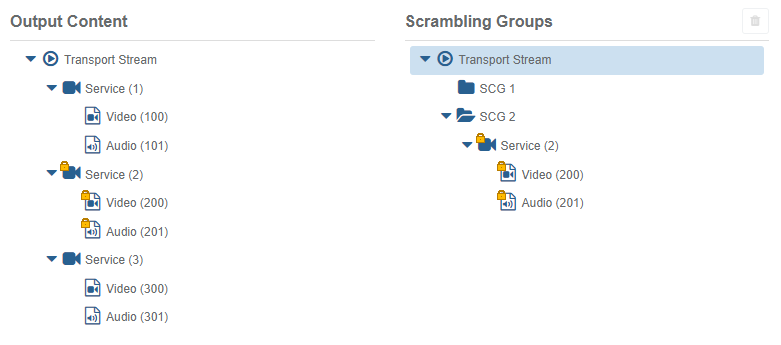
A new SCG is created with PID 200 as the scrambled component.
-
Drag and drop the video component with PID 300 from Service 3 to the new SCG in the Scrambling Groups.
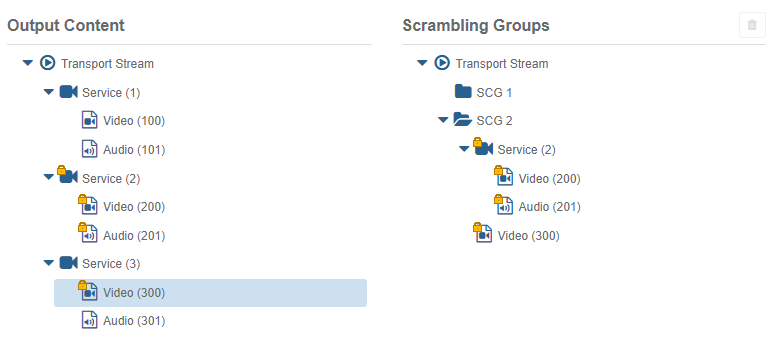
PID 300 is added to the new SCG.
-
Select the added SCG to edit the Scrambling Groups Properties and enter a name for it.
-
Click Save and continue to scramble PIDs in the SCG and to continue the configuration. MediaKind ECM is present in the output transport stream.
Save
Save the configuration to accept the EMMG connection. The EMM is present in the output Transport Stream.
Drop IP/ASI output on input loss
The CE1 can be configured to drop IP/ASI output on input loss. This can be configured for Live Encoder + Multiplexer feed templates.
To configure this, follow these steps:
-
On the Live encoder side:
-
Go to the feed card then edit the Live encoder by clicking
 next to the LIVE ENCODER component within the CE1 feed.
-
Click the Output tab then click
to edit the output. -
In the Common MPEG-2 TS Parameters section, set the Signal loss management to Drop transport stream.
-
-
On the corresponding Multiplexer side:
-
Go to the feed card and select
next to the MULTIPLEXER component within the CE1 feed. -
From the Stream Processing tab, click Output stream > Service (x).
-
Go to the Properties > Sources sub-tab then tick the Output Drop On Input TS Loss checkbox.
-