
The SDI monitor port can be configured as a shared resource for all decoded HD services of the Contribution decoder. The monitor port has the same configuration options as a standard SDI output port. Each decoded service can configure the output port as required.
Before you start, ensure at least one Receiver service is configured.
-
From the Home page, select the RECEIVER item from the required feed then click
 .
-
From the Parameters section, select the Output tab.
-
Click + to add an SDI output.
-
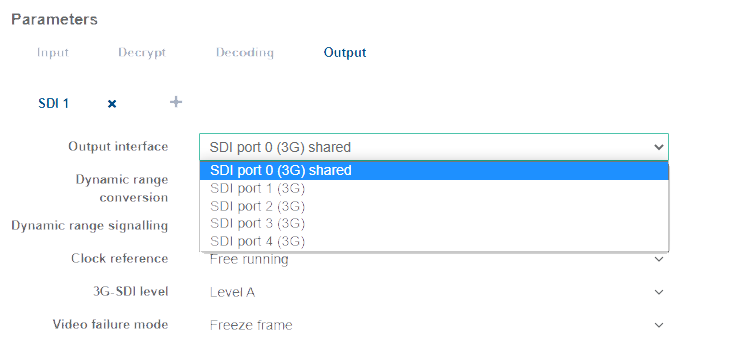
Select the SDI port 0 shared for Output interface.
-
Configure the output port as required. See Configure the output for how to set the output options.
-
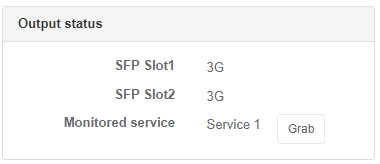
The Output status panel displays the current service using the monitor port. Pressing the Grab button switched the monitor to output the currently viewed service.
-
The monitor port can be switched off by viewing the Output status of the service using it and pressing the Release button.
Configure multiple SDI outputs on an HD service
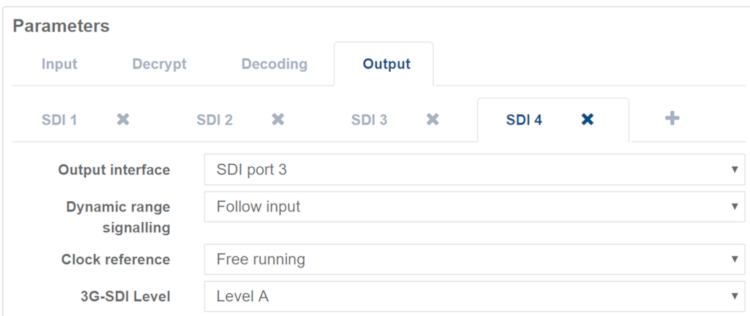
It is possible to add multiple HD SDI outputs to a single decode up to a maximum of 4 main outputs plus a single monitor port, if no other decode is currently running on the unit.
When a service is created a single SDI output is automatically assigned.
-
From the Home page, select the RECEIVER item from the required feed then click
. -
From the Parameters section, select to Output tab.
-
Click + to add an SDI output.
-
Select the Output interface.
If another service is already using this interface when you try to start the service then it will be blocked from starting until:- an unused port is selected for the new service, or
- the current running service is stopped, or
- the service is reconfigured to avoid a clash, or
- the added Output interface is deleted. If the service is blocked from starting for this reason, then the alarm icon displays the following alarm:
Insufficient Resources – SD 1 already in use.