
Transcode satellite input to ASI output
This use case configures a Receiver service with Satellite input and IP output. This is connected in the internal interface tap0 to several Live Encoding services performing transcoding from IP input to IP output. The services are then multiplexed on a Multiplexing service via the tap0 internal interface, with IP and ASI outputs.
The configuration is based on the following main steps:
- Step 1: you configure a Receiver service followed by a Live Encoding service.
- Step 2: you configure a Receiver service, followed by a Live Encoding, followed by a Multiplexing service.
To set up this use case, follow these steps:
Create a Receiver service
-
Follow the instructions under Configure a basic Receiver service setting the Service type to TS passthrough.
-
From the Input tab, set the Input type to Satellite and configure the Satellite input parameters accordingly.
Under Primary, configure the satellite Source and the LNB and Tuner parameters.
-
From the Decrypt tab, configure the CA Module by choosing the incoming service to descramble and the CAM to be used.
Under DVB-CI, use Program Configuration to associate each selected service with its CAM slot.
-
From the Output tab, set the Receiver network interface to
tap0. This is the internal routing interface.Under TS over IP, set Network interface, Stream address, and UDP port.
Create a Live Encoding service
Create and configure a Live Encoding service performing transcoding from IP input to IP output:
-
On the Services page, create a Live Encoding service.
-
In the Input tab, set the network interface to match the Satellite output.
Set the Live Encoding input Network interface, Stream address, and Port to match the Receiver output.
-
Configure the Live Encoding service accordingly.
-
The video bitrate will fluctuate up to the maximum value set in the UI. In order to get a constant video bitrate on the output, please set the following entry and value in the advanced parameters tab:
Mpeg2ts.NullPacketStuffing False.
Create additional Live Encoding service
Repeat the previous step to create as many Live Encoding services as are required.
Create and configure the Mux
-
On the Services page, create a Multiplexing service.
-
Configure the Mux by adding the programs in the Transport Stream tree:
- Either by adding the whole service as a pass-through,
- or by adding a service manually and the PIDs one by one in the service tree with the right descriptors.
-
Configure the Output parameters of the Mux, notably the Mux rate and the output interface.
Start the services
On the Services page, for each service you want to run, assign a server and start the service.
Decode SRT input to SDI output
The configuration is based on the following main steps:
- Step 1: you configure a Reliable Transport input.
- Step 2: you configure a Reliable Transport listener with UDP IP output.
- Step 3: you connect that UDP output to a Receiver service.
- Step 4: you configure the Receiver service for SDI output.
To set up this use case, follow these steps:
Configure a Reliable Transport input
-
Connect to the web interface then navigate to the Services menu on the left-hand pane.
-
Click Add service and select Reliable Transport to create and configure the service.
-
Enter a name for this service.
-
In the Input section, set the Input Mode to SRT Listener.
-
In the Output section, set the Output Mode to UDP.
Configure a Reliable Transport listener with UDP IP Output
-
Configure the SRT Listener Connection parameters with the listener address and port. If required, then Encryption. Link characteristics parameters can also be set or adjusted.
-
Configure the Output Connection parameters. You should get the following:
The input is an SRT Listener. On the UDP output, configure Network interface, Stream address, and Port for the connection to the Receiver.
-
Click Save and exit to save your changes.
Configure the Receiver service for SDI output
-
Navigate to the Services menu on the left-hand pane.
-
Click Add service and select Receiver to create and configure the service.
-
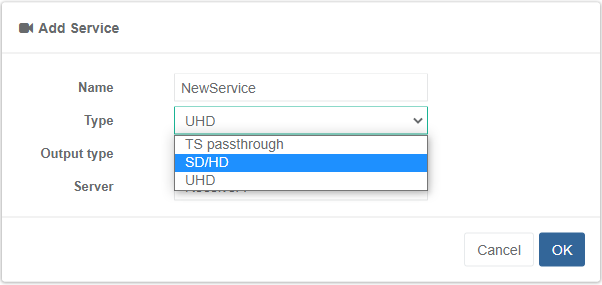
Set service Type to SD/HD. The new service is now created and must be edited before starting.
-
From the Services pane, click
 for the newly created service.
-
On the newly visible service edit screen, set the Input Type to IP.
Under Primary, set Stream address, Port, and Network interface to receive the UDP output of the Reliable Transport service.
-
Configure SDI output parameters.
The Output tab includes Output interface, Dynamic range signalling, Clock reference, 3G-SDI level, and Video failure mode.
-
Once all the parameters are configured, click Save and exit.
Start services
In the Services page, assign a server for each service you want to run and start the services.