
Common Interface (DVB-CI) provides a descrambling solution using integrated descrambling PCMCIA cards, sometimes referred to as a Conditional Access Module (CAM). CAMs are available in many different CA types and have varying advantages.
Consumer CAMs may only be able to descramble one service and this service may limited to no more than two components (PIDs). A Professional CAM may be able to decode multiple services and multiple components per service.
Analysis is required to define a suitable CAM for each system. The Content Processing module can be configured to provide 2 PCMIA slots to insert CAMs.
Mutli-service descrambling: The Receiver service has the ability to descramble multiple services from a single incoming MPTS and then decode up to 4 HD services, depending on the capabilities of the CAM fitted.
Configuration example
Four CAM modules are required to descramble and decode 4 encrypted services from 4 independent incoming transport streams.
Configure service decryption
The unit running the MK.IO Beam Distribution must have a CI card with the correct CAMs and viewing cards.
-
From the Home page, select the RECEIVER item from the required feed then click
 to edit
-
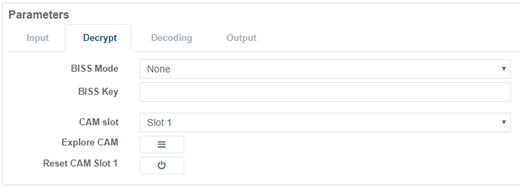
Select the Decrypt tab for the Current Input.
-
Select the CAM slot to be used to decrypt the incoming service. The incoming service is decrypted using the selected CAM. An alarm is triggered if the CAM is unable to decrypt the incoming service.
Explore CAM information
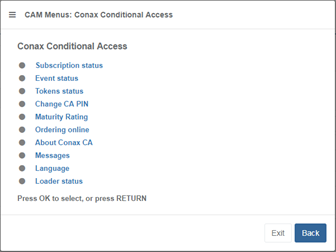
CAM information varies per vendor and between different versions of the same CAM. You can set parameters such as the CA PIN or Language. You can see the model number, versions and CAM status.
-
From the Home page, select the RECEIVER item from the required feed then click
to edit -
Select Decrypt for the Current Input.
-
Select the Explore CAM to see information for the selected CAM slot.
Reset the CAM
You can trigger a soft reboot of a selected CAM.
-
From the Home page, select the RECEIVER item from the required feed then click
to edit -
Select Decrypt for the Current Input.
-
Click the Power button to reset the selected CAM slot.