
Director 6
Over Air Control
Director provides a list of Over Air Control (OAC) commands that can target an individual Beam device, a group of Beam devices or the entire population of Beam devices registered in the Director Headend database. This feature is often referred to as Over Air In-Band control. The OAC commands can be used to configure the Beam device settings remotely, such as satellite tuning parameters and service selection, through commands injected into the transport stream.
Upgrading Beam devices via Director’s over‑the‑air software download feature is not supported. Software updates for MediaKind Beam devices are instead performed using MK.IO.
The receiver MUST be registered to the Director headend before it is able to receive and respond to any OAC commands. Please refer to Supplying Information to the Director Headend
OAC Commands Supported
The following general OAC commands are supported by MK.IO Beam Distribution:
| OAC Command | Description |
|---|---|
| Set Message | Sets the over air messages that can be viewed in Director Status panel of the UI. This is often used to confirm the receiver will respond OAC commands. |
| Force Service Selection | Changes the receiver to a service within the current carrier. |
| Force Carrier Retune | Retune the receiver to a service in a different carrier, either from a stored configuration or from the command itself. |
| Store Carrier Data | Store service and carrier data within a configuration in the receiver. |
| Reset Carrier Data | Clears the service and carrier data for a stored configuration. |
| Service Selection | Allows the user to select which service is decoded or transcoded when using Stream Processing (SP) to service filter the incoming multiple program transport streams. |
| Set Receiver Password | Sets the password of an existing user account. |
| Set Receiver State | Sets the receiver into one of the following states: Reboot, OAC mode or Local mode. |
| Set BISS Data | Allows the user to configure BISS mode 1 and mode E decryption parameters on the receiver. |
Set Message
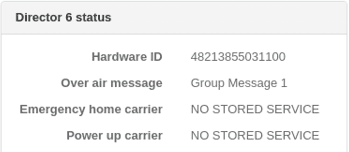
The Set Message OAC command sent to a receiver will be displayed next to the Over air message field within the Director Status panel from the Stats page of a receiver service. The example below has the text message "Group Message 1" sent from the Director headend.
Example:
Power Up Carrier
The Power Up Carrier (PUC) is a feature of Director’s over air control. The PUC can only be configured by the Director headend as it is not possible to do so locally and will be stored in the PUC Carrier Data Preset slot.
When the PUC has been configured correctly, the next time the receiver is powered up or rebooted and the Over Air Control setting is enabled, the receiver will ignore any previous input settings and immediately apply the input settings stored in the PUC Carrier Data Preset slot.
If the Over Air Control setting was disabled, then there will be no change to the current input settings during boot up and the stored PUC Carrier Data Preset slot is ignored.
It may be useful to configure the PUC so that every time the receiver is powered up, it automatically tunes to the Director headend so that it can maintain over air control of the unit.
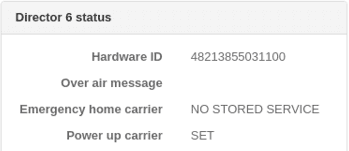
Status of the Power Up Carrier is available on the Director Status panel from the Stats page of a receiver service.
Example:
Emergency Home Carrier
The Emergency Home Carrier (EHC) is a feature of Director’s over air control. The EHC can only be configured by the Director headend as it is not possible to do so locally and will be stored in the EHC Carrier Data Preset slot.
Once the EHC has been configured correctly and the Over Air Control setting is enabled, the receiver will continuously monitor its input status. If the receiver loses transport stream lock on its input or the current program number being decoded is no longer present, after a pre-defined timeout (EHC Timeout), the receiver will immediately apply the input settings stored from the EHC Carrier Data Preset slot.
If the Over Air Control setting was disabled, then there will be no change to the current input settings if the transport stream lock is lost or the selected program number disappears.
If a mistake is made when configuring carrier settings for the receiver resulting in a loss of lock, then the Director headend would lose control. The EHC is a safeguard that allows the headend to regain over air control of the receiver.
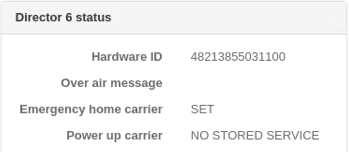
Status of the Emergency Home Carrier is available on the Director Status panel from the Stats page of a receiver service.
Example:
Execution Time
The receiver uses the time from the incoming Time and Date Table (TDT) to determine when the OAC message is actioned, rather than the system clock time used in the logs. For debugging purposes, the logs display the offset between the system clock and the TDT.
If the unit is locked to the incoming TDT then the system clock will match the TDT time.
Configuring Director 6 OAC
Assign Director 6 Hardware ID
At least one Receiver service is configured.
-
From the Home page, select the RECEIVER item from the required feed then click to edit
-
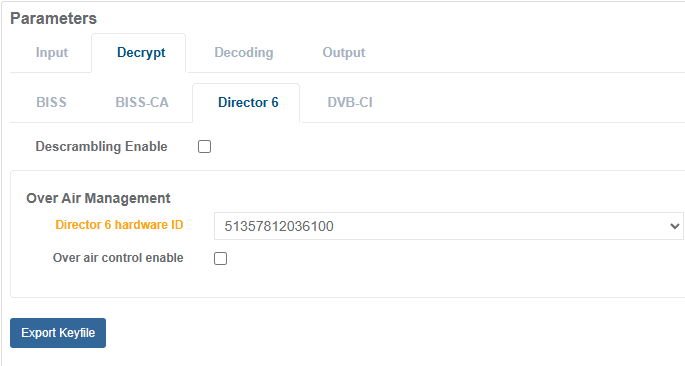
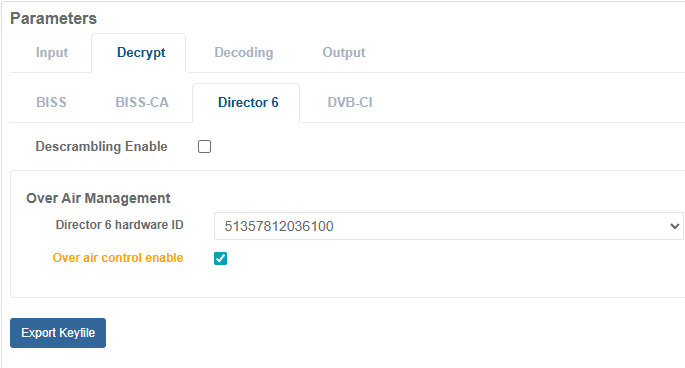
From the Parameters section, select the Decrypt tab.
-
From the Director 6 hardware ID drop down field, assign a hardware ID value that is not in use by any of the other receiver services that have been started.
-
Once configuration is complete, click Save and Continue to apply change.
A receiver service in a running state must be assigned a unique Director hardware ID.
A receiver service in a stopped state may be assigned a Director hardware ID that is already assigned to another service; however, it cannot be started while another service using the same Director hardware ID is running.
Enable Director 6 Over Air Control
At least one Receiver service is configured and already assigned to a unique Director hardware ID.
-
From the Home page, select the RECEIVER item from the required feed then click to edit
-
From the Parameters section, select the Decrypt tab.
-
Tick the Over air control enable check box. Units added to the Director headend database and tuned to the Director headend transport stream will now respond to over the air commands.
-
Once configuration is complete, click Save and Continue to apply change.