
Transport Stream Input Configuration
There are multiple types of transport stream configurations. Each type presents a different set of parameters.
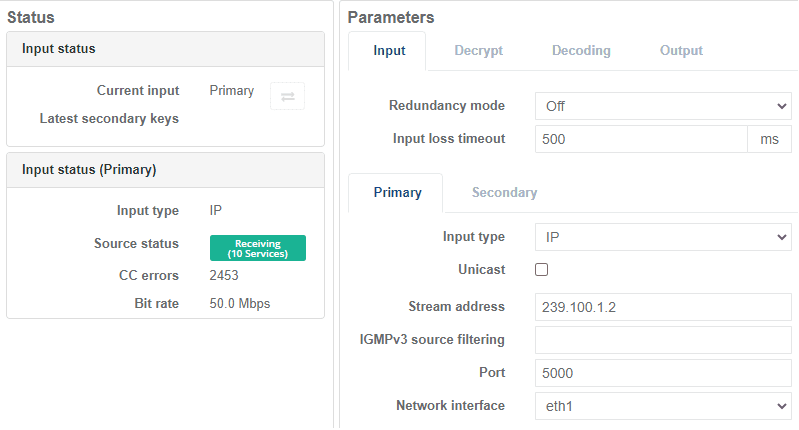
Satellite transport stream input
Different cards are available on MK.IO Beam for Satellite Input:
- MKP/HWO/DEMODSDI (Dektec DTA-2127 DVB-S2X Receiver with 3G-SDI Output)
2 x RF input ports (1x tuner/demod per RF input can be configured) - MKP/HWO/PCI/SAT/DEMOD (Digital Devices SX8 Satellite Demod)
4 x RF input ports (2x tuner/demod per RF input can be configured)
The number of satellite inputs will depend on the option card installed. You can route each satellite input to an independent service, or route a single satellite input to multiple services.
The satellite input option cards that are compatible with MK.IO Beam will comply with the following standards:
- DVB-S (EN300-421)
- DVB-S2 (EN302-307-1)
- DVB-S2X (EN302-307-2)
DVB-S2 offers up to a 30% increase in data rate carriage for an equivalent link margin compared to what the older DVB-S standard can offer. This functionality is often partnered with MPEG-4 or HEVC compression to give bandwidth efficient distribution of high definition or ultra-high definition services.
DVB-S2X is an extension to the DVB-S2 standard and can provide up to 20% performance improvement compared to DVB-S2 and increase the efficiency of satellite links. This will enable an increase in video quality or an increase in the number of video services or a reduction in leased satellite bandwidth, bringing lower operational expenditure.
Input ports with multiple Tuners and Demodulators
Some satellite demodulator cards support more than one tuner and demodulator pairs connected to each RF input port. In this case, an additional tuning parameter is available in the configuration called Tuner where the tuner is referenced alphabetically for that RF port, for example Tuner A and Tuner B.
| Physical RF Input | First Tuner/Demod | Second Tuner/Demod |
|---|---|---|
| RF port 1 | Tuner A | Tuner B |
| RF port 2 | Tuner A | Tuner B |
Each tuner operates independently and can tune to either a different frequency or the same frequency as another tuner. LNB control is independent per physical RF input; therefore, Tuners A and B share the same LNB control.
Configure a receiver service for satellite input
Before you start, ensure a Receiver service is configured.
-
From the Home page, select the RECEIVER item from the required feed then click .
-
From the Primary tab, select Satellite for the Input type. Satellite input options display.
-
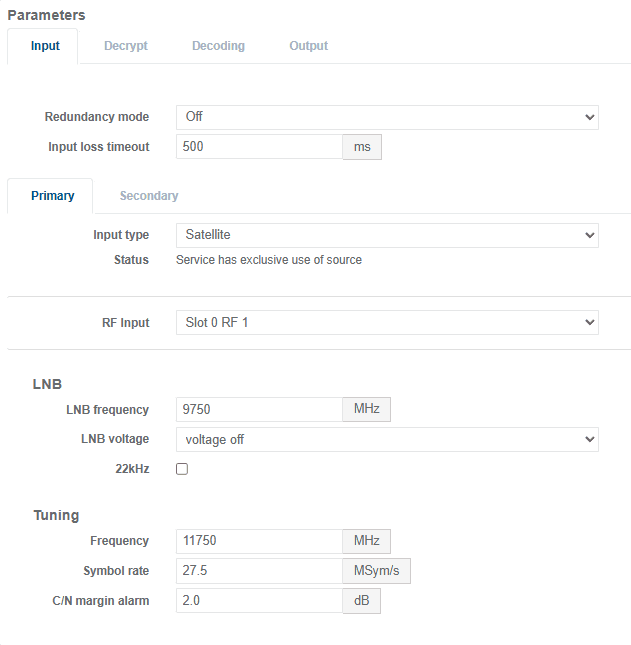
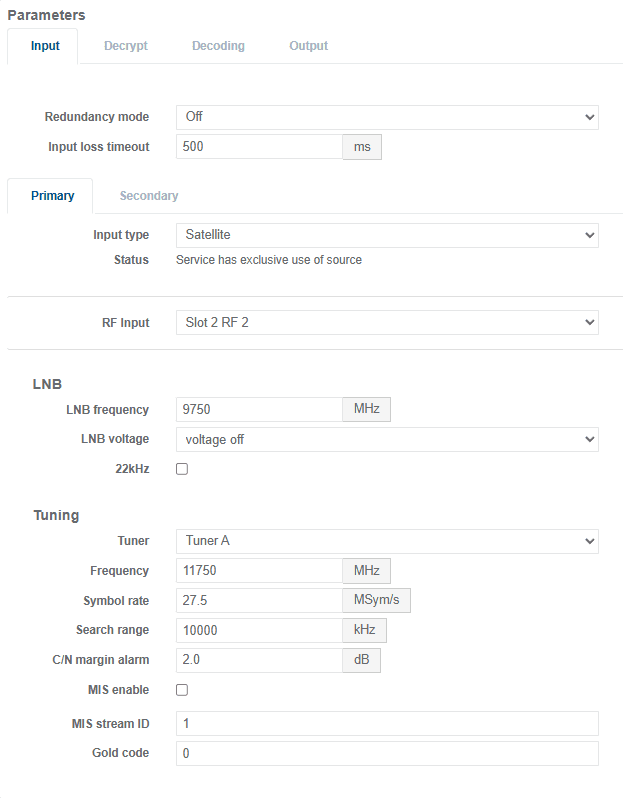
Set the LNB parameters, LNB frequency, LNB voltage and 22kHz.
-
Set the Tuning parameters. This will vary based on the card fitted:
- If Dektec DTA-2127 installed, configure Frequency, Symbol rate and C/N Margin Alarm
- If Digital Devices SX8 installed, configure Tuner, Frequency, Symbol rate, Search range, C/N Margin Alarm, MIS enable, MIS Stream ID, and Gold code
- If Dektec DTA-2127 installed, configure Frequency, Symbol rate and C/N Margin Alarm
-
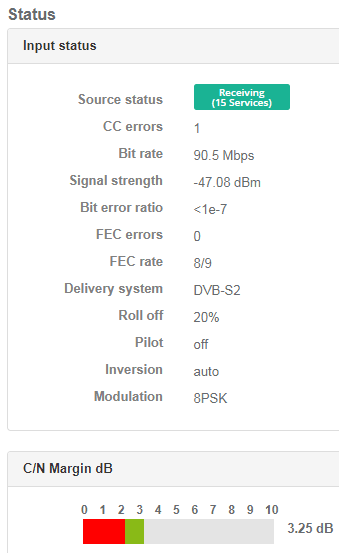
Ensure that the Source Status is green (receiving) for existing sources, and that no errors occur.
ASI transport stream input
Different cards are available on MK.IO Beam for ASI Input:
- MKP/HWO/PCI/SDI/DTA (Dektec 2174B SDI/ASI)
Up to 4 x ASI input ports (micro BNC) - MKP/HWO/PCI/SDI/8 (Dektec 2178 SDI/ASI)
Up to 8 x ASI input ports (micro BNC)
Setup ASI/SDI option card for ASI mode
To use the card as an ASI card it must be configured as follows:
- Select the Appliance Tab.
- Select the ASI/SDI interface Tab.
- Select the Slot Tab corresponding to the SDI/ASI card. If more than one card is present, there will be a separate slot tab for each card.
- Select :
- For the Dektec 2174B cards : 4 ASI/HD-SDI/SD-SDI from the ASI/SDI Mode drop down menu.
- For the Dektec 2178 cards : 8 ASI/HD-SDI/SD-SDI from the ASI/SDI Mode drop down menu.
This will now allow ASI to be selected as the current input in a feed.
Configure a receiver service for ASI input
Before you start, ensure a Receiver service is configured.
-
From the Home page, select the RECEIVER item from the required feed then click to edit.
-
From the Primary tab, select ASI for Input type.
-
Select the port on the ASI card where the transport stream is connected (the port number maps directly to the numbering on the card).
-
Ensure that the Input Status is green (receiving) and that they're no errors (this only applies if the source currently exists).
IP transport stream input
A Receiver service can support decoding or passthrough of transport streams via Ethernet.
Configure a receiver service for IP unicast input
Before you start, ensure at least one Receiver service is configured.
-
From the Home page, select the RECEIVER item from the required feed then click to edit.
-
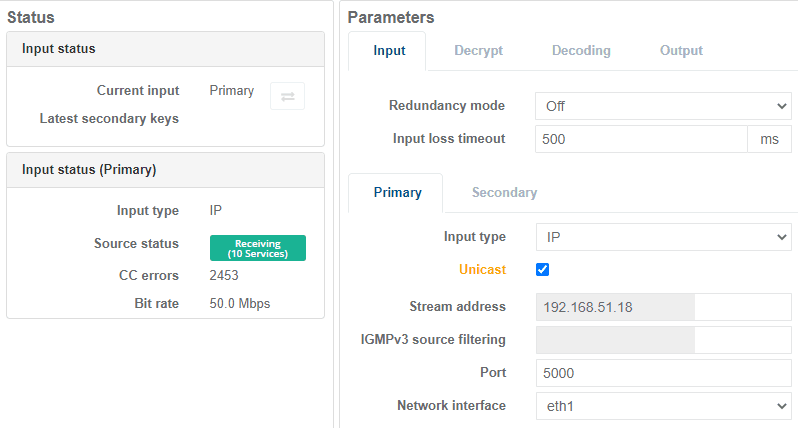
From the Primary tab, tick Unicast. Stream address is greyed out and a port parameter displays.
-
Enter the UDP Port number for the incoming transport stream.
-
Select the Ethernet port for the Network interface that the incoming transport stream is available on.
-
Ensure that the Input status is green (receiving) and that they're no errors (this only applies if the source currently exists).
Configure a receiver service for IP multicast input
Before you start, ensure at least one Receiver service is configured.
Transport streams can be streamed over either Ethernet (IP) or ASI depending on the hardware installation.
-
From the Home page, select the RECEIVER item from the required feed then click to edit.
-
From the Primary tab, check that the Unicast checkbox is unticked then enter a multicast Stream address.
The Multicast parameter is grayed out if Unicast is selected.
-
Enter the UDP port number for the incoming transport stream.
-
Select the Ethernet port for the Interface that the incoming transport stream is available on.
-
Ensure that the Input status is green (receiving) and that they're no errors (this only applies if the source currently exists).
Transport stream passthrough
The Receiver service can be configured for Transport Stream passthrough instead of decode. The incoming transport stream can be received from any of the above routes described above but the outgoing transport stream can only be sent as an IP multicast.
The transport stream is passed through unaltered except if it is being decrypted by one of the supported Conditional Access (CA) systems.
A maximum of 15 Transport stream services can be decrypted.
Configure a receiver service TS Passthrough
-
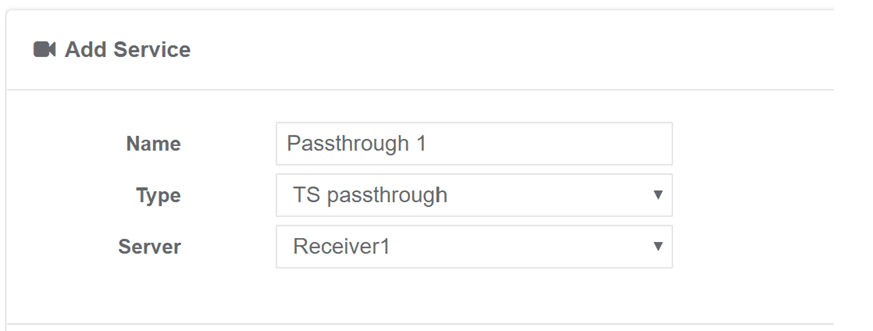
From the Services page, click Add service then select Receiver. A new window displays:
-
Configure the following parameters:
- Enter a suitable Name for the service.
- Select the Type to be TS Passthrough.
- Select the Server to be Receiver to create and configure the service.
-
Click OK to create the service which will now appear in the services list.
-
From the Services pane, click the service name for the newly created service to edit the configuration.
-
See Configure the input for how to set up in the input interface to receive the incoming transport stream.
-
See Configure the decryption for how to decrypt any of the incoming service in the transport stream.
-
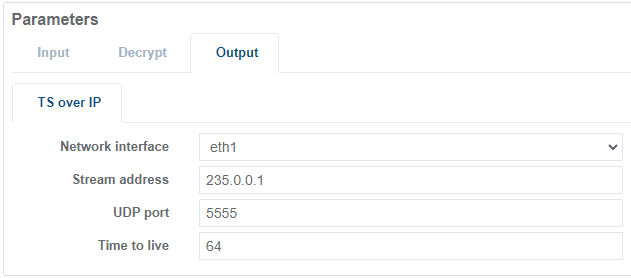
Select the Output tab under the Parameters section.
-
Configure the following parameters:
- Select the Network interface for the outgoing transport stream.
- Enter a Stream address (Multicast IP address) and UDP port number for the outgoing transport stream.
- Enter the Time to live for the outgoing data packets.
-
Once complete, click Save and exit.