
Configure SMPTE ST 2110 output
The Receiver service on MK.IO Beam can output uncompressed digital video, audio, and ancillary data over IP networks using SMPTE ST 2110. Unlike SDI and SMPTE ST 2022‑6, where all content is carried in a single stream, SMPTE ST 2110 transports each Media Type (i.e. video, audio, and ancillary data) as separate, independently routed essence streams.
SMPTE ST 2110 uses the Precision Time Protocol (IEEE 1588 PTP) to ensure accurate synchronization between video, audio and data streams.
In some cases, it may be necessary to update the server performance profile by selecting an alternative output profile. See Configure the output Profile for details.
Supported Network Cards
The following option cards are valid for SMTPE ST 2110 output on MK.IO Beam:
- MKP/HWO/PCI/NIC/25G/2PORT/B (MCX621102AN-ADAT)
- NVIDIA Mellanox ConnectX-6 Dx EN adapter card, 25GbE, Dual-port SFP28, PCIe 4.0 x8, No Crypto
- MKP/HWO/PCI/NIC/25G/2PORT/<PENDING> (MCX631102AN-ADAT)
- NVIDIA Mellanox ConnectX-6 Lx EN adapter Card, 25GbE, Dual-Port SFP28, PCIe 4.0 x8, No Crypto
Mellanox Ethernet network adapter cards must be sourced from NVIDIA rather than Dell, as OEM variants may impose restrictions on firmware upgrades.
Mellanox (Rivermax) License
When installing a Mellanox (NVIDIA ConnectX) network adapter into an existing MK.IO Beam system, a Rivermax license is required to enable SMPTE ST 2110 functionality.
Follow the steps below to obtain and install the license.
Install Mellanox card and connect to server
-
Install the Mellanox card into the server then power on.
-
Connect to the server over SSH as a user with
sudoprivileges. -
Confirm that the Mellanox card is detected by the OS with the following command:
lspci | grep MellanoxAn example of a single card installed with two ports should look like the following:
02:00.0 Ethernet controller: Mellanox Technologies MT2892 Family [ConnectX-6 Dx]
02:00.1 Ethernet controller: Mellanox Technologies MT2892 Family [ConnectX-6 Dx]
Obtain Mellanox card serial number
Run the following command to list installed PCIe cards detected and filter out the serial number provided by the Mellanox card.
sudo lspci -vv | grep "Serial number"The output should look similar to:
                        [SN] Serial number: MT2051X19249
                        [SN] Serial number: MT2051X19249
MediaKind Supply
Provide the serial number to MediaKind supply: SW.Supply@mediakind.com
MediaKind Supply will return a Rivermax license key file.
Copy Rivermax license to the server
If this is the first time the server has had a Mellanox card installed, use the following steps:
-
Rename the license file to
rivermax.lic. -
Copy the license file to the server (for example using SCP).
-
Connect to the server via SSH and copy the file to the Rivermax license directory:
sudo cp rivermax.lic /opt/mellanox/rivermax/rivermax.lic
License persistence note
After the first reboot, the Rivermax license file is automatically backed up so it can be preserved across software bundle upgrades.
If the new license file is intended to replace an existing Rivermax license, additional steps are required to remove the backed‑up license. In this case, contact MediaKind Customer Support for assistance.
Restart receiver services
If any receiver services configured for SMPTE ST 2110 output are currently running, stop and restart them to ensure the updated Rivermax license is applied.
A full system reboot is not required.
Configure SMPTE ST 2110 Output
SMPTE ST 2110 Output
Before you start, ensure at least one Receiver service is configured.
-
From the Home page, select the RECEIVER item from the required feed then click .
-
Check that the Configuration type is SD/HD or UHD as required.
-
In the Parameters window, select the Output tab.
-
If the SMPTE ST 2110 tab is not present under the Output tab:
- Click the to bring up a prompt to add a new output
- Select SMPTE ST 2110 from the drop down menu
- Click the Add button to complete and add the SMPTE ST 2110 output tab
-
Delete the SDI 1 output using button on the tab if not required to maintain optimal performance.
-
Configure each Media Type such as Video, PCM Digital Audio, AES3 Audio and Ancillary Data to create the necessary essence streams.
-
When two or more outputs exist, they can be deleted by using the button on the associated tab.
If a UHD SMPTE ST 2110 output is created, then all other outputs must be deleted as the UHD service only supports a single output.
Video Output
To configure ST 2110-20 video for SMPTE ST 2110 Output, follow these steps:
-
From the SMPTE ST 2110 tab, select the Video tab.
-
Select any required video options as detailed in the SMPTE ST 2110 output parameters section
-
Check the Essence settings.
PCM Digital Audio Output
Audio Auto Select should be disabled when using SMPTE ST-2110 outputs, as it may result in too many or too few audio channels being carried in the ST 2110-30 essence stream.
SMPTE ST 2110-30 Conformance Level C supports 1 to 8 channels with a 1 msec packet time, or 1 to 64 channels with a 125 usec packet time. Selecting a Packet Time of 1 msec ensures optimal interoperability between devices, while selecting a Packet Time of 125 usec allows more channels to be carried into a single essence stream. Note that, on MK.IO Beam, the actual number of available channels will be limited by the number and configuration of the available audio decoders.
For mixed-vendor environments, 1 ms packet time is recommended unless higher channel density is explicitly required. MK.IO Beam supports additional ST 2110-30 essences if more channels need to be carried.
To configure ST 2110-30 PCM digital audio for SMPTE ST 2110 Output, follow these steps:
-
From the SMPTE ST 2110 tab, select the PCM Audio tab.
-
Use the Add component, Add all or Remove all buttons to set the required number of decoded audio components to the list of output components. By default, each audio component will be embedded (carried) in Essence 1.
-
If the number of channels exceed the current Essence settings, add more essences by selecting in the Essence section. For example, button next to the Essence 1 tab.
-
Review the list of output audio components and assign to the desired essence stream under the Embedding column. For example, Essence 1 or Essence 2.
-
Alternatively, change the Packet Time setting in Essence section to change the numbers of channels that can be carried in each essence stream.
-
Select any required PCM audio options as detailed in the SMPTE ST 2110 output parameters section
-
Check the Essence settings.
AES3 Audio Output
Audio Auto Select should be disabled when using SMPTE ST-2110 outputs, as it may result in too many or too few audio channels being carried in the ST 2110-31 essence stream.
SMPTE ST 2110-31 Conformance Level C supports 1 to 6 channels with a 1 msec packet time, or 1 to 60 channels with a 125 usec packet time. Selecting a Packet Time of 1 msec ensures optimal interoperability between devices, while selecting a Packet Time of 125 usec allows more channels to be carried into a single essence stream. Note that, on MK.IO Beam, the actual number of available channels will be limited by the number and configuration of the available audio decoders.
For mixed-vendor environments, 1 ms packet time is recommended unless higher channel density is explicitly required. MK.IO Beam supports additional ST 2110-31 essences if more channels need to be carried.
To configure ST 2110-31 AES3 audio for SMPTE ST 2110 Output, follow these steps:
-
From the SMPTE ST 2110 tab, select the AES3 Audio tab.
- If AES3 Audio tab is not shown, select the button next to the Media Type tabs (e.g Video, Data, etc) to add the AES3 Audio tab.
-
Use the Add component, Add all or Remove all buttons to set the required number of decoded audio components to the list of output components. By default, each audio component will be embedded (carried) in Essence 1.
-
If the number of channels exceed the current Essence settings, add more essences by selecting in the Essence section. For example, button next to the Essence 1 tab.
-
Review the list of output audio components and assign to the desired essence stream under the Embedding column. For example, Essence 1 or Essence 2.
-
Alternatively, change the Packet Time setting in Essence section to change the numbers of channels that can be carried in each essence stream.
-
Select any required AES3 audio options as detailed in the SMPTE ST 2110 output parameters section
-
Check the Essence settings.
Data Output
To configure ST 2110-40 ancillary data output, follow these steps:
-
From the SMPTE ST 2110 tab, select the Data tab.
-
For each available ancillary data type, select the line number that the data should appear on or OFF to disable the data type. Details for each data type can be found in the SMPTE ST 2110 output parameters section.
-
Check the Essence settings.
Configure Essence Output
An SDP file is generated for each essence regardless of whether it is enabled. However, IP streams are only created for enabled essences.
Each Media Type is configured as a separate essence stream for the SMPTE ST 2110 output. To configure the essence output, follow these steps:
-
From the Essence 1 tab, enable the output by ticking the Output enable checkbox.
-
Override the default value for the Payload type if required.
-
Configure any extra parameter specific to the Media Type:
- PCM Audio: The Packet Time determines the maximum number of channels carried in the essence.
- AES3 Audio: The Packet Time determines the maximum number of channels carried in the essence.
-
Under the Primary tab for the current Essence:
- Enter the Destination IP Address and Destination Port for the primary essence stream.
- Select the Network interface from the options in the pull-down list.
- Either leave the Source port setting on Auto or enter a valid value.
- Set a value for the TTL parameter.
-
Repeat the above steps for each Essence tab introduced.
-
Click Save and continue to save your changes.
SMTPE ST 2022-7
For downstream SMPTE ST 2110 receivers (e.g. monitors, encoders) that support SMPTE ST 2022-7 Seamless Protection Switching, two identical RTP streams are required for each essence. These streams must be carried independently over separate network paths to provide redundancy.
This can be facilitated by MK.IO Beam for each Receiver service outputting SMPTE ST 2110. By enabling a Secondary output for each essence stream, the Primary stream is duplicated. To configure this, follow the steps below:
-
From the SMPTE ST 2110 tab, review each Media Type tab. For example, the Video tab.
-
Select the Essence 1 tab.
-
Click button next to the Primary tab to add the Secondary tab.
- Enter the Destination IP Address and Destination Port for the secondary essence stream.
- Select the Network interface from the options in the pull-down list.
- Either leave the Source port setting on Auto or enter a valid value.
⚠️The Secondary source port will use the same value for source port as the Primary setting. This is due to a driver limitation that may be resolved in future releases.
- Set a value for the TTL parameter.
-
Repeat the above steps for each Essence tab under the selected Media Type.
-
Repeat the above steps for each Media Type tab. For example, PCM Audio, AES3 Audio and Data tabs.
-
Click Save and continue to save your changes.
Download SDP File
The SDP (Session Description Protocol) files that describe each SMPTE ST 2110 essence are generated each time the essence parameters and source input are changed. These SDP files can be used to configure the inputs of equipment that are required to receive the SMPTE ST 2110 essence streams.
The SDP file for each media type can be obtained by clicking in the Output status section. This appears on the Stats page and on the Edit page for the Output.
The SDP files are automatically regenerated whenever a change to the input source or essence parameters are detected. The initial SDP file generation may only contain the changes related to either the input source or the essence parameters.
It is advisable to wait 30 seconds after setting up an essence and providing a source stream before downloading the SDP files to ensure the SDP file is fully updated.
NMOS Support
Once the required service has been started, SMPTE ST 2110 outputs can be discovered using products that support the NMOS IS-04 Discovery and Registration standard. In addition, active SMPTE ST 2110 outputs can be managed using products that support the NMOS IS-05 Device Connection Management standard.
If the device hostname is changed, a reboot is recommended to ensure continued NMOS operation.
mDNS Configuration
The MK.IO Beam supports the ability to use multicast DNS (mDNS) protocol to resolve domain names within the attached SMPTE ST 2110 network.
Do not enable this setting in unsupported networks, this may lead to memory issues.
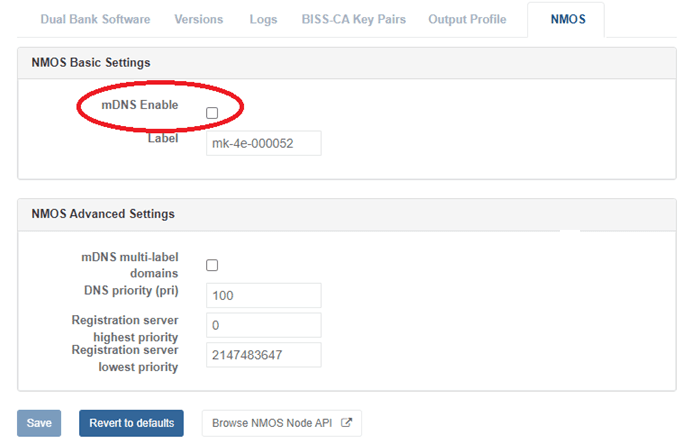
This can be enabled from the GUI via the NMOS tab on the appliance page:
-
Select Appliance from the left-hand side menu.
-
Click the NMOS tab.
-
Enable the mDNS Eanble checkbox as shown below:
-
Set an appropriate name or description in the Label so that your node device can be easily identified.
NMOS Basic Settings
| Parameter | Description |
|---|---|
| mDNS Eanble | If enabled, use multicast DNS to automatically configure NMOS registration settings. |
| Label | This is the label used for the device when used as an NMOS node. |
NMOS Registration Settings
| Parameter | Description |
|---|---|
| Registration Address | Manually assign the IP address of the NMOS registration server. |
| Registration Version | Manually assign the registry version for NMOS. |
| Registration Port | Manually assign the port of the NMOS registration server. |
NMOS Advanced Settings
| Parameter | Description |
|---|---|
| mDNS multi-label domains | When selected, you can enable mDNS to support domains with multiple labels. For example, en.mediakind.local, where en is subdomain of mediakind.local. |
| DNS priority (pri) | This is used for the 'pri' TXT record when advertising the node via mDNS. Specifying 2147483647 (maximum value) disables advertisement completely. |
| Registration Server highest Priority | This is used to specify the highest 'pri' value of discovered registration server, to avoid development and live systems colliding. Smaller numbers indicate higher priority; 0 is highest priority. |
| Registration Server lowest Priority | This is used to specify the lowest 'pri' value of discovered registration server, to avoid development and live systems colliding. Larger numbers indicate lower priority; 2147483647 is lowest priority. |