
Configure subtitle encoding
Before you start: ensure you have configured a subtitle input stream.
-
From the Encoding tab, go to the Subtitle encoding section.
-
Click Add to create a new subtitle processing configuration or click
 to edit an existing one. The Subtitles encoding window displays.
 -
Select the Codec to define how metadata is processed:
- Pass-through
- DVB-Subtitles
- DVB-Teletext
- Closed caption CEA 608 (only valid with both IP TV export type and 25i/50p to 29.97i/59.94p frame rate conversion)
- DVB-TTML (only valid with Internet TV export type)
- DASHIF-TTML (only valid with Internet TV export type)
Possible values depend on subtitle type.
-
Depending on the selected codec, specific parameters must be configured.
-
Click Save and continue or Save and exit to save your changes.
-
Add the conditioned metadata to the output stream (see Define the output stream composition).
Convert Teletext to Closed Caption
Section titled “Convert Teletext to Closed Caption”To convert Teletext to Closed Caption, follow these steps:
Add input subtile
Section titled “Add input subtile”From the Input tab, go to the Sources > Input streams selection > Subtitle ID section then Configure input subtitle selection by setting the Type to Teletext.
Check Video adjustment
Section titled “Check Video adjustment”Go to the Media processing tab then go to the Video processing > Video adjustment section and check that Frame rate conversion is set to 25i/50p to 29.97i/59.94p.
Check export type
Section titled “Check export type”Go to the Encoding tab then check that Export type is set to IPTV.
Configure subtitle encoding
Section titled “Configure subtitle encoding”Go to the Metadata encoding section to add and configure the subtitle encoding:
-
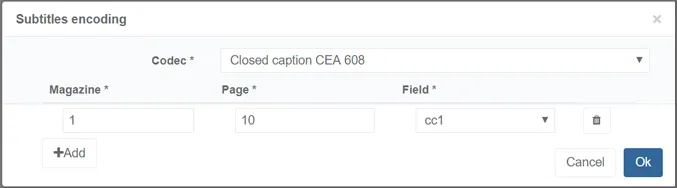
Click the Add button then set the Codec to Closed caption CEA 608.
-
Click the Add button then specify the input teletextMagazine, the Page and the destination CEA 608 Field.
-
Click OK to validate.
Configure subtitle encoding
Section titled “Configure subtitle encoding”Go to the Video encoding section to configure the video encoding.
-
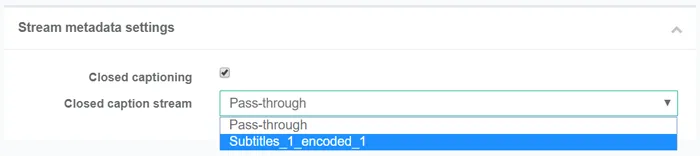
Go to the Video encoding > Stream metadata setting section.
-
Tick the Closed caption checkbox then in the Closed caption stream, select the stream created in Step #5.
-
Click OK to validate.
Add the video stream related to the output
Section titled “Add the video stream related to the output”-
Go to the Output tab.
-
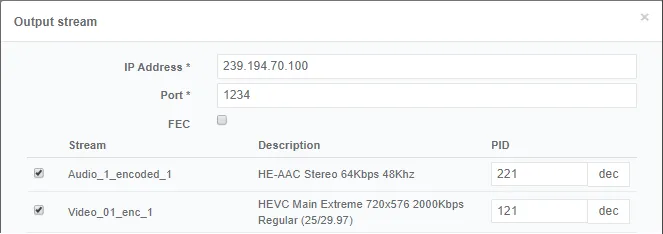
Go to the Output streams section, then click either the Add button (if no stream has been selected) or
in the Actions column. -
Select the video stream that you configured in Step #6 that includes the closed caption.
-
Click OK to validate. You should see the selected streams in the list of output streams.
Convert Teletext to TTML
Section titled “Convert Teletext to TTML”To convert Teletext to TTML, follow these steps:
Add input subtile
Section titled “Add input subtile”- From the Input tab, go to the Sources > Input streams selection > Subtitle ID section and Configure input subtitle selection by setting the Type to Teletext.
Check export type
Section titled “Check export type”- Check that Export type is set to Internet TV.
Configure the subtitle encoding
Section titled “Configure the subtitle encoding”-
Click the Encoding tab then go to the Subtitle encoding section. Teletext subtitle has been added to the Encoding tab. By default Codec is set to Pass-through.
-
Click
to edit the subtitle encoding. -
Select the codec used to convert the subtitles, DVB-TTML. A new window let you configure the TTML parameters.
-
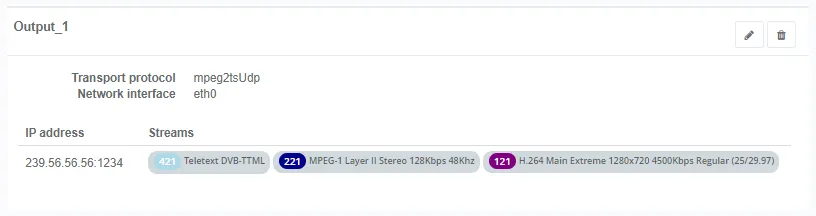
Click Ok once done. You should get the following:

Add the subtitle stream to the output
Section titled “Add the subtitle stream to the output”-
Click the Output tab.
-
Go to the Output streams section, then click either the Add button (if no stream has been selected) or the edit button,
in the Actions column. -
Tick the subtitle stream that you configured in the previous step.
-
Click OK to validate. You should see the selected streams in the list of output streams.
Convert ARIB B24 to DVB-Teletext
Section titled “Convert ARIB B24 to DVB-Teletext”Only available with MPEG-2 TS/UDP input type (or MediaComposer with MPEG-2 TS/UDP source only).
To convert ARIB B24 subtitles to Teletext, follow these steps:
Add an ARIB B24 subtitle at the input
Section titled “Add an ARIB B24 subtitle at the input”-
From the Input tab, go to the Sources > Input streams selection > Subtitle ID section.
-
Click Add then set the Type to ARIB B24 and enter either the PID or Language of the subtitle. You should get the following:
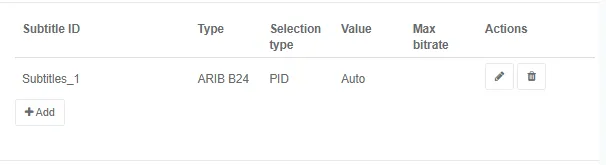
Configure the subtitle encoding
Section titled “Configure the subtitle encoding”-
Click the Encoding tab then go to the Subtitle encoding section. ARIB B24 subtitle has been added to the Encoding tab. By default Codec is set to Pass-through.
-
Click
to edit the subtitle encoding. -
Select the codec used to convert the subtitles, DVB-Teletext. You should get the following:

Add the subtitle stream to the output
Section titled “Add the subtitle stream to the output”-
Click the Output tab.
-
Go to the Output streams section, then click either the Add button (if no stream has been selected) or the edit button,
in the Actions column. -
Tick the subtitle stream that you configured in the previous step.
-
Click OK to validate. You should see the selected streams in the list of output streams.
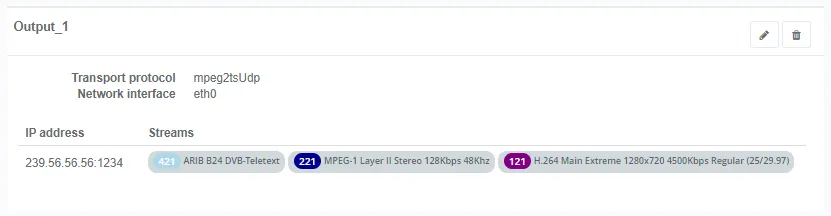
Check that ARIB B24 subtitles are present
Section titled “Check that ARIB B24 subtitles are present”. You can check that ARIB B24 subtitles are present in the input by displaying statistics.
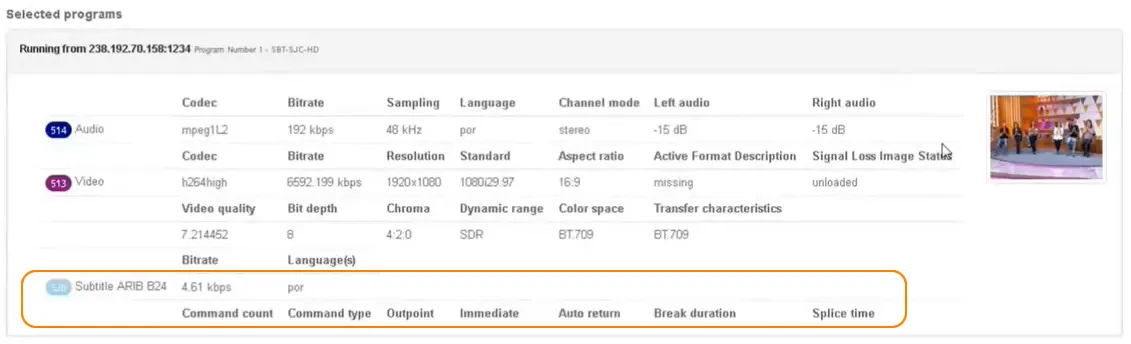
. You can check that ARIB B24 subtitles are present in the output by opening the output stream in a player.
Convert CEA-608/708 Closed Captions to TTML for DASH output
Section titled “Convert CEA-608/708 Closed Captions to TTML for DASH output”To convert CEA-608/708 Closed Captions to TTML, follow these steps:
Add input subtile
Section titled “Add input subtile”- From the Input tab, go to the Sources > Input streams selection > Subtitle ID section and Configure input subtitle selection by setting the Type to CEA-608/CEA-708 Closed Captions.
Check export type
Section titled “Check export type”- Check that Export type is set to Internet TV.
Configure the subtitle encoding
Section titled “Configure the subtitle encoding”-
Click the Encoding tab then go to the Subtitle encoding section.
-
Click Add. A new window let you configure the subtitle parameters.
-
Select the codec used to convert the subtitles, DVB-TTML or DASHIF-TTML then configure the DVB-TTML or DASHIF-TTML.
-
Click Ok once done.
Add the subtitle stream to the output
Section titled “Add the subtitle stream to the output”-
Click the Output tab.
-
Go to the Output streams section, then click either the Add button (if no stream has been selected) or the edit button,
in the Actions column. -
Tick the subtitle stream that you configured in the previous step.
-
Click OK to validate. You should see the selected streams in the list of output streams.
Convert ARIB B24 to DVB-Teletext
Section titled “Convert ARIB B24 to DVB-Teletext”Only available with MPEG-2 TS/UDP input type (or MediaComposer with MPEG-2 TS/UDP source only).
To convert ARIB B24 subtitles to Teletext, follow these steps:
Add an ARIB B24 subtitle at the input
Section titled “Add an ARIB B24 subtitle at the input”-
From the Input tab, go to the Sources > Input streams selection > Subtitle ID section.
-
Click Add then set the Type to ARIB B24 and enter either the PID or Language of the subtitle. You should get the following:
Configure the subtitle encoding
Section titled “Configure the subtitle encoding”-
Click the Encoding tab then go to the Subtitle encoding section. ARIB B24 subtitle has been added to the Encoding tab. By default Codec is set to Pass-through.
-
Click
to edit the subtitle encoding. -
Select the codec used to convert the subtitles, DVB-Teletext. You should get the following:
Add the subtitle stream to the output
Section titled “Add the subtitle stream to the output”-
Click the Output tab.
-
Go to the Output streams section, then click either the Add button (if no stream has been selected) or the edit button,
in the Actions column. -
Tick the subtitle stream that you configured in the previous step.
-
Click OK to validate. You should see the selected streams in the list of output streams.
Check that ARIB B24 subtitles are present
Section titled “Check that ARIB B24 subtitles are present”. You can check that ARIB B24 subtitles are present in the input by displaying statistics.
. You can check that ARIB B24 subtitles are present in the output by opening the output stream in a player.
Convert DVB-Sub to DVB-Teletext using OCR
Section titled “Convert DVB-Sub to DVB-Teletext using OCR”This feature relies on an open-source OCR (Optical Character Recognition) engine that extracts printed or written text from images. Once converted to Text, the subtitles are converted to DVB-Teletext.
To convert DVB-Subtitles to DVB-Teletext, follow these steps:
Add a DVB subtitle at the input
Section titled “Add a DVB subtitle at the input”-
From the Input tab, go to the Sources > Input streams selection > Subtitle ID section.
-
Click Add then set the Type to DVB-Subtitles and enter either the PID or Language of the subtitle. You should get the following:
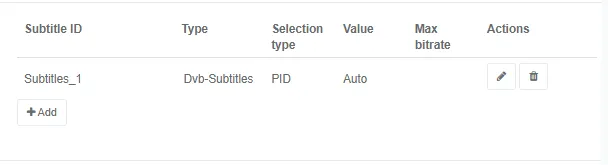
Configure the subtitle encoding
Section titled “Configure the subtitle encoding”-
Click the Encoding tab then go to the Subtitle encoding section. DVB subtitle has been added to the list of subtitles. By default Codec is set to Pass-through.
-
Click
to edit the subtitle encoding.
Usually, there is no need to set the Forced language field because the language is directly retrieved from the input DVB Subtitles. If the language is not set or is wrong in the input DVB subtitle descriptor, it can be set by the “Forced language” field.
-
Select the codec used to convert the subtitles, DVB-Teletext. You should get the following:

Add the subtitle stream to the output
Section titled “Add the subtitle stream to the output”-
Click the Output tab.
-
Go to the Output streams section, then click either the Add button (if no stream has been selected) or the edit button,
in the Actions column. -
Tick the subtitle stream that you configured in the previous step.
-
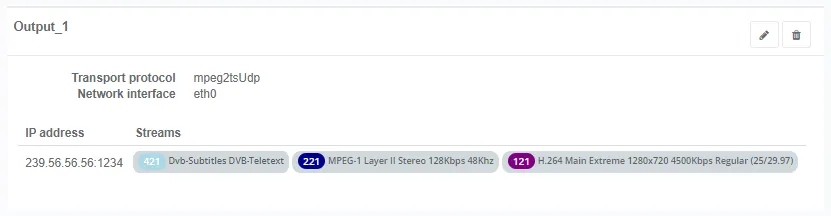
Click OK to validate. You should see the selected streams in the list of output streams.
Check the average OCR confidence
Section titled “Check the average OCR confidence”You can display statistics to check the average OCR confidence (in the range 0-100) on the last converted subtitle.
Check that DVB subtitles are present
Section titled “Check that DVB subtitles are present”You can check that DVB subtitles are present in the output by opening the output stream in a player.