
How to install the MK.IO Beam ISO
This step is only required for servers which have not been purchased from MediaKind.
If the MK.IO Beam server and software are purchased separately, the MK.IO Beam software will need to be installed on the server. The MK.IO Beam software is distributed in the form of an ISO image.
BIOS configuration
Note: Enabling High Performance mode in the BIOS is recommended.
ASI/SDI PCIe card support
If compatibility with 4-port or 8-port Dektec ASI/SDI option cards is required, then the PCIe Data Link Feature Exchange option must be disabled. This must be done before installing any 4-port or 8-port Dektec ASI/SDI option cards into the server.
Installing a 4- or 8-port Dektec ASI/SDI in a server before checking and changing the following settings could prevent the server from booting up.
- If supplied, install the MK Custom BIOS Firmware.
- Boot into the BIOS.
- Check for the PCIe Data Link Feature Exchange or DLFE setting and disable it.
If this setting does not exist and the server will not boot with a Dektec card installed, note the server make, model and BIOS version and contact MediaKind Support.
Boot configuration
Create a bootable USB drive
The USB drive must be at least 16GB. There are several methods for writing ISO files to USB drives. The following procedure describes the process using the free tool, Rufus (opens in a new tab) in Microsoft Windows:
- Download and install the Rufus tool
- Run Rufus and connect the target USB drive to the Windows PC
- Check that the USB drive is detected and shown in the user interface:
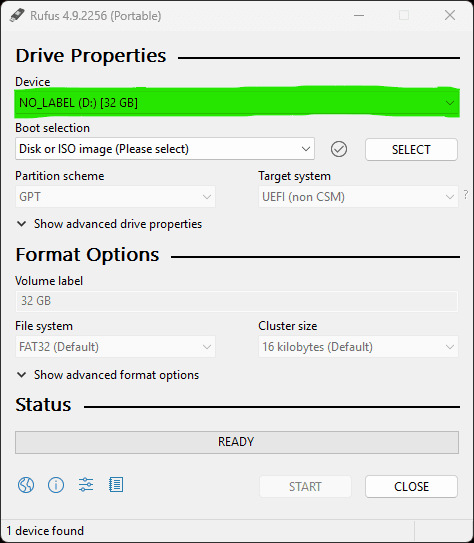
- Click the Select button and browse to the ISO file:
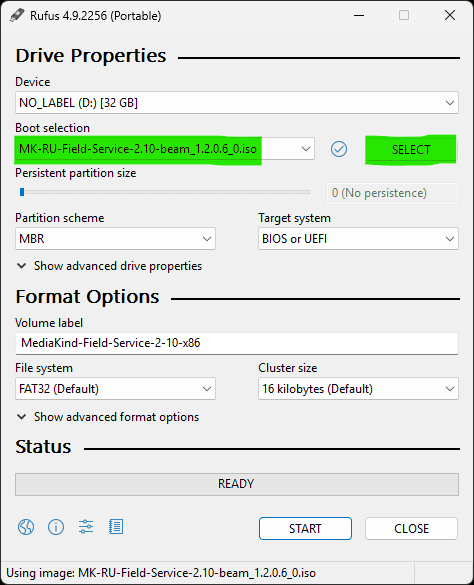
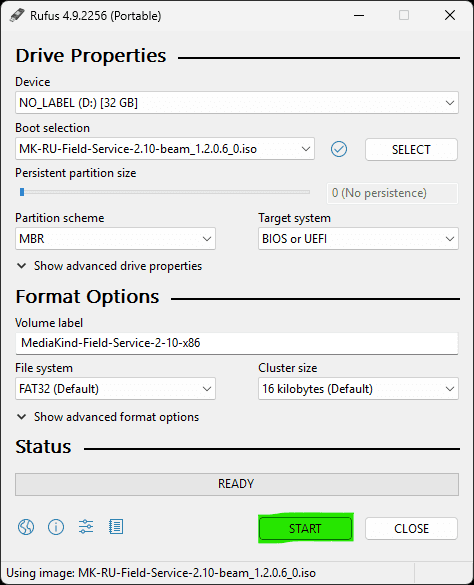
- Leave all configuration settings at their defaults and click the Start button:
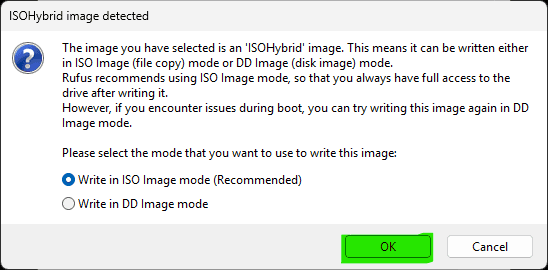
- When prompted about ISOHybrid image, leave the default ISO Image mode set and click OK:
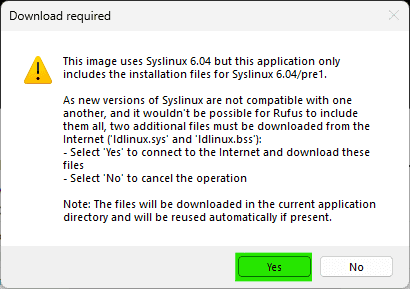
- If prompted to download the Syslinux installation files, click Yes:
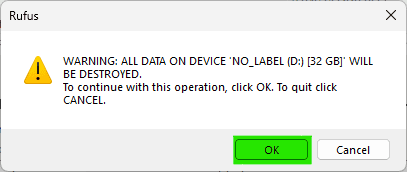
- Check that the correct USB drive is being written to and click OK:
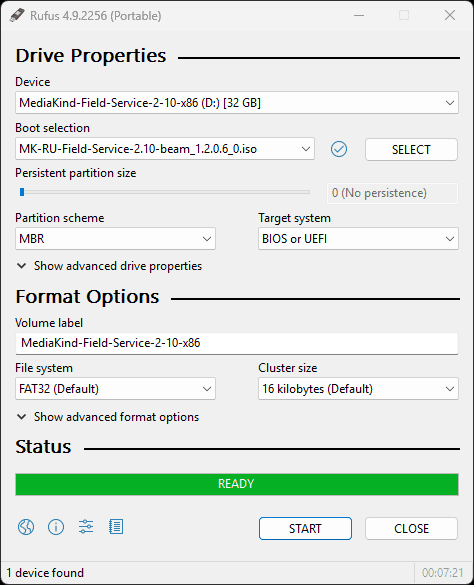
- When the ISO file has been written to the USB drive, Rufus will change the status to READY:
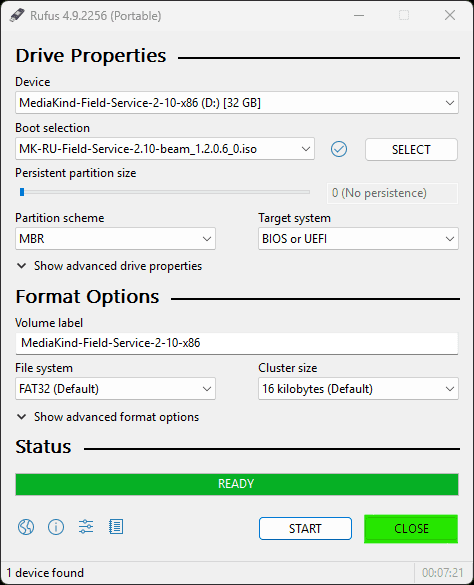
- Click Close and remove the USB drive from the computer:
The USB drive is now ready to use to install MK.IO Beam.
Boot from the USB drive
- Insert the bootable USB drive with the MK ISO into a USB port on the server.
- Boot to the One Time Boot Menu or into the BIOS to configure the server to boot from the USB drive. The exact steps for this will vary between different types of server. Refer to the server manufacturer's documentation for more information.
ISO installation
-
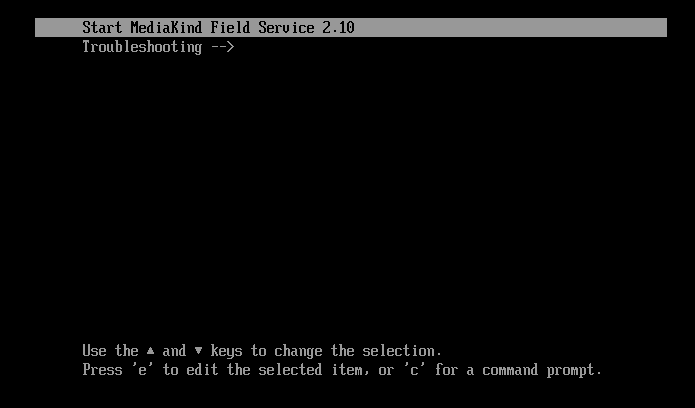
When first booting to the MK.IO Beam ISO, you will see a screen which shows two options, Start MediaKind Field Service 2.x and Troubleshooting. Select Start MediaKind Field Service 2.x and press the Return key.
-
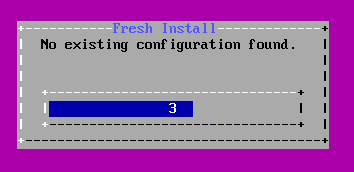
A dialog will be shown stating that no existing configuration has been found. Wait for 5 seconds and the installation will continue.
-
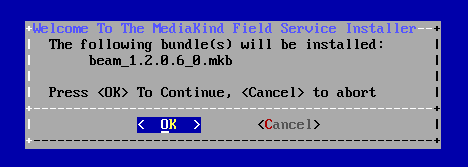
When prompted to install the bundle, click OK to continue the installation:
-
A progress screen will be shown. This process can take 20 minutes or more depending on the speed of the USB drive.
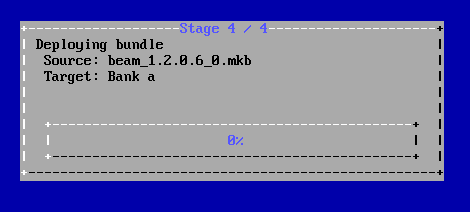 The progress bar may not change for several minutes, this is normal.
 -
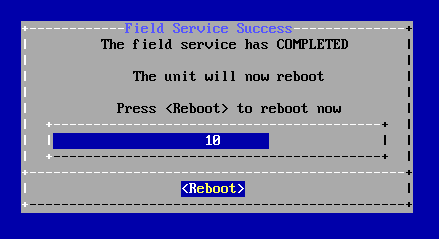
Once the install process has completed, the server will reboot:
-
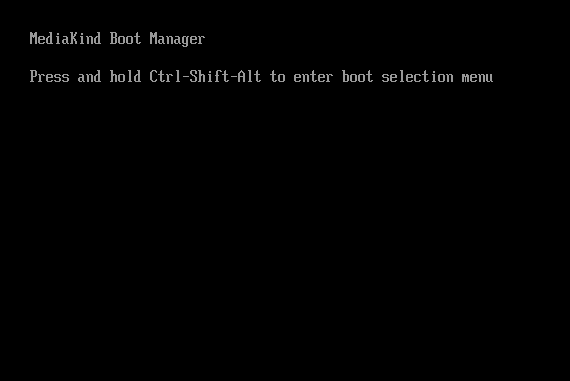
The MediaKind Boot Manager will start:
-
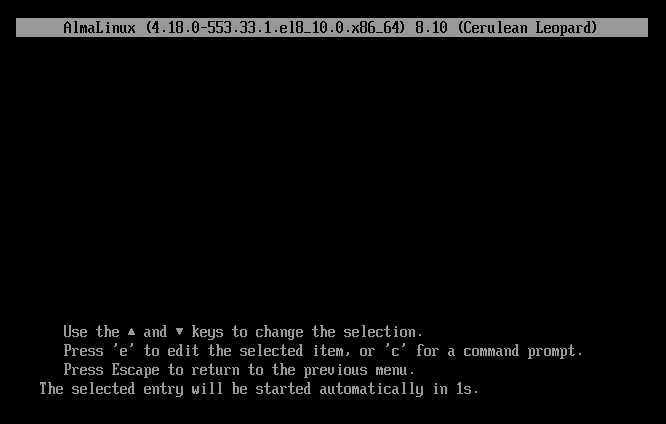
Then the AlmaLinux boot screen will be displayed:
-
When prompted to login, MK.IO Beam is installed on the server.
Troubleshooting the ISO installation
If the installation stops and this message is displayed:
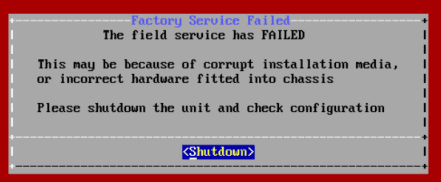
- Check the MD5 of the ISO file against the supplied MD5 checksum.
There are several ways to verify MD5 checksums. Please check online for a suitable method for your operating system. - Check host compatibility
Contact MediaKind to confirm that your hardware is supported by MK.IO Beam