
Accept an Azure Marketplace private offer
A private offer is a custom Azure Marketplace plan that MediaKind prepares for a specific customer, typically in exchange for a committed spend. Use this guide to redeem a private offer for MK.IO through Azure Marketplace and activate the resulting subscription.
Prerequisites
Section titled “Prerequisites”Before you begin, make sure you have:
- A private offer for MK.IO that MediaKind has issued to your organization in Azure Marketplace.
- Permission to create resources in the Azure subscription and resource group where the Software as a Service (SaaS) subscription will live.
- An MK.IO account that belongs to the organization the offer was issued to. This applies even if you are a partner or contractor completing the redemption on the organization’s behalf. If you are not yet a member, ask an administrator of that organization to invite you.
Azure can take up to an hour to move from one step to the next. If a status does not update immediately, wait before retrying.
Redeem the offer
Section titled “Redeem the offer”Review and accept the offer
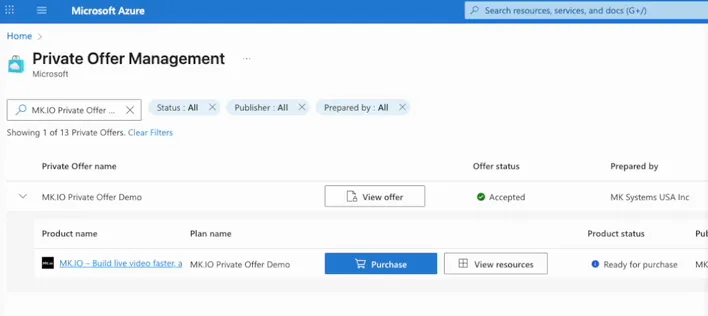
Section titled “Review and accept the offer”Open the offer on the private offer management page in Azure Marketplace. Once you accept the offer, its status changes to Accepted, and the associated product shows a status of Ready for purchase.
Purchase the offer
Section titled “Purchase the offer”Select Purchase next to the product to start the subscription wizard.
On the Basics tab:
- Choose your Azure subscription and resource group, or select Create new to create a resource group.
- Enter a name for your MK.IO subscription under SaaS details.
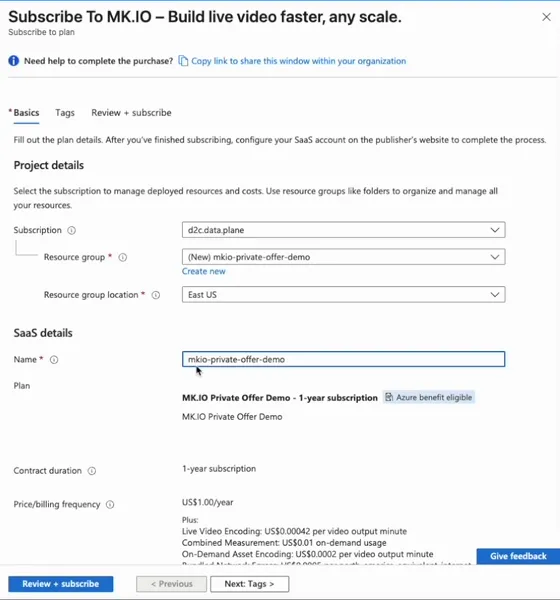
The Plan field shows the plan MediaKind prepared for your organization.
Continue to the Tags tab, then select Review + subscribe. Review the terms of use, confirm your contact details (name, email, and phone number), and select Subscribe.
Azure creates the SaaS subscription. This can take several minutes.
Configure your MK.IO account
Section titled “Configure your MK.IO account”Once the subscription is created, Azure shows a confirmation page stating that the purchase is not yet complete, and emails you instructions for setting up your SaaS account. Select Configure account now to continue.
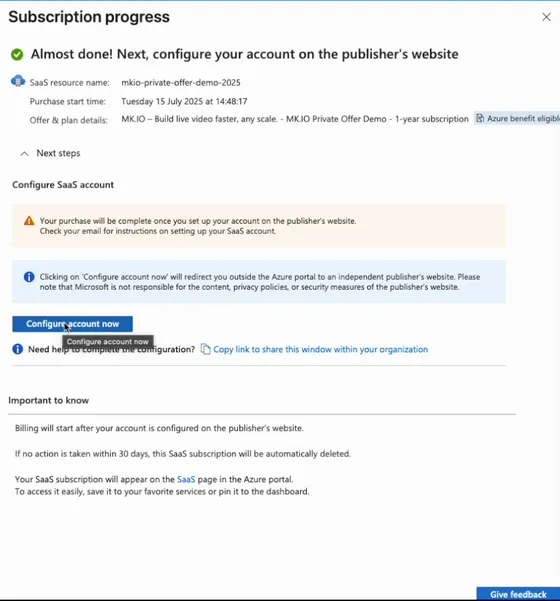
Billing does not start until you configure your account. If you take no action within 30 days, Azure automatically deletes the SaaS subscription.
Configure account now redirects you to MK.IO. Sign in with the MK.IO account associated with your organization, then accept the MK.IO terms and conditions to activate the subscription.
MK.IO creates a payment method for the offer. You can now create a new project and assign it to the payment method, or ask MediaKind to assign your existing projects to it.