
Transport Stream Passthrough
The Receiver service Configuration Type can be configured for TS passthrough instead of decode. The incoming transport stream can be received via any supported receiver input — such as satellite, ASI, or IP — and the resulting output transport stream is transmitted only as an IP/UDP multicast.
The transport stream is passed through unaltered, except when it is decrypted by one of the supported Conditional Access (CA) systems.
Refer to TS Output parameters for additional settings.
Configure a receiver service TS Passthrough
Section titled “Configure a receiver service TS Passthrough”-
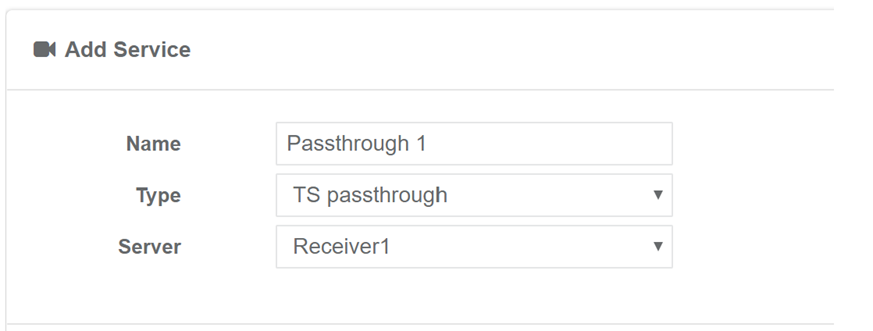
From the Services page, click Add service then select Receiver. A new window displays:
-
Configure the following parameters:
- Enter a suitable Name for the service.
- Select the Type to be TS Passthrough.
- Select the Server to be Receiver to create and configure the service.
-
Click OK to create the service which will now appear in the services list.
-
From the Services page, click the service name for the newly created TS Passthrough service to edit the configuration.
-
Configure decryption settings to define how incoming services in the transport stream are decrypted.
-
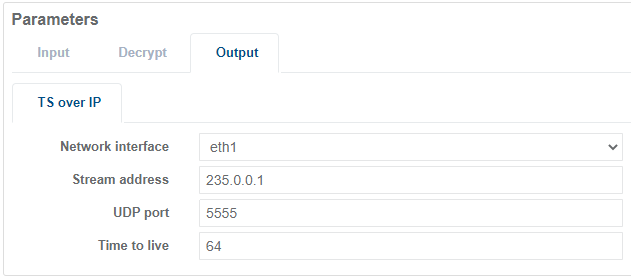
Select the Output tab under the Parameters section.
-
Configure the following parameters:
- Select the Network interface for the outgoing transport stream.
- Enter a Stream address (Multicast IP address) and UDP port number for the outgoing transport stream.
- Enter the Time to live for the outgoing data packets.
-
Once complete, click Save and exit.
Output Smoothing
Section titled “Output Smoothing”Enabling Output Smoothing for a TS Passthrough Receiver service helps distribute UDP packets more evenly during transmission without modifying any timestamps. This can reduce packet inter-arrival time (IAT) variability and mitigate issues in downstream components that are sensitive to bursty UDP delivery.
However, enabling this feature introduces a slight increase in CPU usage and end-to-end latency. Additionally, if the input stream contains packet loss or gaps, Output Smoothing may preserve or even amplify those gaps in the resulting UDP output stream, as it does not reconstruct missing data but only reshapes packet timing.
To change this setting:
-
From the Services page, click the service name for the TS Passthrough service to edit the configuration.
-
In the Parameters window, select the Output tab.
-
Select or clear the Output Smoothing checkbox to enable or disable the feature.
-
Once complete, click Save and exit.